

One accidental click, a dead laptop, or a hacked account can wipe out years of photos and documents. This free and easy guide explains what cloud backup really is, how it differs from syncing, and how to set it up so your files are far less likely to be lost for good.
Who this is for
Complete beginners who want a simple, low-cost way to protect photos, schoolwork, and important documents.
What this covers
The difference between sync and backup, the best free options, step-by-step setup, recovery, and the 3-2-1 rule.
Most people only think about backups after something goes wrong. Phones get lost, hard drives fail, and ransomware can lock your folders almost instantly. Before diving in, it helps to understand the basics of storage, so see what cloud storage is and how it works and how cloud storage differs from cloud computing. The U.S. Cybersecurity and Infrastructure Security Agency (CISA) also recommends regular backups as one of the simplest defenses against data loss.
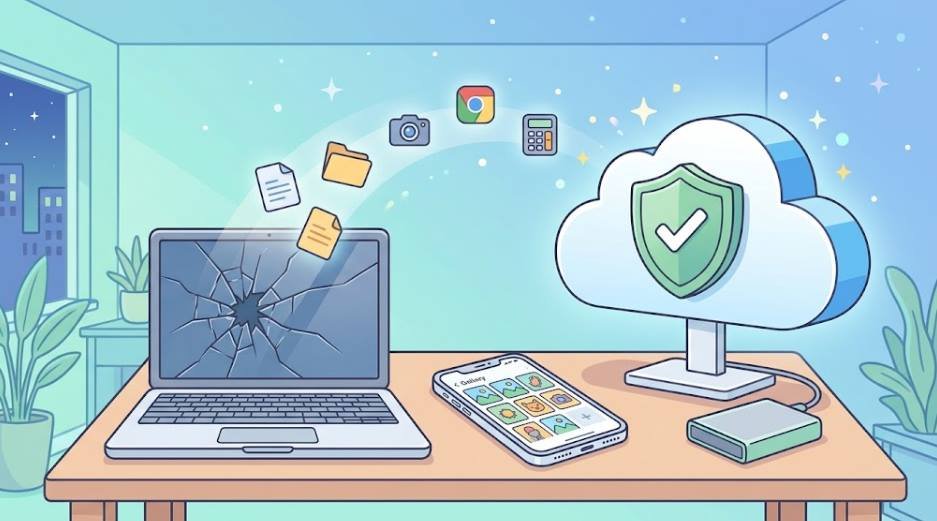
What Is Cloud Backup? (And Why Files Get Deleted for Good)
Cloud backup means automatically copying your files to a remote server over the internet, so a second copy exists away from your device. If your laptop is stolen or your phone falls into a lake, the copy in the cloud is still there. It builds on cloud storage, but it is designed for protection rather than just convenience.
Files disappear for ordinary reasons: you delete the wrong folder, a hard drive or SSD fails, malware encrypts your data, a sync error overwrites a good file, or a trash bin auto-empties after 30 days. Once those copies are gone and nothing else holds them, the loss is permanent. Backblaze explains how keeping several copies of your data protects you from drive failure and accidental loss.

Cloud Sync vs. Cloud Backup: Why Syncing Alone Won’t Save You
Sync keeps the same files identical across your devices. That sounds safe, but it also means a deletion on one device is copied everywhere else. Services such as Google Drive, OneDrive, and Dropbox are sync tools first, with some protection added on top.
| Feature | Cloud Sync | Cloud Backup |
|---|---|---|
| Main goal | Same files on every device | Recover files after a loss |
| If you delete a file | It is deleted everywhere | An older copy is kept |
| Ransomware protection | Encrypted files may sync too | Earlier versions can be restored |
| Version history | Limited | Usually longer |
| Examples | Dropbox, Google Drive folders | Backblaze, IDrive, phone backups |
In short, syncing mirrors your mistakes, while backup remembers the past. The safest setup uses both.

Do You Really Need Cloud Backup?
If you would be upset about losing your files, the answer is yes. The question is how much protection fits your life.
You definitely need it if you…
- Keep family photos or videos only on your phone or laptop
- Work or study from documents you cannot recreate
- Run a small business or freelance from one computer
- Have ever lost a file and regretted it
You may need less if you…
- Only keep files that are easy to download again
- Already store everything in a cloud account with version history
- Still keep a second copy on an external drive
Free Cloud Backup Options Compared: Google Drive, OneDrive, MEGA, and More
Free plans are a good starting point for documents and a limited number of photos. Storage amounts change over time, so confirm current numbers on each provider’s pricing page, such as Google One, MEGA, or iCloud.
| Service | Typical free storage | Best for | Main limitation |
|---|---|---|---|
| Google Drive | 15 GB (shared with Gmail and Photos) | Android phones, documents | Storage fills up quickly |
| OneDrive | 5 GB | Windows PCs, Office files | Small free space |
| MEGA | Around 20 GB (varies by promotion) | Privacy-minded users | Free storage and transfer limits can change |
| iCloud | 5 GB | iPhone and Mac users | Runs out fast with photos |
| Dropbox | 2 GB | Simple file sharing | Very small free plan |
You can combine several free accounts, for example Google Drive for phone photos and MEGA for important documents, though this makes organization harder.

Best Cloud Backup for Beginners (Free and Paid)
The best choice depends on what you need to protect. Use this quick guide to match your situation to a tool.
| Need | Best pick | Why it fits | Alternative |
|---|---|---|---|
| Free, basic protection | Google Drive | 15 GB and a simple app | MEGA |
| Windows PC folders | OneDrive | Built into Windows | Google Drive for desktop |
| iPhone and Mac | iCloud | Automatic and seamless | Google Photos |
| Whole-computer backup | Backblaze | Unlimited backup for one computer at a flat price | IDrive |
| Multiple devices | IDrive | Covers phones, PCs, and more | Backblaze (one plan per computer) |
| Privacy-first | MEGA | End-to-end encryption by design | Proton Drive |
For most beginners, a free plan from Google, Microsoft, or Apple plus one paid whole-computer backup is more than enough.
How to Set Up Cloud Backup Step by Step (Windows, Mac, and Phone)
The exact menus change between versions, but the process is the same everywhere: sign in, choose what to protect, and let it run.
Windows (OneDrive)
- Sign in. Open OneDrive from the system tray and sign in with your Microsoft account.
- Open settings. Select the OneDrive icon, then Settings, then “Sync and backup”.
- Manage backup. Choose Desktop, Documents, and Pictures.
- Start. Select Start backup and wait for the first upload to finish.

Mac (iCloud or Google Drive)
- Open settings. Go to System Settings and select your Apple ID, then iCloud.
- Turn on Drive. Enable iCloud Drive and Desktop & Documents Folders.
- Add a full backup. Use Time Machine with an external drive for a complete copy. You can also install Google Drive for desktop to back up selected folders.
Android and iPhone
On Android, open the Google Photos app, tap your profile picture, then Google Photos settings, then Backup, and switch it on. For the rest of your phone, use Settings, then Google, then Backup. On iPhone, go to Settings, tap your name, then iCloud, and turn on Photos and iCloud Backup. Keep the phone on Wi-Fi and charging for the first backup.
Quick tip: Check that the first backup actually completes. A backup stuck at 10 percent protects nothing.
How to Recover Deleted Files: Recycle Bin, Version History, and Restore
Do not panic if a file vanishes. Check these places in order, starting with the easiest.
Recycle Bin or Trash
On your computer, open the Recycle Bin (Windows) or Trash (Mac), right-click the file, and choose Restore (Windows) or Put Back (Mac). Cloud storage services also have their own trash folders. Google explains how to restore deleted Drive files, where items are usually kept for 30 days before being permanently deleted.
Version history
If a file was overwritten or damaged, right-click it in Google Drive, OneDrive, or Dropbox and open version history to roll back to an earlier copy.
Restore from backup
If everything is gone, sign in to your backup service on a new device and restore from the app or website. Act quickly, because deleted data can be purged after a retention period.
The 3-2-1 Backup Rule Made Simple
The 3-2-1 rule is a widely recommended backup guideline, and CISA and Backblaze both describe it. It is easy to remember:
- 3 copies of your data: the original plus two backups
- 2 different types of storage, such as your computer and an external drive
- 1 copy off-site, which is where cloud backup comes in
Beginner example: Your laptop (copy 1), an external hard drive (copy 2), and a cloud backup account (copy 3, off-site).
How to Keep Your Cloud Files Safe: Passwords, 2FA, and Encryption
A backup is only as safe as the account that protects it. Many account breaches start with weak or reused passwords rather than an attack on the provider itself.
- Use a strong, unique password. A password manager makes this painless, and Have I Been Pwned shows whether your email appeared in a known breach.
- Turn on two-factor authentication (2FA). CISA explains why multifactor authentication matters. Prefer an authenticator app over text messages.
- Understand encryption. Most services encrypt data in transit and at rest, but with end-to-end or zero-knowledge encryption (MEGA, Proton Drive) only you hold the key. The trade-off: if you lose the key, nobody can recover your files.
- Encrypt sensitive files first. You can protect a folder with a tool such as Cryptomator before uploading it.
Is Cloud Backup Safe? Downsides and Risks Beginners Should Know
For most people, cloud backup is far safer than keeping one copy on a single device. It still has trade-offs worth knowing.
Benefits
- Off-site safety: Fire, theft, or flood at home will not destroy your only copy
- Automatic: No need to remember to copy files
- Access anywhere: Restore from any device
Risks
- Account takeover: A stolen password can expose everything
- Privacy: Some providers can technically read your files
- Dependence: You rely on your internet connection and on the provider’s pricing and policies
- Slow first upload: Large libraries can take days
What Should You Avoid Storing in the Cloud?
Some items are better kept offline or encrypted. Avoid uploading these in plain, unprotected form:
- Scans or photos of passports, ID cards, and social security or national ID numbers
- Password lists, recovery codes, and crypto wallet seed phrases
- Bank details and tax records, unless encrypted
- Private or intimate photos that would be damaging if leaked
- Confidential work files that your employer does not allow in personal accounts
If you must store them, put them in an encrypted folder or a zero-knowledge service, and keep a second copy offline.
How to Test Your Backup (So You Know It Works)
An untested backup is only a hope. Run this quick check every month:
- Check the status. Open your backup app and confirm the last backup date is recent.
- Pick a test file. Choose a document or photo you recently changed.
- Restore it. Download or restore it to a different folder.
- Open it. Make sure it opens correctly and is the latest version.
- Check the storage. Confirm you are not near your quota, which can silently stop backups.
Monthly check: Set a calendar reminder on the first of each month to confirm your last backup date and restore one test file.
Common Beginner Mistakes to Avoid
- Confusing sync with backup: Deleting a synced file deletes it everywhere.
- Never testing a restore: Many people discover problems only when it is too late.
- Skipping 2FA: One leaked password can expose every file.
- Backing up only some folders: Check that Desktop, Documents, and Photos are all included.
- Ignoring full storage: When the quota is full, new files silently stop backing up.
- Relying on one copy: Even the cloud should not be your only backup. Follow the 3-2-1 rule.
Frequently Asked Questions
What is the best free cloud backup?
For most people, Google Drive (15 GB) is the best free starting point, with MEGA as a privacy-focused alternative. Free plans suit documents and a limited number of photos; large libraries usually need a paid plan.
Is cloud storage the same as cloud backup?
No. Cloud storage holds files you choose to upload, while cloud backup automatically copies and versions them for recovery. Learn more in our guide on what cloud storage is and how it works.
Can deleted cloud files be recovered?
Often yes. Check the cloud trash and version history first. Most services keep deleted items for around 30 days, after which they may be gone for good.
Is Google Drive a backup?
Partly. Google Drive syncs and keeps a trash and version history, but it is not a full backup service, so pair it with a second copy.
How often should I back up my files?
Ideally continuously or daily. Automatic backup removes the need to remember, which is a common reason manual backups get skipped.
Is cloud backup safe from hackers?
It is much safer when you use a strong unique password and 2FA. See CISA’s advice on multifactor authentication for a simple way to lock down your accounts.
Is cloud storage the same as cloud computing?
They are related but different. Storage keeps your data, while computing runs software and processing power online. Read cloud storage vs. cloud computing for a clear comparison.
Final Thoughts
Protecting your files does not need to be expensive or complicated. Turn on a free backup today, add two-factor authentication, keep a second copy, and test a restore once in a while. Ten minutes of setup now can save you from losing years of memories and work later.
[…] Follow our cloud backup guide […]