

Sharing a file should take a minute, not put your data at risk. This guide shows you how to share files securely online using cloud storage, with step-by-step instructions for Google Drive, OneDrive, and Dropbox, plus the settings and habits that keep your links in the right hands.
Who this is for
Beginners who want to send documents, photos, or folders to friends, clients, or coworkers without handing the files to strangers.
What you will learn
How links work, which sharing settings matter, how to share from your computer and phone, and a checklist to run before you hit send.
Most email providers cap attachments at around 20 to 25 MB, and Microsoft explains that the usable limit is closer to 18 MB once encoding overhead is counted. That is why cloud storage links have become the default way to share files. If you are still getting comfortable with the basics, start with our guide on what cloud storage is and how it works, then come back here to learn how to share safely.
What Is the Easiest Way to Share Files Using Cloud Storage?
The simplest method is the same on every service: upload the file, create a link, choose who can open it, and send that link. Dropbox describes three common ways to share: a shared link for one-off files, a shared folder for ongoing teamwork, and a file request when you need someone to send files to you.
- Upload the file. Drag it into your cloud storage and wait for the upload to finish.
- Choose your sharing method. Use the share button or right-click the file.
- Pick who gets access. Choose specific people or anyone with the link.
- Set access permissions. View-only is the safest default.
- Send the link. Paste it into an email, chat, or text message.
If your files are still sitting on your computer, our guide on how to move files to cloud storage walks you through getting them uploaded first.
Link vs. Email Attachment: Why Links Win
An attachment sends a copy of your file to every inbox it touches, and you lose control the moment you press send. A link keeps one file in one place, so you decide who can see it and for how long. Dropbox also points out that links avoid attachment size limits, reduce duplicate copies, and keep everyone on the same version.
| Factor | Email attachment | Cloud storage link |
|---|---|---|
| File size | Usually capped at 20 to 25 MB | Much larger files (Microsoft cites up to 250 GB per file) |
| Copies of the file | One new copy per recipient | One file, many viewers |
| Updating the file | Send a new email with a new copy | Edit once, everyone sees the latest version |
| Control after sending | None | Change permissions or stop sharing anytime |
| Extra protection | Depends on the email provider | Passwords, expiry dates, and access tracking on many services |
Good to know: Recipients can often open a shared link without creating an account, though inviting someone to edit or upload may require one, according to Dropbox.
What Is the Most Secure Way to Share Files Online?
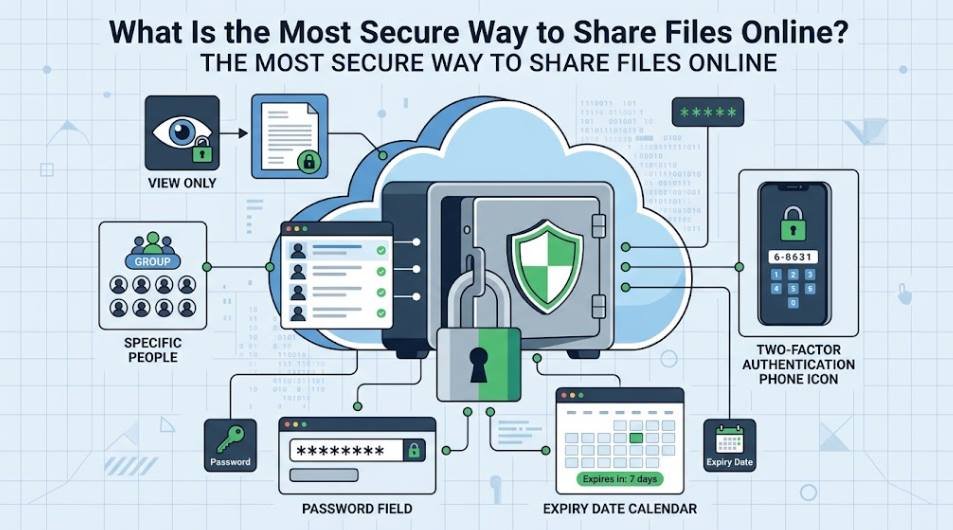
The most secure approach is to use a trusted cloud service, control exactly who has access, and remove that access when the work is done. Dropbox’s own security checklist recommends controlled links instead of public ones, view-only permissions, a password and expiry date when available, multi-factor authentication, and revoking access when you finish.
For highly sensitive files such as legal, medical, or financial documents, it is worth understanding encryption. Proton notes that big providers like Google Drive and Dropbox encrypt files in transit and at rest, but they hold the encryption keys. Services that use end-to-end encryption keep the keys with you, so only you and your recipients can open the files.
Safer habits
- Named recipients: Share with specific email addresses when the file is private.
- View-only access: Give edit rights only when someone truly needs them.
- Time limits: Let links expire when the project ends.
Risky habits
- Public links: Posting a share link where anyone can find it.
- Free transfer sites: Microsoft warns that many lack strong security and keep files longer than you might expect.
- Sharing and forgetting: Leaving old links active for months.
Link Settings Explained: Restricted vs. Anyone With the Link
This is the setting most beginners get wrong. Every cloud service lets you choose who can open a link, and the wording differs slightly between them. Google Drive, for example, uses “Restricted” and “Anyone with the link” under general access, and its sharing controls also let you pick viewer, commenter, or editor roles.
| Setting | Who can open it | Best for | Risk level |
|---|---|---|---|
| Restricted / specific people | Only the email addresses you add | Contracts, IDs, financial or client files | Low |
| Anyone in your organization | Signed-in coworkers on a work or school account | Internal team documents | Low to medium |
| Anyone with the link | Anyone who gets the link, no sign-in needed | Non-sensitive files such as event flyers or public photos | Higher, because links can be forwarded |
Treat “Anyone with the link” like handing someone a house key: it works for whoever holds it. If the file contains anything personal, choose restricted access and add people by email instead.

How to Share Files on Google Drive, Step by Step
Google Drive is a popular choice because many people already have a Google account. See Google’s overview of file sharing for background. Here are the steps on a computer:
- Open Google Drive and find the file or folder you want to share.
- Right-click it and select Share. The sharing window opens.
- Add people by email to give named access, or open General access to change who can use the link.
- Choose a role. Pick Viewer, Commenter, or Editor. Viewer is the safest.
- Click Copy link or Send. Paste the link wherever you need it.
Google also lets you control access further by limiting what viewers can do with a file, such as downloading, printing, or copying, and by setting expiration dates, as noted on the Google Drive product page. Menu names and some options can vary by account type, so look for the expiry option under the person’s access settings.
How to Share a Folder in OneDrive, Including With External Users
OneDrive works well if you use Windows or Microsoft 365. Microsoft recommends sharing with named people for sensitive files, using view-only permissions unless editing is needed, and adding an expiry date and password for financial or legal records.
- Select the folder in OneDrive on the web or in File Explorer.
- Click Share. A link settings window appears.
- Choose Specific people and type the external person’s email address. This keeps the folder limited to that person.
- Set permissions. Choose can view or can edit, and block downloads if the option is available.
- Add an expiry date or password if offered, then send the invitation.
Note: Features like password protection and expiry dates can depend on your plan. Check what your OneDrive account offers on the OneDrive page before relying on them.
How to Share Files on Dropbox With a Link or Transfer
Dropbox gives you two options. A shared link points to a file or folder that stays in your account. Dropbox Transfer is built for sending large files, and as Dropbox explains, you need an account to send but recipients do not need one to receive.
- Upload your file to Dropbox.
- Click Share next to the file or folder.
- Choose who can access it. Invite specific people or create a link.
- Adjust link settings. Password protection for links is available on certain plans, according to Dropbox.
- Send the link by email or chat, or use Transfer when the files are very large.
How to Share Files Securely From Your Phone (iPhone & Android)
The steps are almost identical on a phone. Open the cloud app (Google Drive, OneDrive, or Dropbox), tap the three-dot or share icon next to the file, then choose Share or Manage access. Add people by email or copy a link, set the permission to view-only, and send it through your messaging app.
Phone sharing has a few extra risks. Avoid sending sensitive files while on public Wi-Fi, since Proton recommends using a trustworthy VPN on hotspots in cafes and libraries. Lock your phone with a passcode, and keep the cloud app signed in only on devices you own.
Passwords, Expiry Dates and Permissions: 5 Settings to Turn On
These five settings add the most protection for the least effort. Not every free plan includes all of them, so use what your service offers.
- View-only permission. People can read the file but not change or delete it.
- Specific people only. Add recipients by email instead of using an open link.
- Link password. Send the password through a different channel than the link, as Dropbox suggests.
- Expiry date. Set access to end when the project ends, so old links stop working.
- Two-factor authentication. Protect your account itself, because a stolen password can expose every file you have shared.
Quick tip: Revoke access the day a project finishes. Both Proton and Dropbox recommend regularly checking who can still open your files.

How to Let Someone Upload Files to You
Sometimes you need to receive files, such as documents from a client or photos from family. Asking people to email them runs into size limits and mixes private files into inboxes. A better option is a request link or a shared upload folder. Dropbox calls this a file request, and it notes that many services let uploaders send files without creating an account.
If your service has no request feature, create a dedicated folder and share it with edit access, but only with the people who need to upload. Keep that folder separate from your personal files, and remove access once everything arrives.
Common Mistakes That Expose Your Files
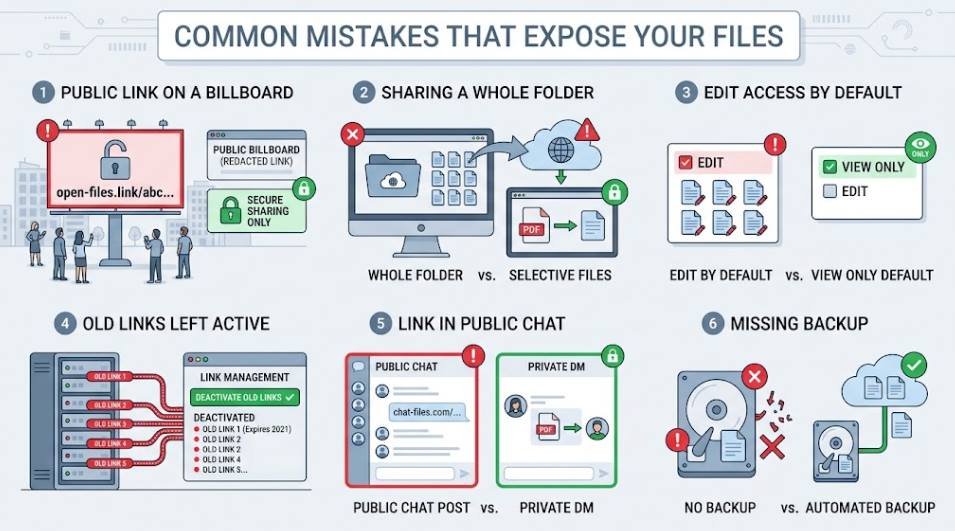
| Mistake | Why it is a problem | Fix |
|---|---|---|
| Using “Anyone with the link” for private files | Anyone who receives or finds the link can open it | Switch to specific people |
| Sharing the whole folder instead of one file | Recipients see files you never meant to share | Share only the file, or make a dedicated folder |
| Giving edit access by default | Files can be changed or deleted by accident | Start with view-only |
| Never removing old access | Past clients and coworkers keep access indefinitely | Review shared files and revoke what is finished |
| Posting links in public places | Even unlisted links can be copied and spread | Send links privately |
| Skipping backups | A recipient with edit rights could delete your only copy | Follow our cloud backup guide |
Free vs. Paid: What Do You Really Get?
You do not need to pay to share files safely, but free plans have limits. Acronis lists Google Drive, Dropbox, and OneDrive as the three main free options, with roughly 15 GB, 2 GB, and 5 GB of free storage respectively. Storage amounts change over time, so confirm current numbers on each provider’s site.
What free plans usually give you
- Shareable links you can paste anywhere
- Basic storage for documents and small projects
- Simple permissions such as view or edit
- Access from web, desktop, and mobile
What you may give up
- Password protection and link expiry on some services
- Higher size or bandwidth limits
- Longer version history and file recovery
- Admin controls for teams
This list follows Dropbox’s breakdown of free file sharing. Upgrading makes sense when you send large files often, work with clients, or share sensitive documents. Compare current Dropbox plans or your provider’s pricing before deciding.

Before-You-Send Checklist
Run through these six questions every time you share a file. It takes under a minute.
- Is it the right file? Check the name and contents, and share a single file when you can.
- Who needs access? Add specific people instead of opening the link to everyone.
- Is it view-only? Grant edit rights only when needed.
- Is there a password or expiry date? Use both for sensitive files if your plan allows.
- Is your account protected? Turn on two-factor authentication.
- When will you remove access? Set a reminder to revoke the link when the work is done.
Not sure how cloud services differ? Our explainer on cloud storage vs. cloud computing clears up the terms.
Frequently Asked Questions
What is the most secure way to share files online?
Use a reputable cloud service, share with specific people, set view-only access, add a password and expiry date when available, turn on two-factor authentication, and revoke access when you are done. For very sensitive files, consider a provider with end-to-end encryption.
Do the people I share with need an account?
Often not. Recipients can usually view or download from a shared link without an account, but inviting someone to edit or upload may require one, depending on the service and your settings.
Is it safe to share files with a Google Drive link?
It can be, if you use the right settings. Choose Restricted access with named people for private files, and reserve “Anyone with the link” for content you would be comfortable having forwarded.
How do I send a file that is too big for email?
Upload it to cloud storage and send a link. Microsoft suggests using a link for anything over about 18 MB. Compression only helps if you are a few megabytes over the limit.
Can I password-protect a shared link for free?
It depends on the service. Dropbox says password protection for links is available on certain plans, so check your provider’s free tier before counting on it.
How do I stop sharing a file?
Open the file’s share or manage access settings, then remove the person or turn off the link. After that, the old link no longer works for them.
Which is the best free cloud storage for sharing files?
Google Drive, OneDrive, and Dropbox are the three most common free options, according to Acronis. The best choice is usually the one that matches the apps you already use, since that is how you will remember to manage your links.
Final Thoughts
Sharing files securely comes down to a few habits: use links instead of attachments, share with named people, keep permissions view-only, add a password and expiry date when you can, and remove access when the job is done. Pick one service, practice with a non-sensitive file, and make the checklist part of your routine. Before you share anything important, make sure you also have a safe copy by following our cloud backup guide for beginners.
[…] you only need to give someone else a file, do not share your login at all. Our guide on how to share files securely using cloud storage shows safer ways to do it. If you think you forgot to sign out somewhere, change your password […]