

Moving your files to the cloud sounds technical, but it is really just uploading them to a safe online space you can reach from any device. This beginner guide shows you how to choose a service, prepare your files, and move them step by step on PC, Mac, and iPhone.
Who this guide is for
Beginners with photos, documents, and school or work files stuck on one device and no idea where to start.
What you will get
A clear method, a free plan comparison, fixes for common upload problems, and habits that keep your files safe.
Most people start with a full phone or a laptop that is running out of space. Moving files to the cloud solves both problems, and it also gives you a copy if your device is lost or broken. If you want the bigger picture first, read our guide on what cloud storage is and how it works, and CISA’s Secure Our World guidance is a good place to learn basic online safety habits.

What Does It Mean to Move Files to Cloud Storage?
Moving files to cloud storage means uploading them from your device to servers run by a provider such as Google, Microsoft, Apple, or Dropbox. You sign in with an account, and your files appear on any phone, tablet, or computer where you log in. The files are kept in secure data centers instead of only on your own hard drive.
It helps to know that cloud storage is not the same thing as cloud computing. Storage keeps your files, while computing runs software and services online. Our comparison of cloud storage vs cloud computing explains the difference in plain language.
Which Cloud Storage Should You Choose? (Free Plans Compared)
For most beginners, the best service is the one that matches the device you use every day. Google Drive works well on Android and in any browser, OneDrive is built into Windows, and iCloud is built into iPhone and Mac. Dropbox is simple and works everywhere, but its free plan is small.
| Service | Free storage (typical) | Best for | Watch out for |
|---|---|---|---|
| Google Drive | 15 GB, shared with Gmail and Photos | Android users and Google Docs | Space fills up fast with Gmail and Photos |
| OneDrive | 5 GB | Windows PCs and Microsoft Office files | Small free limit |
| iCloud | 5 GB | iPhone, iPad, and Mac users | Backups can use the free space quickly |
| Dropbox | 2 GB | Sharing files with other people | Smallest free plan |
Free amounts change from time to time, so check each provider’s pricing page before you decide. If you plan to use the cloud as a safety net as well as extra space, our cloud backup guide for beginners will help you pick the right setup.
Before You Start: How to Prepare Your Files
A little preparation saves a lot of time. Uploading a messy folder just moves the mess online, so sort first and upload second.
- Delete what you do not need. Remove duplicates, old downloads, and blurry photos.
- Group files into folders. Use clear folders such as Taxes, Photos, School, and Work.
- Rename messy files. A name like “Rent-Agreement-2025.pdf” beats “scan0027.pdf”.
- Check your total size. Right-click the folder and view its properties, then compare it with your free storage.
- Check your internet connection. Large uploads work best on stable Wi-Fi, not mobile data.
Quick tip: Start with one folder as a test. If it uploads and opens correctly, move the rest with confidence.
How to Move Files to Cloud Storage: Step-by-Step
The steps are almost the same in every service. This example uses Google Drive in a web browser, and the official Google Drive Help Center has more detail if you get stuck.
- Create or sign in to your account. Use a strong, unique password.
- Open your storage page. For Google Drive, go to drive.google.com.
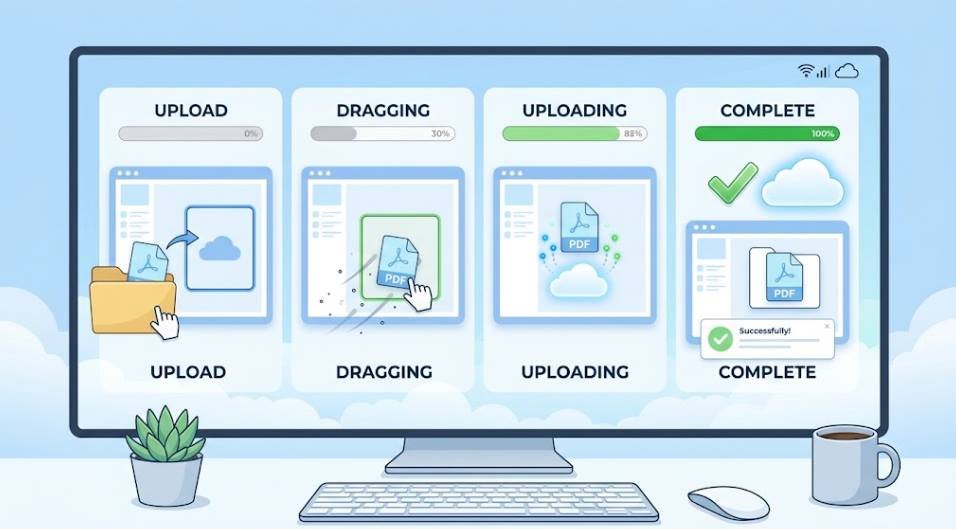
- Click “New” and choose “File upload” or “Folder upload”. You can also drag and drop files into the window.
- Select your files or folder. Confirm and wait for the progress bar to finish.
- Check the upload. Open a few files from the cloud to confirm they work before you delete anything from your device.
The last step is the one beginners skip, and it matters most. Never delete your originals until you have opened the uploaded copies and confirmed they are complete.
How to Move Files to Cloud Storage on PC and Laptop
On a Windows PC, the easiest route is OneDrive, because it is already installed. Open the OneDrive folder in File Explorer and drag your files into it, and they will sync to the cloud automatically. You can also let OneDrive back up your Desktop, Documents, and Pictures folders from its settings so they are protected without any manual work.
If you prefer Google, install Google Drive for desktop. It adds a Drive folder to your computer, and anything you place inside it uploads in the background. Either way, look for a small cloud or sync icon in the taskbar to confirm the upload finished.
How to Move Files to iCloud on iPhone and Mac
Apple devices sync through iCloud. Choose what you want to store, and iCloud syncs it across your Apple devices.
On iPhone
- Open Settings: Tap your name, then iCloud.
- Turn on iCloud Drive and Photos: Tap each item you want to store and switch on its sync option.
- Use the Files app: Move or save files into the iCloud Drive location.
On Mac
- Open System Settings: Click the Apple menu, choose System Settings, click your name, then choose iCloud.
- Turn on iCloud Drive: Switch on “Desktop & Documents Folders” if you want them synced.
- Drag files into iCloud Drive: Find it in the Finder sidebar.
Move vs. Copy: How to Free Up Space Without Losing Files
When you drag a file into a cloud folder, some systems copy it while others effectively move it. A copy leaves the original on your device, so your storage space does not change. A move removes the local file and keeps only the cloud version.
To free up space safely, upload first, verify the files, and then use the built-in space-saving tools. OneDrive has “Free up space”, Google Drive for desktop can stream files instead of keeping them all offline, and iCloud can optimize storage on your Mac. These tools keep a small placeholder on your device and download the full file only when you open it.
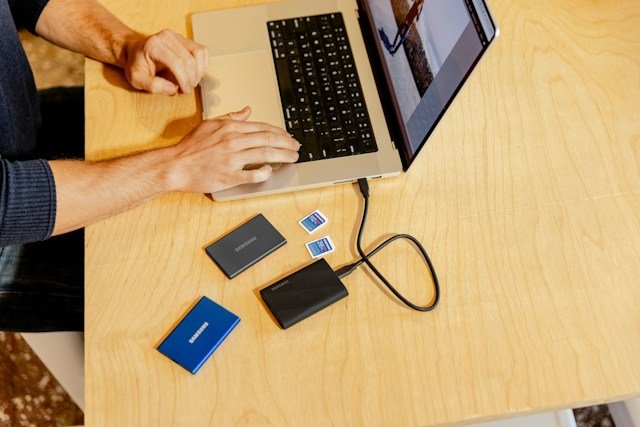
Safety rule: Do not treat the cloud as your only copy of important files. Keep one extra backup, such as an external drive, for anything you cannot replace.
Common Problems and How to Fix Them
| Problem | Likely cause | Fix |
|---|---|---|
| Upload will not start | Storage is full or you are signed out | Free space or upgrade, then sign in again |
| Upload is very slow | Weak connection or a huge folder | Use Wi-Fi and upload in smaller batches |
| Files stuck on “syncing” | Sync paused or a file is open | Close the file, resume sync, and restart the app |
| File will not upload | Too large or the name has unsupported characters | Compress the file or shorten and simplify the name |
| Files missing on another device | Different account or sync still running | Check you are using the same account and wait for sync to finish |
If nothing works, restart your device, update the app, and try again. Most upload problems come down to storage space, a slow connection, or a paused sync.
Are There Downsides to Saving Files in the Cloud?
Cloud storage is convenient, but it is not perfect. Knowing the trade-offs helps you use it wisely.
The benefits
- Access your files from any device
- Protection if your phone or laptop is lost or broken
- Easy sharing with a link
- More free space on your device
The downsides
- You need internet to reach files that are not saved offline
- Free plans are small, so you may pay monthly as you grow
- A hacked or locked account can cut off your files
- Deleting a file in synced folders can delete it everywhere
None of these are reasons to avoid the cloud. They are reasons to protect your account and keep a second backup, as explained in our beginner backup guide.
Tips to Keep Your Files Organized and Secure
Good habits matter more than the service you choose. Use a long, unique password and turn on multi-factor authentication, which CISA recommends as one of the simplest ways to protect an account. Keep a simple folder structure, add dates to file names, and review shared links now and then so you are not leaving files open to anyone with the link.
For anything important, follow the 3-2-1 backup strategy: keep three copies of your data, on two different types of storage, with one copy stored off-site. The cloud can be your off-site copy.
Monthly check: Spend five minutes each month deleting clutter, checking your remaining storage, and reviewing who has access to your shared folders.
Frequently Asked Questions
How do I move files to cloud storage?
Sign in to a cloud service, click upload or drag your files into the window, wait for the upload to finish, and then open a few files to confirm they work. On a computer, you can also drag files into the synced cloud folder.
Does moving files to the cloud delete them from my computer?
Not always. Uploading or copying keeps the original on your device, while moving removes the local file. Check your service’s settings, and see our guide on how cloud storage works for more detail.
Which cloud storage is best for beginners?
Pick the one that fits your main device: Google Drive for Android and browsers, OneDrive for Windows, and iCloud for iPhone and Mac. All three have free plans and simple apps.
Is cloud storage safe?
Major providers use encryption and strong security, but your account is the weak point. Use a unique password and multi-factor authentication, and keep a backup of important files.
Can I use cloud storage for free?
Yes. Google Drive, OneDrive, iCloud, and Dropbox all offer free tiers, though the amount of space differs and can change over time.
What is the difference between cloud storage and cloud backup?
Cloud storage holds files you use and share, while cloud backup automatically saves copies so you can restore them after a loss. Learn more in our cloud backup guide.
What happens if I run out of cloud storage?
New uploads and sometimes syncing stop until you free space or buy more. Delete files you no longer need, empty the trash, or upgrade to a paid plan.
Final Thoughts
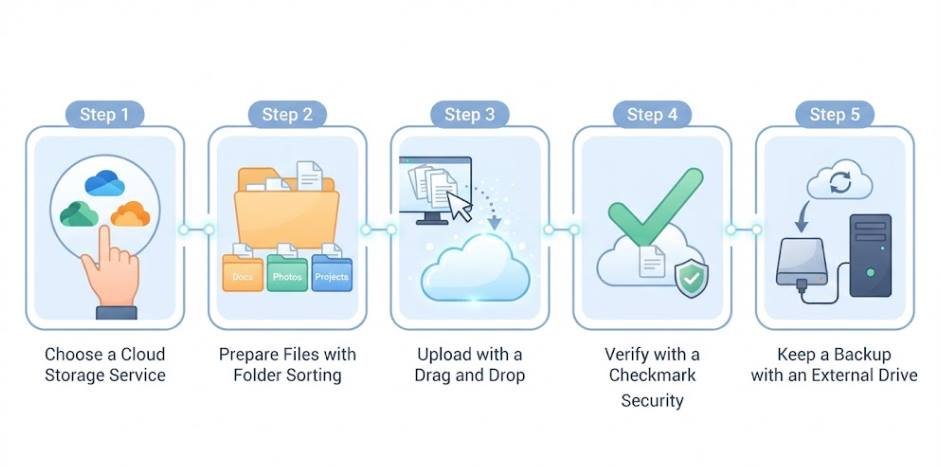
Moving files to cloud storage is easier than it looks: choose a service, tidy your files, upload a small test folder, and verify before you delete anything. Add strong account security and one extra backup, and your files will be safe, organized, and available wherever you are. Start with one folder today and build the habit from there.
[…] your files are still sitting on your computer, our guide on how to move files to cloud storage walks you through getting them uploaded […]