

Cloud storage is a way to save your files on powerful computers owned by a company instead of keeping them only on your own device. In plain English, it means your photos, documents, and videos live on the internet and you reach them whenever you have a connection. For example, when you back up a photo to Google Photos and later open it on your laptop, you are using cloud storage. It matters because it keeps your files safe from a single broken phone or stolen laptop, and it lets you work from almost anywhere.
Think of the cloud as a giant public library where you rent a small shelf, and your account is the key. Technically, that library is a data center, a large building full of servers, which are computers that store and serve information. When you upload a file, it travels over the internet and lands on one or more of those servers. Since most providers copy your file to more than one machine, a single hardware failure usually will not erase your data.
How Does Cloud Storage Work Step by Step?
The process starts when you upload a file, which means sending it from your device to the provider’s servers. Your device sends the file over the internet using networking protocols that break the data into smaller units for transmission across the internet. The data is transmitted to the provider, where the uploaded file is stored. When you open that file later, the same trip happens in reverse, and the file is streamed or downloaded back to you.
- You pick a file on your phone, laptop, or tablet.
- Your device sends the file over the internet in small pieces.
- The provider receives the transmitted data and stores the file on its infrastructure.
- Often, the provider keeps extra copies in more than one location.
- When you request the file, it is sent back and rebuilt on your screen.
A handy comparison is a student who photocopies notes and stores them in several lockers around campus. If one locker jams, the notes still exist somewhere else. That is redundancy, meaning duplicate copies that protect against loss. As a result, your data is usually safer from hardware failure, loss, and theft in the cloud than on a single hard drive that could crash tomorrow.
What Are the Types of Cloud Storage? (Public, Private, Hybrid, Multicloud)
Public cloud storage is storage provided by a cloud company using infrastructure shared among many customers. Private cloud storage is when one organization runs its own cloud for its own users, which often costs more but offers tighter control. Hybrid cloud storage mixes both, so a business can keep sensitive files private while using the public cloud for everyday tasks. Multicloud means using services from two or more providers, such as Google Drive and OneDrive together, to avoid depending on one company.
The choice matters because it decides who can access your files and how much you pay. A small clinic might keep patient records in a private cloud and share marketing photos through a public one. A large retailer might spread workloads across several providers so one outage does not stop everything. In short, there is no single best type, only the type that fits your security needs and budget.
File vs. Block vs. Object Storage: What’s the Difference?
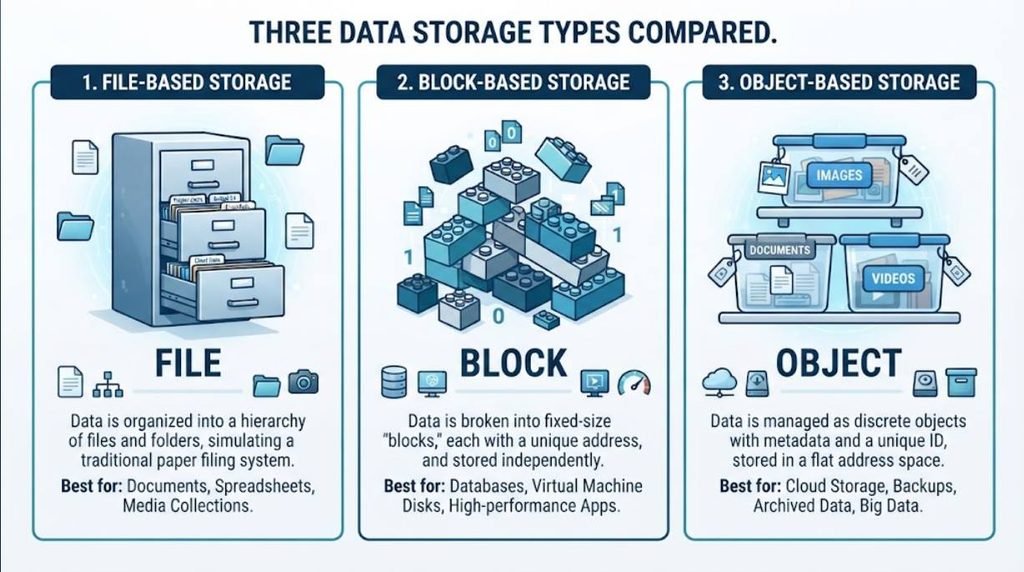
These three terms describe how a storage system organizes your data behind the scenes. File storage keeps data in folders and files, just like the desktop on your computer, and it is easy for people to browse. Block storage chops data into fixed chunks and is common for databases and virtual machines that need speed. Object storage treats each file as a single “object” with labels, which makes it great for huge amounts of photos, videos, and backups.
| Type | How it organizes data | Best for | Simple analogy |
|---|---|---|---|
| File | Folders and files | Shared documents, home drives | A filing cabinet |
| Block | Fixed-size chunks | Databases, virtual machines | LEGO bricks |
| Object | Objects with labels | Photos, videos, backups | A labeled storage bin |
The table shows that the right choice depends on the job, not on hype. If you mostly save Word files and spreadsheets, file storage is fine. If you run a database that needs fast reads and writes, block storage usually wins. For massive media libraries, object storage is often the most affordable and scalable option.
Advantages of Cloud Storage
The biggest advantage is access from anywhere, because your files follow your account instead of your device. Another plus is automatic backup, since many services save new versions without you doing anything. Scalability also matters, because you can buy more space in seconds instead of shopping for a bigger hard drive. Finally, sharing is simple, because you can send a link instead of a heavy email attachment.
- Access your files on phone, laptop, or tablet.
- Automatic backups and version history.
- Easy sharing through links and permissions.
- Pay only for the space you actually need.
- Encryption in transit and at rest, which scrambles data so outsiders cannot read it, on most major services (end-to-end encryption is less common).
For example, a freelance designer can send a client a link to a project folder and update the files later without resending anything. That saves time and avoids the confusion of five versions of the same logo. The so-what is simple: cloud storage turns a messy file exchange into a controlled, always-current workspace.
Disadvantages of Cloud Storage
The main drawback is dependence on an internet connection, because without one you may not reach your files. Privacy is another concern, since your data sits on someone else’s computers and is governed by their rules. Costs can also creep up over time, especially if you need lots of space or advanced business features. Lastly, providers do have outages, and even big names occasionally go down for hours.
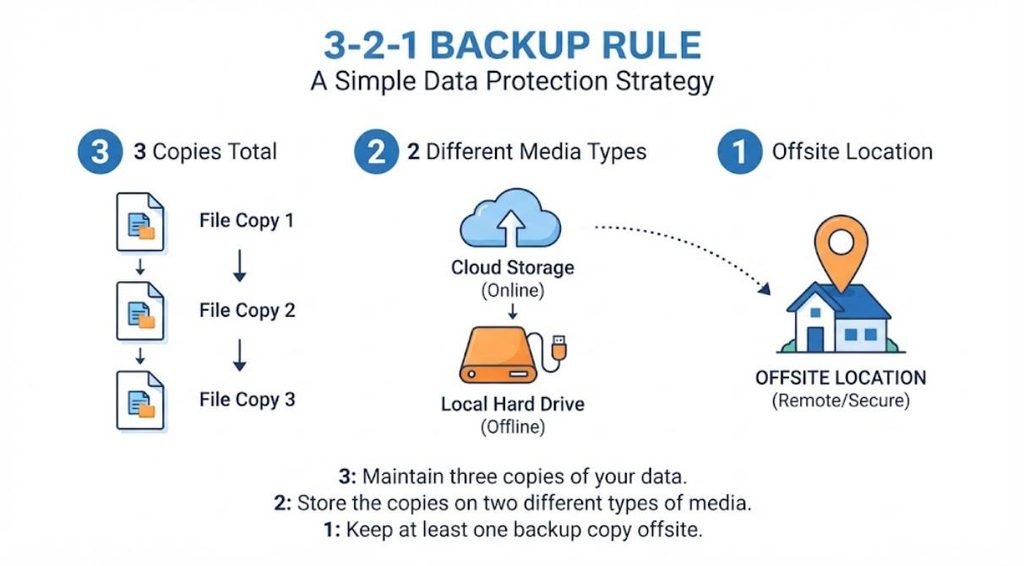
A useful quick tip is to keep a local copy of your most critical files, sometimes called a 3-2-1 backup, meaning three copies, on two types of media, with one kept off site. Also check where your provider stores data, because laws in other countries may affect your privacy. Consequently, cloud storage is excellent but not a complete replacement for good backup habits.
Cloud Storage vs. Local Storage: Which Is Better?
Local storage means saving files on a device you own, like a laptop hard drive or an external disk. It is fast, works without internet, and gives you full control over your data.

Cloud storage is more flexible, easier to share, and safer against device loss. The honest answer is that most people benefit from using both together.
| Factor | Local storage | Cloud storage |
|---|---|---|
| Internet needed | No | Yes |
| Access anywhere | Limited | Yes |
| Risk of device loss | High | Low |
| Upfront cost | Higher | Lower |
| Sharing | Manual | Built in |
If you edit large video files daily, local storage keeps your workflow smooth and quick. If you travel and need your documents everywhere, cloud storage wins. Therefore, a hybrid habit, local for speed and cloud for safety, is often the smartest setup.
Cloud Storage Examples: Google Drive, iCloud, OneDrive, Dropbox and More
Google Drive is popular because it pairs tightly with Gmail and Google Docs, and it offers 15 GB free across those services. Apple iCloud is the natural pick for iPhone and Mac users, since it backs up photos, messages, and device settings. Microsoft OneDrive fits Windows and Office users, especially with a Microsoft 365 subscription. Dropbox built its name on simple syncing and file sharing, and it remains a favorite for teams.
Other options include Proton Drive, pCloud, and Sync.com, which markets privacy heavily. Many providers offer a free tier with a few gigabytes, and paid plans often start at about $1 to $2 per month. You can explore official plan details on the Google One pricing page or the Apple iCloud+ plans page. The right pick depends on which devices you already own and how you share files.
Is Cloud Storage Safe? What Protects Your Files
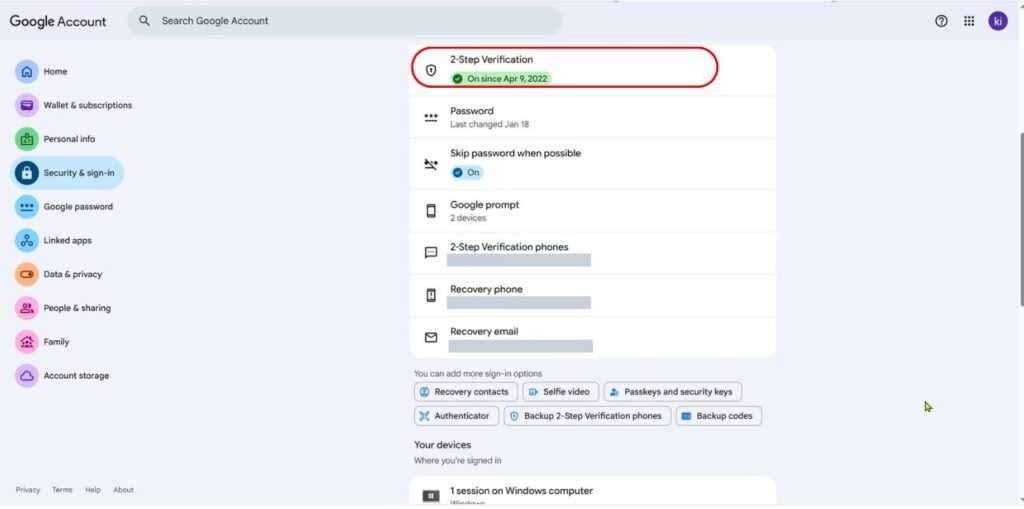
Most major providers encrypt your files, which means they scramble the data so it looks like gibberish without the right key. Encryption in transit protects files while they travel, and encryption at rest protects them while they sit on servers. Two-factor authentication, often shortened to 2FA, adds a second proof of identity, like a code on your phone, so a stolen password is not enough. Regular security audits and data centers with physical guards add another layer.
That said, safety also depends on you. Weak passwords, reused logins, and phishing links are common ways accounts get breached. A strong, unique password plus 2FA blocks a large share of attacks. So the cloud itself is usually secure, but your habits decide how secure your account really is.
Is Cloud Storage Free? How Much Does 1–2 TB Cost?
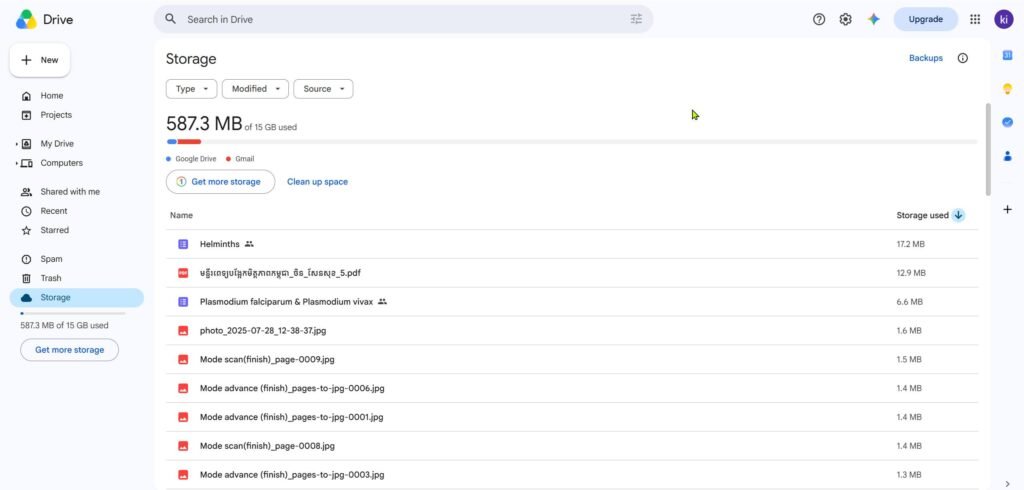
Many services offer free storage, but the free amounts are modest and often shared across apps. Google gives you 15 GB free, shared across Gmail, Drive, and Photos. Apple iCloud and Microsoft OneDrive each start at 5 GB, and Dropbox’s free plan offers 2 GB.
Paid plans usually begin at 50 GB or 100 GB and rise to 2 TB or more. Note that 1 TB is no longer a standard tier: Google, Apple, and Dropbox sell 2 TB at $9.99/month, and OneDrive’s 1 TB comes bundled with Microsoft 365 Personal.
| Provider | Free Storage | Plan |
|---|---|---|
| Google One | 15 GB* | 100 GB: $1.99/month 400 GB: $4.99/month with Google AI Plus 2 TB: $9.99/month with Google AI Plus |
| Apple iCloud+ | 5 GB | 50 GB: $0.99/month 200 GB: $2.99/month 2 TB: $9.99/month |
| Microsoft OneDrive | 5 GB | 100 GB: $1.99/month with Microsoft 365 Basic 1 TB: $9.99/month ($99.99/year) with Microsoft 365 Personal |
| Dropbox | 2 GB | 2 TB: $9.99/month billed annually $11.99/month billed monthly |
*Google’s 15 GB free storage is shared across Google Drive, Gmail, and Google Photos.
Note: Prices shown are US prices checked in October 2026. They can change and may vary by country, taxes, billing cycle, and promotions, so always check the official page before subscribing. Some plans also include additional apps or services.
How to Choose the Right Cloud Storage
Start by listing what you actually store: documents, photos, videos, or full device backups. Next, check which devices you use, because native apps make life easier on iPhone, Android, Windows, or Mac. Then compare price per terabyte, sharing features, and security options like 2FA and end-to-end encryption. Finally, read the privacy policy to see whether the provider scans your files and how it uses them, including for AI features.
A copy-ready prompt you can paste into an AI assistant is: “Compare Google Drive, iCloud, OneDrive, and Dropbox for a family of four storing photos and documents, with a 1 TB budget, and show a table of price, free storage, and security features.” Also consider a trial run, because moving gigabytes later is slow. In short, choose the service that fits your habits today and can grow with you tomorrow.
Frequently Asked Questions
How long does cloud storage last?
In practice, your files last as long as you keep paying and the company stays in business. Major providers have operated for years, but no service promises forever, so keep a local backup of anything irreplaceable. Many providers also delete files after long periods of inactivity on free accounts, so log in occasionally.
Can you empty cloud storage?
Yes, you can delete files, empty trash, and clear backups to free space. Just remember that synced folders may delete files on every device, so check before you confirm. Many services keep deleted items for 30 days, which gives you a short window to undo mistakes.
Is Google Drive cloud storage?
Yes, Google Drive is a cloud storage service, and it also includes online tools like Docs and Sheets. It stores your files on Google’s servers and syncs them across your devices. Because it is so widely used, it is often the first cloud service people try.
Cloud storage is simply renting space on someone else’s computers so your files stay safe, synced, and reachable. It is not perfect, and it is not magic, but paired with a local backup it covers most everyday needs. Pick a provider that matches your devices and budget, turn on 2FA, and you will be ahead of most users. Now you can choose with confidence instead of guessing.