

Your files are safe in the cloud, but finding them on a new phone, a work laptop, or a friend’s computer can feel confusing. This guide shows you exactly how to open your cloud files on any device, including iPhone, Android, Windows, and Mac, plus what to do when something goes wrong.
What you will learn
How to open iCloud, Google Drive, and OneDrive files on every device, how to use them offline, and how to fix access problems.
Who it is for
Beginners who already have files in the cloud and just want to reach them quickly, safely, and from any device.
Cloud storage keeps your files on remote servers instead of only on one device, which is why you can open the same document on your phone and your laptop. If you are new to the idea, start with our guide on what cloud storage is and how it works. Apple also explains how to view files and folders in iCloud Drive from any web browser, which is a good starting point for the steps below.

Where Are My Cloud Files? (Quick Overview)
Your cloud files are not “inside” your phone or computer. They live on the provider’s servers, and each device simply shows you a window into them. That is why you can sign in on a brand new device and see everything right away.
The first step is to work out which service holds your files. Most people use one of three: iCloud (Apple), Google Drive (Google), or OneDrive (Microsoft). Check which account you signed in with when you first saved the files, since the same email can exist on more than one service. If you are mixing up cloud storage with cloud computing, our post on cloud storage vs. cloud computing clears up the difference.

Quick rule: Every cloud service gives you three ways in: a web browser, a mobile app, and a desktop app or built-in folder. If one fails, try another.

How to Access Cloud Files From Any Web Browser
A web browser is the easiest method because it needs no installation and works on almost any device. It is also the best fallback when an app is not available.
- Open the service’s website. Go to iCloud Drive, Google Drive, or OneDrive.
- Sign in with the same account. Use the email or Apple Account you used to save your files.
- Complete two-factor verification. Enter the code sent to your phone or approve the sign-in on a trusted device.
- Browse or search. Use the sidebar to open Recents or Browse, or type a file name in the search box.
- Open or download the file. Click it to preview, or choose Download to save a copy to your device.
On a phone or tablet browser, you tap a file instead of double-clicking it, as described in Apple’s guide to signing in and using iCloud.com. If you plan to move more files into your account first, follow our step-by-step guide to moving files to cloud storage.

How to Access Cloud Files on iPhone and iPad
Apple devices have a built-in app called Files. It shows iCloud Drive and can also show other services once you add their apps. Apple has a short guide on how to find files on your iPhone or iPad in the Files app.
- Open the Files app. It comes pre-installed on iPhone and iPad.
- Tap Browse. This is at the bottom of the screen.
- Choose iCloud Drive. Your folders and files appear in a list.
- Add other services if needed. Install the Google Drive or OneDrive app and sign in, and it can appear as a location in Files too.
If you do not see iCloud Drive, open Settings, tap your name, choose iCloud, tap iCloud Drive, and make sure iCloud Drive is turned on. Apple’s page on setting up iCloud Drive walks through it.

How to Access Cloud Files on Android and Samsung Phones
Most Android phones come with Google Drive already installed, so Google files are the easiest to reach. Other services work through their own apps or the web browser.
| Service | How to open it on Android | Notes |
|---|---|---|
| Google Drive | Open the Google Drive app and sign in with your Google account | Usually pre-installed. Download it from Google Play if missing. |
| OneDrive | Install the OneDrive app from Google Play and sign in with your Microsoft account | Samsung phones may offer to link OneDrive with the Gallery app. |
| iCloud Drive | Open icloud.com in Chrome or another browser and sign in | There is no official iCloud Drive app for Android, so the browser is the way in. |
| Dropbox | Install the Dropbox app and sign in | Works the same as on iPhone. |
On Samsung phones, you may also see Samsung Cloud or a Gallery option that syncs photos. Check your phone’s Settings under Accounts and backup to see what is turned on. If you are not sure where your Samsung photos are stored, open Gallery, then its settings, to check which cloud account is linked. For cloud files in general, use the Google Drive website or app as a reliable starting point.
Tip for iCloud users on Android: If the page looks cramped on a phone, use your browser’s “Desktop site” option. Always sign out when you finish if the phone is shared.
How to Access Cloud Files on Windows PC
Windows gives you four good options, and you can use more than one at the same time.
- OneDrive is built in. Open File Explorer and click OneDrive in the left sidebar. Sign in if prompted.
- Install iCloud for Windows. Download it from the Microsoft Store, sign in with your Apple Account, and turn on iCloud Drive. A folder then appears in File Explorer. Apple explains the process in its guide to using iCloud on your Windows device.
- Install Google Drive for desktop. Sign in with your Google Account and your files appear as a drive or folder in File Explorer.
- Or just use a browser. If you cannot install software, the website methods above work on any Windows PC.
Once installed, files you drop into these folders upload automatically, which is also a handy way to keep an extra copy. If you want to protect those copies, read our cloud backup guide for beginners.
How to Access Cloud Files on Mac
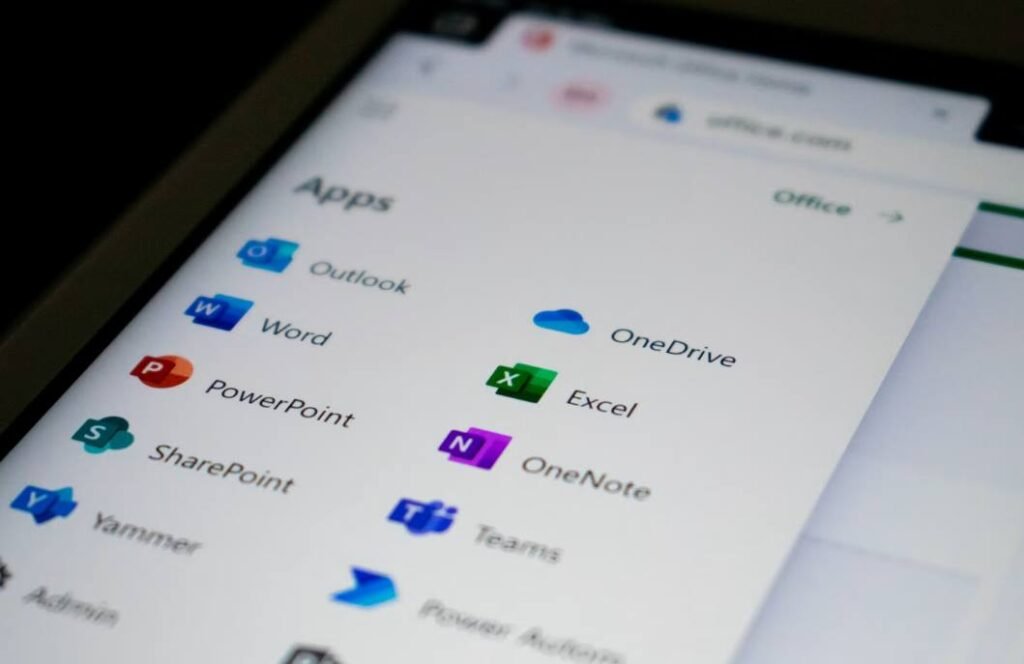
On a Mac, iCloud Drive is part of the system, so there is nothing to download. Open Finder and click iCloud Drive in the sidebar. If you do not see it, open System Settings, click Apple Account, choose iCloud, and turn on iCloud Drive.
For other services, install the desktop app from the provider: Google Drive for desktop or the OneDrive app. After signing in, each one adds its own folder to Finder. Many users keep the Desktop and Documents folders synced so those files are available on every device, though that can use up free storage quickly. This is explained well in Computerworld’s overview of how iCloud Drive works.
How to Access iCloud, Google Drive & OneDrive on Any Device
This table shows the simplest way to reach each service on each device. Use it as a quick reference when you are setting up something new.
| Device | iCloud Drive | Google Drive | OneDrive |
|---|---|---|---|
| iPhone / iPad | Files app (built in) | Google Drive app | OneDrive app |
| Android / Samsung | Web browser only | Google Drive app (usually pre-installed) | OneDrive app |
| Windows PC | iCloud for Windows | Google Drive for desktop | Built into File Explorer |
| Mac | Finder (built in) | Google Drive for desktop | OneDrive app for Mac |
| Any web browser | icloud.com | drive.google.com | onedrive.live.com |
| Best for | Apple device users | Google Docs, Gmail users | Microsoft Office users |
You do not have to pick only one. Many people use iCloud for photos, Google Drive for shared documents, and OneDrive for Office files. Just remember which service holds what, and keep a simple folder system so nothing gets lost.

How to Keep Files in Sync Across All Your Devices
Syncing means a change you make on one device shows up on the others automatically. Edit a document on your laptop, and the updated version is waiting on your phone. For this to work, you need the same account on every device and a working internet connection.
What syncing does well
- Always up to date: The newest version is on every device.
- No emailing yourself: Files move between devices on their own.
- Easy teamwork: Shared folders update for everyone.
What syncing does not do
- It is not a backup: If you delete a file on one device, it can disappear everywhere.
- It uses your storage: Synced folders can fill free space quickly.
- It needs internet: Changes wait until you reconnect.
Because syncing is not the same as backing up, keep a second copy of anything important. Our cloud backup guide shows how to protect files from accidental deletion.
How to Access Cloud Files Offline
By default, many cloud files are stored only online and download when you open them. If you will be on a plane or somewhere with weak signal, mark the files you need as available offline before you go.
| Service | How to make files available offline |
|---|---|
| iCloud Drive (iPhone / iPad) | In the Files app, touch and hold the file or folder, then choose Keep Downloaded |
| iCloud Drive (Mac) | In Finder, right-click the item and choose Download Now |
| Google Drive (phone app) | Tap the three-dot menu next to a file and turn on Available offline |
| Google Drive (computer) | Turn on offline access in Chrome or Edge for Docs, Sheets, and Slides, or use Drive for desktop |
| OneDrive (Windows) | Right-click the file or folder and choose Always keep on this device |
| OneDrive (phone app) | Open the file’s menu and choose Make available offline |
Google explains the details in its help page on using Google Drive files offline, and Microsoft covers the equivalent feature in OneDrive Files On-Demand. Offline files take up space on your device, so only choose the ones you truly need.
Before you travel: Open each offline file once while you still have internet to confirm it downloaded. A file with a cloud icon is usually not stored on the device yet.
How to Access Your Cloud Files Safely on Someone Else’s Device
Sometimes you need a file while using a friend’s laptop or a public computer. It is possible, but you should treat it as a high-risk situation, because the next person could open your account if you leave it signed in.
Do this
- Use a private window: Open an incognito or private browsing window first.
- Decline “trust this browser”: If asked, choose not to trust or remember the device.
- Sign out completely: Use the account menu, then close the window.
- Delete downloads: Remove any saved files from the computer.
Avoid this
- Saving your password: Never click “Remember me” or save the password.
- Installing sync apps: They keep copies of your files on that computer.
- Using public Wi-Fi without care: Avoid sensitive files on unknown networks.
- Leaving the tab open: Closing the tab is not the same as signing out.
If you only need to give someone else a file, do not share your login at all. Our guide on how to share files securely using cloud storage shows safer ways to do it. If you think you forgot to sign out somewhere, change your password right away and turn on two-step verification.
Why Can’t I Access My Cloud Files? (Common Fixes)
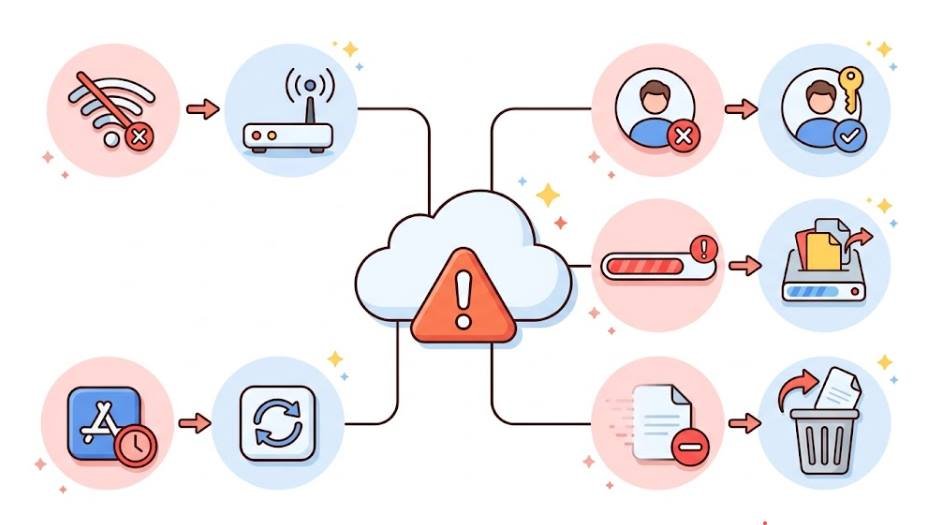
When cloud files will not open, the cause is usually simple. Work through these checks in order before you assume anything is lost.
| Problem | Likely cause | What to try |
|---|---|---|
| Files will not load | Weak or no internet | Switch between Wi-Fi and mobile data, then retry |
| Folder looks empty | Signed in to the wrong account | Sign out and sign in with the account you used originally |
| Cannot sign in | Wrong password or verification code issue | Reset your password and check that your phone number is current |
| Files will not upload or sync | Storage is full | Check your storage and delete large files you no longer need |
| App crashes or freezes | Outdated app or system | Update the app and your device software |
| Browser shows an error | Old browser or blocked cookies | Update the browser or try a different one |
| File is missing | Deleted by accident | Check the Recently Deleted or Trash folder |
Deleted files are often recoverable for a limited time. Apple explains how to recover deleted files in iCloud Drive, and Google Drive and OneDrive have a similar Trash or Recycle bin. To avoid future scares, set up a proper backup using our cloud backup guide.
Still stuck? Try opening the same files in a web browser. If they appear there, the problem is with your app or device, not your account.
How Much Cloud Storage Do You Get for Free?
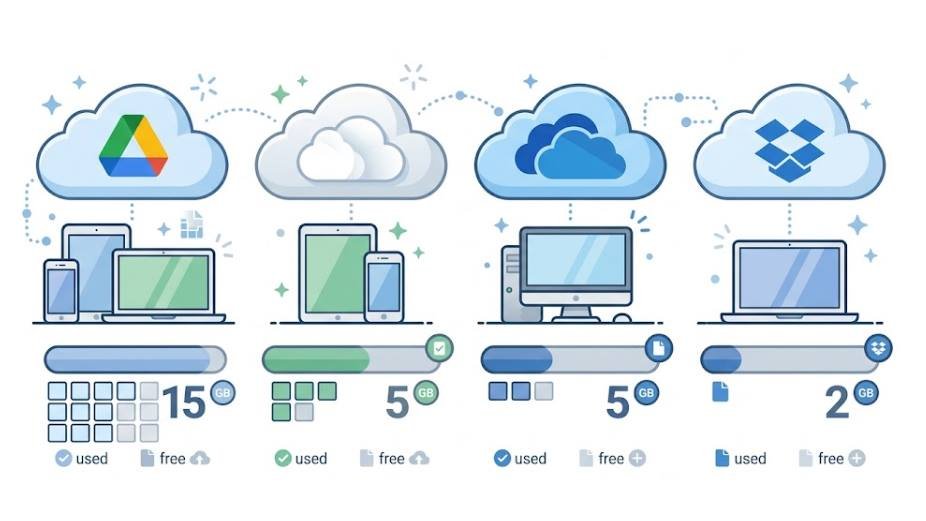
Every major service offers a free tier, but the amounts are small and can change, so check each provider’s current plans before relying on them. These are the typical starting amounts for personal accounts.
| Service | Typical free storage | Good to know |
|---|---|---|
| Google Drive | 15 GB | Shared with Gmail and Google Photos |
| iCloud | 5 GB | Photos and device backups use it up fast |
| OneDrive | 5 GB | Included with a free Microsoft account |
| Dropbox | 2 GB | Simple and works on nearly every device |
What free plans usually give you
- Enough space for documents and a small set of photos
- Access from phone, computer, and web browser
- Basic sharing and syncing
What you usually give up
- Room for large photo and video libraries
- Space for full device backups
- Some advanced features reserved for paid plans
If you are running low, check what is using the space first. Apple lists its storage plans on its page about iCloud storage. Often, deleting old backups or duplicate photos frees up more than enough room, and you can avoid paying at all.
Frequently Asked Questions
How do I retrieve my photos from cloud storage?
Sign in to the service you used (iCloud Photos, Google Photos, or OneDrive) on any device or in a web browser. Your photos appear automatically. To keep a copy, select the photos and choose Download. If they seem missing, check the Recently Deleted or Trash album.
Do I have to pay for cloud storage on my phone?
No. Every major service has a free tier, though the amount is limited. You only need to pay if you run out of space and cannot or do not want to delete anything.
Is it possible to access my files from another computer?
Yes. Sign in to your account on the service’s website from any computer, or install the desktop app. If the computer is not yours, use a private window and sign out afterward. For more safety tips, see our guide on sharing files securely online.
How can I view everything in my iCloud storage?
On an iPhone or iPad, open Settings, tap your name, choose iCloud, and look at the storage bar to see what is using space. On a Mac, open System Settings, click your name, and choose iCloud. You can also sign in at icloud.com to browse your files.
Can I access iCloud from someone else’s device?
Yes, through the iCloud website. Use a private browsing window, decline any prompt to trust the browser, and sign out when you finish. Never install apps or save passwords on a device that is not yours.
Do I need internet to open my cloud files?
Only for files that are stored online-only. If you mark files as available offline, you can open them without a connection, and they sync again once you are back online.
Is syncing the same as backing up?
No. Syncing mirrors changes across devices, including deletions. A backup keeps a separate copy you can restore. Read our cloud backup guide for beginners to set one up.
Final Thoughts
Reaching your cloud files on any device comes down to three things: knowing which service holds them, signing in with the right account, and choosing the easiest way in, whether that is an app, a built-in folder, or a web browser. Mark your most important files for offline use, treat other people’s devices with care, and remember that syncing is not a backup. If you still need to upload content into your account, start with our guide to moving files to cloud storage.