

A clear cloud storage folder structure stops one wrong click from sending Client A’s files to Client B. Below are seven simple setups built for freelancers. Pick one, copy it, and keep every client’s work in its own safe place.
Who this is for
Freelancers who keep client work in Google Drive, Dropbox, OneDrive, or iCloud.
The problem it fixes
Client files get mixed up across projects, and you can’t tell what is safe to share.
Most freelancers start with one folder called “Work.” Then come ten clients, thirty projects, and files named “final_v2_NEW.” Soon you’re digging through folders before every call. Worse, you might share the wrong thing. If your files are still on your laptop, start with our guide to moving files to cloud storage. Then come back here and set up your cloud storage folder structure the right way.

What Makes a Cloud Storage Folder Structure Work (3 Rules Every Freelancer Needs)
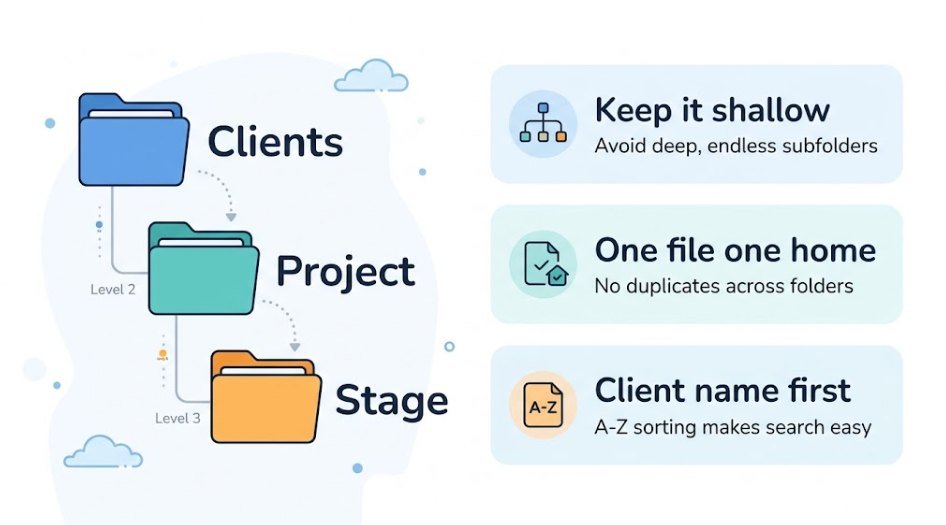
Every good cloud storage folder structure follows the same three rules. Learn them once and you can build any structure in this post.
- Keep it shallow. Use as few levels as you can. One Google Drive folder guide suggests 5–7 top-level folders and 2–3 levels of nesting. Every extra click makes filing slower, so you skip it.
- Give every file one home. If you often ask “does this go in A or B?”, your folders overlap. Rename them so each folder has one clear job.
- Put the client name first. When the client’s name is always the first thing you see, you spot a wrong folder before you drop a file in.
Quick tip: Only add a subfolder when you need it. Empty folders are clutter, not organization.
1. The Client-First Structure
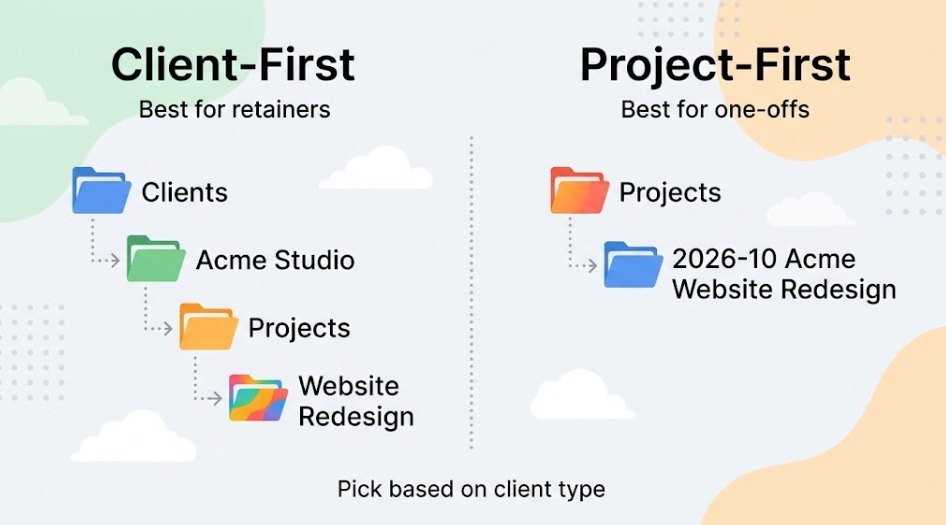
One folder per client. Everything for that client lives inside it. This is the easiest cloud storage folder structure to understand, and it’s the best starting point for most freelancers.
Clients
├── Acme Studio
│   ├── Contract and Admin
│   ├── Projects
│   │   ├── Website Redesign
│   │   └── Logo Refresh
│   └── Invoices
└── Bright Dental
    ├── Contract and Admin
    ├── Projects
└── Invoices- Best for: a few clients who each give you several projects.
- Watch out for: lots of one-off jobs. The Clients folder can grow long fast.
2. The Project-First Structure
Here the project is the top folder, not the client. It suits freelancers who take many small, short jobs.
Projects
├── 2026-10 Acme - Website Redesign
├── 2026-10 Bright Dental - Flyer
└── 2026-09 Acme - Logo Refresh
Always put the client name inside the project folder name. Without it, two projects from different clients can look alike. Also keep one small “Client Admin” folder for contracts and brand files that belong to the client, not to one job.
- Best for: many small clients and one-off jobs.
- Watch out for: repeat clients. Their work ends up scattered across many folders.
3. The Active vs. Past Clients Structure
Split your clients into two top folders. Work you’re doing now stays in “Active.” When a job ends, you move the whole client folder to “Past.” The same Google Drive guide recommends this and says to add the year to the folder name when you move it.
Active Clients
├── Acme Studio
└── Bright Dental
Past Clients
└── Green Cafe - 2025
This keeps your daily view short. You only see the clients you’re working for today.
- Best for: freelancers whose clients come and go.
- Watch out for: forgetting to move folders. Set a reminder for the day you send the last invoice.
4. The Numbered Project Stage Structure (Brief, Working, Review, Final)
This one lives inside each project. It sorts files by how far along the work is. Numbers force the folders into the right order.
Website Redesign
├── 01 Brief
├── 02 Working
├── 03 Review
└── 04 Final- 01 Brief: what the client sent you.
- 02 Working: drafts and messy files. Only you see this.
- 03 Review: versions you’ve sent for feedback.
- 04 Final: approved files only.
The big win is “04 Final.” You never have to guess which file is the real one. Combine this with the Client-First setup and you have a strong base.

5. The Year-Based Structure for Invoices and Taxes
Dates work well for money files. Tax time asks for “everything from 2026,” so sort by year.
Business Admin
├── 2026
│   ├── Invoices Sent
│   ├── Expenses
│   └── Tax Documents
└── 2025
    ├── Invoices Sent
    ├── Expenses
    └── Tax Documents
Use it only for admin and money. Don’t sort client work by month. The Drive guide above warns that filing by date alone fails, because you rarely remember when you made something. You remember the client.
6. The Client-Shared vs. Private Folder Structure
This is the setup that protects you most. Each client gets two folders. One is for them. One is for you.
Acme Studio
├── Shared with Client
│   ├── Brief
│   └── Final Files
└── Private
    ├── Working Files
    ├── Contract and Invoices
    └── Notes
You share only “Shared with Client.” Drafts, rates, and notes stay out of sight. If you ever share the wrong link, the damage is small. We cover safe sharing in how to share files securely online.
- Best for: clients who need to see or download your work.
- Watch out for: dropping a draft into the shared folder by habit. Check before you save.
7. The Inbox and Archive Structure
Two simple folders keep the rest clean. The Inbox catches new files. The Archive holds finished work.
_Inbox
Active Clients
Archive- _Inbox: every new file lands here first. The underscore keeps it at the top. Empty it once a week.
- Archive: done projects and old contracts you want to keep. Koofr’s guide says archive when in doubt, and delete only things like old drafts.
Which Cloud Storage Folder Structure Should You Choose? (Quick Comparison Table)
You don’t have to pick just one. Most freelancers mix two or three. Use this table to see where each cloud storage folder structure fits.
| Structure | Best for | Biggest risk | Mix-up protection |
|---|---|---|---|
| 1. Client-First | Repeat clients | Long client list | High |
| 2. Project-First | Many small jobs | Scattered repeat work | Medium |
| 3. Active vs. Past | Clients who come and go | Forgetting to move folders | Medium |
| 4. Project Stages | Finding the final file | Skipping the numbers | Medium |
| 5. Year-Based | Invoices and taxes | Using it for client work | Low |
| 6. Shared vs. Private | Sharing with clients | Saving drafts in Shared | Very high |
| 7. Inbox and Archive | Keeping things tidy | Never emptying the Inbox | Medium |
A safe default cloud storage folder structure for most freelancers is 1 + 4 + 6 + 7. Use Client-First at the top, stages inside each project, a Shared and Private split per client, and an Inbox plus Archive. The template further down puts it all together.
How to Name Files So Client Work Never Gets Mixed Up
Folders protect you. File names back them up. If a file is dragged out of its folder, a good name still tells you who it belongs to.
Use this pattern: ClientCode_Project_Document_Version. A client code is a short tag, like ACME or BDEN.
| Avoid | Use instead | Why |
|---|---|---|
| final_NEW.docx | ACME_Website_Homepage-copy_v02.docx | Shows client, job, and version |
| Invoice 3.pdf | ACME_Invoice_2026-10-26.pdf | Sorts by date, names the client |
| logo!!.png | BDEN_Logo_v01.png | No odd symbols |
HP advises against vague labels like “final” or “new,” because they get confusing once several versions exist. It also notes that some symbols cause errors on certain cloud platforms. Microsoft lists its own file name limits for OneDrive and SharePoint. Stick to letters, numbers, hyphens, and underscores and you’ll avoid most problems.
How to Share Deliverables Without Exposing Other Clients’ Files
Most leaks happen at the share button. Follow these steps every time.
- Share the lowest folder. Share “Shared with Client” or “04 Final.” Never share a parent folder like “Clients.”
- Invite by email. Avoid “anyone with the link” unless the file is truly public.
- Choose the lowest permission. Give “view” unless they must edit.
- Test it. Open the link in a private window and see what a stranger would see.
- Remove access when the job ends. Do this the same day you move the folder to Past Clients.
One more trap. Say you want a file to appear in two places. Don’t copy it. Use a shortcut instead. But in Google Drive, a shortcut does not give anyone access to the original, and its title can be seen by people who can’t open it. So keep client names out of shortcut titles. For account-level protection, see our cloud storage security guide.
Moving folders can change who sees them. Google notes that when you move files into a shared drive, permissions may not carry over and some people can lose access. After any big move, check one folder as the client would see it.
How to Clean Up a Messy Cloud Storage Folder Structure in 5 Steps
Don’t try to fix everything in one weekend. You’ll burn out and make mistakes. Go in small steps instead.
- Back up first. Make a copy of anything important before you move it. Our cloud backup guide for beginners shows how.
- Build the new structure beside the old one. Don’t delete anything yet.
- Move this month’s client work first. Active jobs matter most.
- Drop loose files in _Inbox. Sort 15 minutes a day until it’s empty.
- Archive the rest. Delete only when you’re sure. In synced folders, deleting a file on one device can remove it everywhere.
Be careful with duplicates. Two files with the same name can hold different work. Open both before you delete one.
Folder Setup in Google Drive, Dropbox, OneDrive, and iCloud
The structure is the same everywhere. Only the buttons change.
| Service | Make a folder | Handy trick | Watch out for |
|---|---|---|---|
| Google Drive | New > New folder | Add a shortcut instead of copying a file | Shortcuts don’t share access |
| Dropbox | Create > Folder | Use shared folders per client | Version history length depends on your plan |
| OneDrive | New > Folder | Keep names short and simple | File name limits apply |
| iCloud Drive | New Folder in Files or Finder | Use numbers to force order | Check sharing settings per folder |
You can also color-code folders in Google Drive. Use it only for one thing, such as marking active clients. Too many colors mean nothing. Want to open these folders on your phone? See how to access your cloud files on any device.
Version History and Backup: Keep the Final File Safe
Version history is an undo button for files. But it doesn’t last forever, and it varies by service.
- Google Drive: uploaded file versions may be removed after 30 days or 100 newer versions unless you keep them.
- Dropbox: history windows differ by plan. Common lengths are 30, 180, or 365 days.
So when a project ends, save the approved file as a PDF in “04 Final.” Then keep a second copy somewhere else. A common rule is the 3-2-1 backup rule: three copies, on two types of storage, with one kept offsite. Syncing is not backup. Our beginner’s backup guide explains the difference.
Common Folder Mistakes Freelancers Make
Mistakes to avoid
- Going too deep: every extra level adds clicks, and a long path is a maze.
- Sorting by file type: “PDFs” and “Images” split one project in two.
- Sharing a parent folder: one click shows every client.
- Using “final” in names: it never stays final.
- Making two “Projects” folders: you’ll never know which is right.
Do this instead
- Keep it shallow: client, project, stage.
- Sort by client and project: keep file types together inside.
- Share the lowest folder: only what the client needs.
- Use version numbers: v01, v02, v03.
- One home per folder: one Projects folder, one Admin folder.
Free Cloud Storage Folder Structure Template to Copy
Here’s the safe default from earlier, ready to copy. It goes deeper than the three-level advice because it combines four setups, so if it feels like too much, drop the stage folders. Paste it into a note, then create the folders to match. Keep one “_Client Template” folder so you can duplicate it for every new client.
_Inbox
Active Clients
├── _Client Template
│   ├── Shared with Client
│   │   ├── Brief
│   │   └── Final Files
│   └── Private
│       ├── Contract and Invoices
│       └── Projects
│           └── [Project Name]
│               ├── 01 Brief
│               ├── 02 Working
│               ├── 03 Review
│               └── 04 Final
├── Acme Studio
└── Bright Dental
Past Clients
Business Admin
├── 2026
│   ├── Invoices Sent
│   ├── Expenses
│   └── Tax Documents
Archive
10-minute setup: Create the top folders, copy the template for your first client, and move one active project in. Do the rest over the next week.
FAQs
How many top-level folders should I have?
Five to seven is a good range. If you pass about 20, you’ve gone too wide. Merge some of them.
Should I organize by client or by project?
Pick client if you have repeat clients. Pick project if you do many one-off jobs. Either way, put the client name in the folder name.
What if one file belongs to two clients?
Keep one original in one folder. If you must see it in a second place, add a shortcut. Don’t make copies, because they drift apart.
Where do files that clients email me go?
Save them to _Inbox first. Then move them into the client’s Brief folder within a day or two.
Do I need a separate cloud account for each client?
Usually not. One account with a clear Shared and Private split works for most freelancers. Only use separate accounts if a client requires it in your contract. Either way, protect your login with a strong password and two-step sign-in, as covered in our cloud storage security guide.
How often should I clean up my folders?
Empty the Inbox weekly. Move finished clients to Past Clients when each job ends. Do a quick check of your sharing settings every few months.
Is a folder structure the same as a backup?
No. Folders keep files easy to find. A backup keeps them safe if something goes wrong. You need both.
Final Thoughts
You don’t need a perfect cloud storage folder structure. You need a clear one. Start with Client-First, add stages inside each project, and split every client into Shared and Private. That alone stops most mix-ups. Set it up this week, and you’ll never again wonder if you just sent the wrong file. For more simple guides like this, visit our Cloud Hub.