


Cloud storage is convenient, but is it actually safe? This guide to cloud storage security gives you the honest answer, explains how hackers and scammers really target your files, and shows you simple steps to protect your data without any technical skills.
The Short Answer
Yes, reputable cloud storage is generally very safe, and good cloud storage security habits close most of the gaps. Most problems come from weak passwords, phishing, and sharing mistakes, not from the cloud itself.
What You Will Learn
How cloud security works, how to spot fake storage warnings, what not to upload, and a 5-minute checklist to lock down your account.
Millions of people keep their photos, documents, and backups online, and many quietly wonder whether it is a good idea. Security experts at Proton describe cloud storage as extremely safe when used correctly, yet cloud storage security still matters because the service carries real risks that every user should understand. If you are new to the basics, start with our guide on what cloud storage is and how it works, then come back here to learn cloud storage security step by step.
What Is Cloud Storage Security?
Cloud storage security is the combination of technology and habits that protect the files you keep on remote servers. According to TierPoint, it covers safeguards against theft, deletion, unauthorized access, and file corruption. In other words, it is not just a password on your account. It is a layered system.
It also helps to know that storing files in the cloud is not the same as running software in the cloud. If those terms confuse you, our comparison of cloud storage vs cloud computing clears it up. Here are the four layers that matter most for everyday users:
| Security Layer | Why It Matters |
|---|---|
| Encryption | Scrambles your files so they are unreadable without the key, both while uploading and while stored. |
| Account protection | Strong passwords and multi-factor authentication stop most unauthorized logins. |
| Access controls | Decide who can view, edit, or download each file or folder. |
| Backups and recovery | Let you restore files after accidental deletion, ransomware, or a failed device. |
Is Cloud Storage Really Safe? (Short Answer)
Yes, for most people it is safer than keeping everything on one laptop or phone. Cloud storage security at major providers includes strong encryption, constant monitoring, and multiple data centers, which most individuals could never set up at home. Even so, the U.S. Cybersecurity and Infrastructure Security Agency (CISA) reminds users that cloud services still carry risks, such as a larger attack surface and less direct control over your data.
Bottom line: Your cloud storage security is only as strong as your account and the provider you choose. A great provider cannot protect a weak password.
Where the Cloud Is Strong
- Encryption: Reputable providers encrypt data in transit and at rest.
- Redundancy: Copies are kept in several locations, so one failure does not erase your files.
- Expert monitoring: Dedicated security teams watch for threats around the clock.
Where You Are Still Exposed
- Weak logins: Reused or simple passwords are the easiest way in.
- Human error: Sharing a file with the wrong person or leaving a link public.
- Scams: Fake alerts that trick you into handing over your login.
Can Hackers Access Your Cloud Storage?
They can, but it is rarely because someone “broke into” the provider’s servers. In most cases, attackers simply log in to your account using stolen credentials. Proton explains that account compromise is by far the most common risk, usually caused by phishing, malware, or passwords exposed in an unrelated data breach.
You can check whether your email has appeared in a known breach using Have I Been Pwned. If it has, change that password everywhere you used it. Here are the most common ways hackers get in and how to block each one:
| How Hackers Get In | What Happens | How to Block It |
|---|---|---|
| Phishing | A fake email or text tricks you into entering your password on a copycat page. | Never log in from a link in a message. Open the official app or website yourself. |
| Reused passwords | A password leaked from another site is tried on your cloud account. | Use a unique password for every account and a password manager. |
| Malware | Malicious software on your device steals saved logins or session data. | Keep devices updated and avoid unknown downloads. |
| Public share links | Anyone with a link can open a file you meant to share privately. | Set link permissions, add passwords, and set expiry dates. |
Turning on two-factor authentication is one of the most effective defenses, because a stolen password alone is no longer enough. For a plain-English walkthrough, see Proton’s guide to two-factor authentication.
The Biggest Cloud Storage Security Risks
Research cited by Safetica from IBM’s data breach research shows that a large majority of breaches involve data stored in the cloud. That sounds scary, but most of those cases trace back to preventable mistakes. These are the risks worth knowing:
- Account takeover. Stolen or weak passwords give attackers full access to everything you store.
- Phishing and fake alerts. Scammers imitate your provider to steal your login.
- Accidental sharing. A typo in an email address or an open link can expose private files.
- Ransomware and malware. Infected files can sync to the cloud and spread to every connected device.
- Data loss. If the cloud is your only copy, deletion or a service problem can cost you files permanently.
- Provider-side breaches. Rare, but possible. Providers with end-to-end encryption limit the damage.
Backups are a core part of cloud storage security, and the last two risks are the reason experts recommend never relying on one copy. Our cloud backup guide for beginners shows how to keep a second copy without much effort.
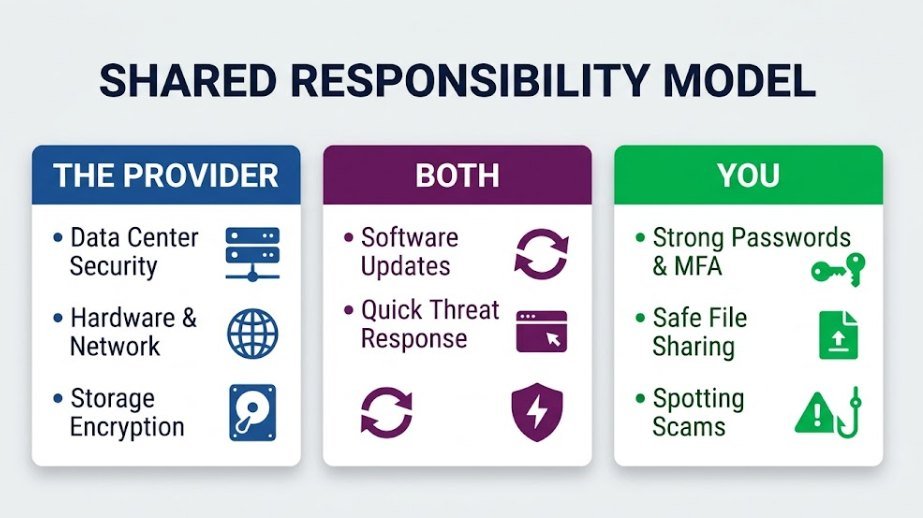
Who Is Responsible for Your Data’s Safety? (Shared Responsibility)
Many people assume the provider handles everything. In reality, security is shared. Amazon Web Services describes this as the shared responsibility model: the provider secures the infrastructure, and you secure how you use it. Wasabi lists “providers are solely responsible” as one of the most common cloud security myths.
| Who | Responsible For |
|---|---|
| The provider | Data center security, hardware, network protection, and encryption of stored data. |
| You | Strong passwords, multi-factor authentication, safe sharing, device security, and spotting scams. |
| Both | Keeping software updated and acting quickly when something looks suspicious. |
Remember: If a file leaks because of a weak password or a public link, that is usually on the account owner, not the provider. Good cloud storage security habits matter as much as a good provider.
Is the “Cloud Storage Full” Warning Real or a Scam?
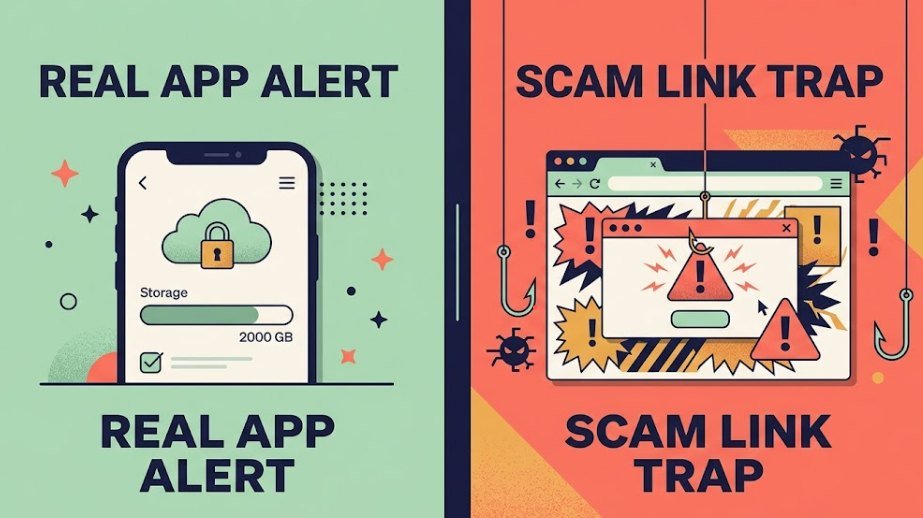
It can be either. Real providers do send storage warnings when you approach your limit, but scammers copy these messages because they work so well. The scam version pushes you to click a link, “upgrade” immediately, or log in to avoid losing your photos. The Federal Trade Commission explains that phishing messages often create urgency and ask for personal information or payment.
Signs It Is Probably Real
- The same warning appears inside your official app or account settings.
- Your storage meter really is near its limit.
- The message does not demand instant payment or login details.
Signs It Is Probably a Scam
- It arrives by text, email, or a browser pop-up from an unfamiliar sender.
- It threatens that your photos or files will be deleted within hours.
- It asks for card details or your password through a link.
- The sender address or web address looks slightly off.
When in doubt, do not click anything in the message. Open your cloud app directly and check your storage there. If you really are running out of space, you can free it up by cleaning old files or learning how to move files to cloud storage in an organized way.
How to Spot Cloud Storage Phishing and Fake Alerts
Phishing is the number one way people lose control of their cloud accounts. The good news is that fake alerts share the same warning signs. CISA’s guidance on phishing recommends being suspicious of unexpected messages, even those that appear to come from people or companies you know.
- Check the sender. Look at the full email address or phone number, not just the display name.
- Hover before you click. On a computer, hover over a link to preview where it really goes.
- Watch for urgency. Phrases like “act now” or “final warning” are pressure tactics.
- Look for generic greetings. Real providers usually address you by name or account details.
- Go to the source. Open the official app or type the website address yourself to confirm the alert.
Quick tip: If you already clicked a suspicious link and entered your password, change it immediately, turn on multi-factor authentication, and sign out of all other devices from your account settings.
What Should You Never Store in the Cloud?
Cloud storage is great for most files, but a few items deserve extra caution. The safest rule is simple: if losing control of a file would seriously harm you, either do not upload it or protect it with strong encryption. Here is a quick guide:
| Item | Why It Is Risky | Safer Option |
|---|---|---|
| Passwords in a plain text file | Anyone who gets into your account gets every login. | Use a dedicated password manager. |
| Photos of IDs, passports, or bank cards | Perfect material for identity theft if your account is breached. | Keep in an encrypted folder or an offline drive. |
| Recovery codes and seed phrases | They bypass your other protections entirely. | Write them down and store them offline. |
| Tax and financial records | Contain account numbers and personal details. | Encrypt before uploading, or use a zero-knowledge service. |
| Workplace or client files | Personal accounts may break company policy or privacy rules. | Use your employer’s approved storage. |
| Private or sensitive photos | Leaks can be deeply damaging and are hard to undo. | Use end-to-end encrypted storage or an offline backup. |
If you do need to share sensitive files, do it carefully. Our guide on how to share files securely with cloud storage covers passwords, expiry dates, and permission settings. Services with end-to-end encryption, which Proton explains here, add another layer because even the provider cannot read your files.
How to Check If Your Data Is Safe: A 5-Minute Checklist
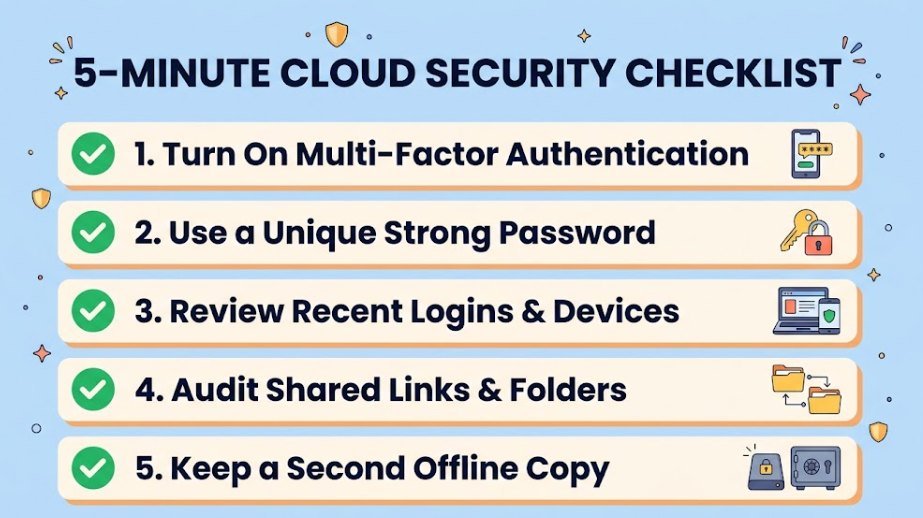
You do not need to be an expert to improve your cloud storage security. Set aside five minutes and work through this list for each cloud account you use.
- Turn on multi-factor authentication. Use an authenticator app or security key if possible. It blocks most stolen-password attacks.
- Use a unique, strong password. Make it long, never reuse it, and store it in a password manager.
- Review recent logins and connected devices. Sign out any device or app you do not recognize. Google users can run a Security Checkup in a few clicks.
- Audit your shared links and folders. Remove public links you no longer need and tighten permissions on the rest.
- Confirm you have a second copy. Keep important files on an external drive or a separate backup service, not only in one cloud.
iPhone users should also look at Apple’s optional Advanced Data Protection, which extends end-to-end encryption to more of your iCloud data. If you use several devices, our guide to accessing cloud files on any device explains how to stay secure while syncing.
Monthly habit: Repeat steps 3 and 4 once a month. It takes about two minutes and catches most problems early.

Do You Really Have to Pay for Cloud Storage?
No. Most providers offer a free tier that is enough for documents and a modest photo library. You only need a paid plan when you run out of space or want extra features. The key is to pick the option that fits your needs rather than reacting to a pop-up that pressures you to upgrade.
What Free Plans Usually Give You
- Enough space for documents and everyday files
- Basic sharing and syncing across devices
- Standard encryption and account security options
What You Usually Give Up
- Limited space that fills quickly with photos and videos
- Fewer advanced sharing, recovery, and version history features
- Frequent upgrade prompts
If you stop paying for a paid plan, your files do not usually vanish overnight, but you may lose the ability to upload or sync new data, and policies differ by provider. Always read your provider’s terms and download a local copy of anything important before downgrading. Not sure what to keep online? Our beginner backup guide helps you decide what is worth storing and where.

FAQs
Is cloud storage safe from hackers?
Reputable cloud storage security is strong, but no system is completely hack-proof. Most successful attacks target users through phishing or weak passwords rather than breaking into the provider. Using multi-factor authentication and a unique password greatly lowers your risk.
Which cloud storage is best for security?
Look for end-to-end or zero-knowledge encryption, multi-factor authentication, clear privacy policies, and independent security audits. Services built around privacy, such as Proton Drive, emphasize these features, but the best choice also depends on your budget and how you share files.
Is the “cloud storage full” message real?
Sometimes. If the warning appears inside your official app or account settings, it is likely genuine. If it arrives through a text, a random email, or a pop-up and pushes you to click a link or pay immediately, treat it as a scam and check your storage directly in the official app.
What should not be stored on the cloud?
Avoid storing plain-text passwords, recovery codes, unencrypted ID scans, and highly sensitive personal files. If you must store them, encrypt them first or use a zero-knowledge service.
Is cloud storage safe for photos?
For most people, yes. Cloud storage protects photos from device loss or damage. To keep them private, use multi-factor authentication, review your shared albums and links regularly, and consider end-to-end encryption for especially sensitive images. Our guide on sharing files securely can help.
How do I know if my cloud account has been hacked?
Warning signs include login alerts from unknown locations, files you did not move or delete, unfamiliar connected devices, and password reset emails you did not request. If you notice any of these, change your password, enable multi-factor authentication, and sign out of all devices.
Should I keep a backup outside the cloud?
Yes. Security agencies such as CISA recommend keeping a local copy of important data. A second backup protects you from account lockouts, accidental deletion, and service problems. See our cloud backup for beginners guide to get started.
Final Thoughts
Cloud storage security is strong enough for most everyday use, and often better than keeping everything on a single device. The real danger is not the cloud itself but weak passwords, fake alerts, and careless sharing. Turn on multi-factor authentication, think twice before clicking any storage warning, keep your most sensitive files out of the cloud or encrypted, and always maintain a second backup. Do these few things, and you can improve your cloud storage security and enjoy the convenience of the cloud with real confidence.