

Found a conflicted copy dropbox file after editing on your laptop and your phone? Dropbox now shows two files, and one has “conflicted copy” in the name. This guide shows what that means, which file to keep, and how to stop the duplicates from coming back.
Need a fix right now?
Jump to Ways 1 to 3. You will compare the files, restore the right version, and delete the extra copy safely.
Tired of seeing them?
Jump to Ways 4 to 7. These habits stop new conflicted copies before they show up.
A conflicted copy dropbox file looks scary, but it is Dropbox protecting you. It keeps both versions instead of throwing one away. According to Dropbox’s own help page, the best fix is to compare both versions and merge them by hand. This post walks you through that, step by step. If you are new to syncing in general, our guide to how cloud storage works and our Cloud Hub are good places to start.
What Is a Conflicted Copy Dropbox File? (Simple Meaning + Example Filename)
A conflicted copy dropbox file is a duplicate that Dropbox creates when it cannot tell which edit should win. Dropbox adds the editor’s username, the words “conflicted copy,” and the save date to the filename.
Here is what it looks like:
| File | What it is |
|---|---|
| Budget-2026.xlsx | The original file |
| Budget-2026 (Sam’s conflicted copy 2026-10-26).xlsx | The extra copy. Sam is the editor’s name. The date is when it was saved. |
Good to know: Dropbox says the last version saved is the one that appears as the conflicted copy. So the “conflicted” file is not always the old one. It can hold your newest work.

Why a Conflicted Copy Dropbox File Appears When You Edit on Laptop and Phone
Dropbox needs a moment to sync. If you change the same file on two devices before that sync finishes, Dropbox sees two different “latest” versions. It will not guess. It keeps both.
These are the most common causes:
- Two people edit at once: You and a coworker both save changes to the same file.
- A file left open on another device: Dropbox notes that an open file can be saved as a new edit. This happens a lot with apps that auto-save.
- You edit offline, then edit again online: Your laptop has changes that never uploaded. You then open the same file on your phone.
- Syncing was still running: You switched devices before the upload finished.
This is the exact trap of using one file on many devices. Our guide on how to reach your cloud files on any device explains the upside. This post covers the downside.
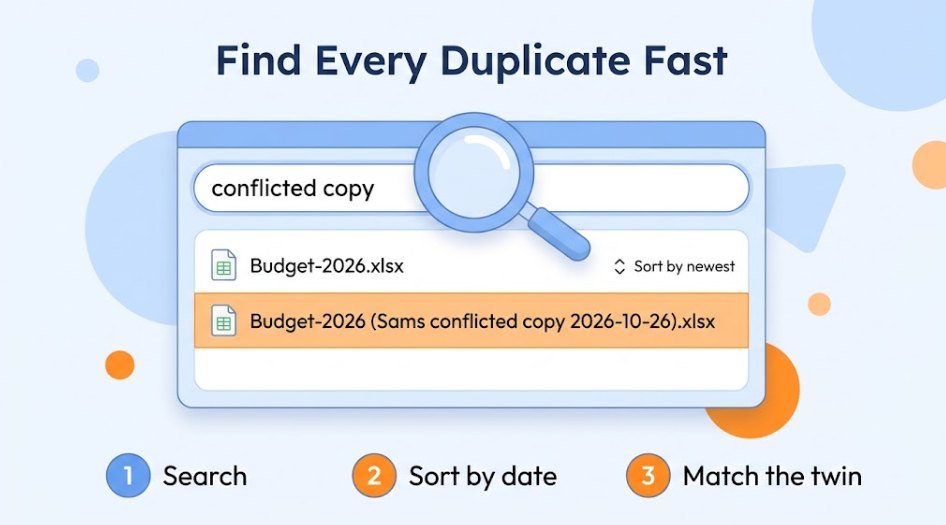
How to Find Every Conflicted Copy Dropbox File in 30 Seconds
Do not hunt through folders by hand. Search for the magic words instead.
- Open the search bar. Use dropbox.com, or the search box in File Explorer (Windows) or Finder (Mac) inside your Dropbox folder.
- Type “conflicted copy.” Every file with those words in its name will show up.
- Sort by date. Newest first. Start with the most recent ones.
- Note the original name. Each conflicted copy has a twin without the extra words. You will compare them next.
Tip: write down how many you find. After you finish Ways 1 to 3, search again. The number should drop to zero.
Way 1: Compare Both Files and Merge Your Edits Manually (Word, Excel, Google Docs)
This is the method Dropbox recommends. Open both files side by side. Look for what differs. Copy the good parts into one final file.
The steps depend on the file type:
- Word: Use the built-in tool. On the Review tab, pick Compare, then Compare or Combine Documents. Word shows the differences as tracked changes. You accept or reject each one.
- Excel: Open both workbooks. Scan the sheets for changed cells or new rows. Copy the missing data into the file you want to keep.
- Google Docs: Open the original and the copy. Copy the newer paragraphs across. Then check the doc’s own version history to confirm nothing is missing.
- Plain text or notes: Put the two files next to each other on screen. Read both and combine them by hand.
Save first: Always save the merged result under the original filename. Keep the conflicted copy until you are sure nothing is missing.
Way 2: Restore the Right Version With Dropbox Version History
Sometimes you do not need both files. You just want the file to look like it did before the mess. Dropbox keeps older versions of your files, so you can roll back.
- Find the file on dropbox.com, or in your Dropbox folder on your computer.
- Click Version history.
- Preview a version. Click each one until you find the right one.
- Click “Roll back to this version.” Dropbox replaces the current file with the older one. The name stays the same.
How far back you can go depends on your plan. Dropbox lists 30 days for Basic, Plus and Family, and 180 days for Professional, Essentials, Standard and Business. Higher business tiers get 365 days. Also, permanently deleted files cannot be restored this way.
Way 3: Safely Delete a Conflicted Copy Dropbox File (Checklist)
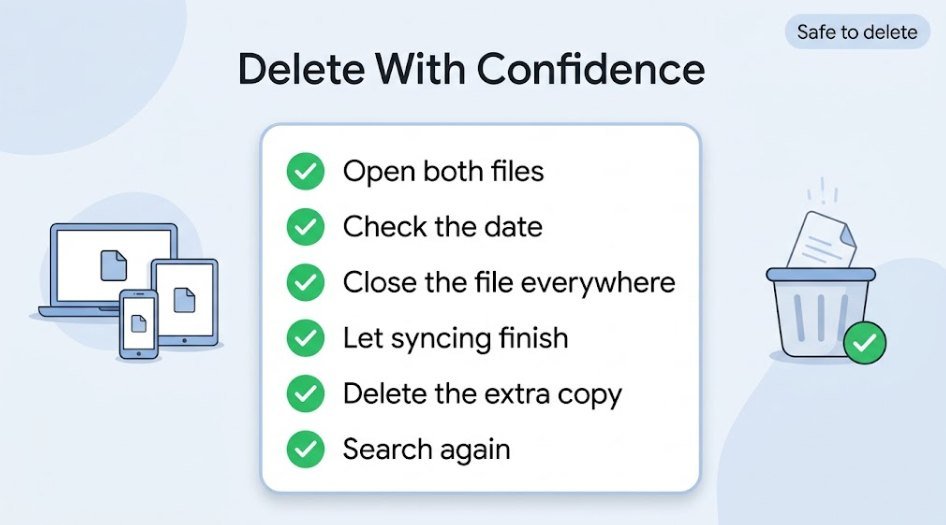
Once your edits are merged, the conflicted copy dropbox file is just clutter. Do not delete it too fast, though. Run through this checklist first.
- Open both files. Make sure the one you keep has all your work.
- Check the date. Confirm the file you keep has the newest edits you care about.
- Close the file everywhere. Close it on your laptop, phone and tablet.
- Let syncing finish. Wait for the green check icon.
- Delete the conflicted copy. Right-click it and choose Delete.
- Search again. Look for “conflicted copy” to confirm it is gone.
Worried about losing something important? Make sure you have a second copy first. Our cloud backup guide for beginners shows how.
Way 4: Use an “In Use” Folder While You Edit
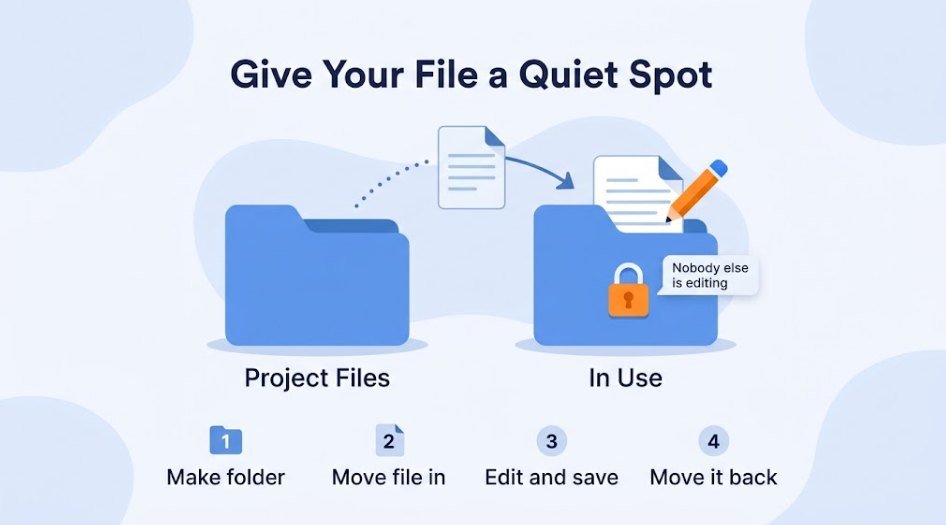
This is a low-tech trick that works. Dropbox suggests creating a folder named “In Use” for files you are working on. If you cannot edit in real time, it also suggests moving the file out of its shared folder while you work, so nobody else can touch it.
Here is a simple routine:
- Make a folder called “In Use.”
- Move the file there before you start editing.
- Finish your edits and save.
- Move the file back to its normal folder.
If you work with a team, the Dropbox badge also warns you when someone else is editing. When you see it, take turns.
Way 5: Let Syncing Finish Before Switching Devices
This is the number one habit to avoid a conflicted copy dropbox file when you use a laptop and a phone. Do not grab your phone while your laptop is still uploading.
Check the Dropbox icon first. A green circle with a checkmark means the file is synced. A blue syncing icon means it is still working. On a Mac, the menu bar icons show synced, syncing and paused status.
- Green check: Safe to switch devices.
- Syncing icon: Wait.
- Paused: Resume syncing before you edit anywhere else.
10-second rule: After you hit save, wait until the icon turns green. Then open the file on your other device.

Way 6: Avoid Offline Edits and Close Files When You’re Done
Offline edits are a big reason a conflicted copy dropbox file appears. You change a file on a plane or train. Meanwhile, the same file changes somewhere else. When you reconnect, Dropbox sees two stories.
You can cut this risk with two habits:
- Avoid editing offline: Wait until you are online. If you must work offline, treat that device as the only editor until it syncs.
- Close files when done: A file left open on another computer can be saved again as a new edit, which Dropbox points out is common with auto-save apps.
Also, before you close your laptop, check that everything has uploaded. Finally, if you share files with others, see our tips on sharing files securely online so only the right people can edit.
Way 7: Switch to Real-Time Editing (Paper, Office Online, Google Docs)
The best way to prevent a conflicted copy dropbox file is to stop saving separate copies at all. Real-time editors keep one live file. Everyone sees changes as they happen. Dropbox recommends tools like Dropbox Paper or Microsoft Office Online for this reason.
Why it works
- One live file: No second copy gets made.
- See edits instantly: You and your team stay in sync.
- Works on phone and laptop: No waiting for uploads.
What to watch for
- You may need to switch tools: Some people prefer the desktop app.
- Needs internet: Real-time editing works best online.
Which File Do I Keep? A Quick Decision Guide
Not sure what to do? Find your situation in the table.
| Your situation | What to do | Use this way |
|---|---|---|
| Both files have edits you need | Merge them into one file | Way 1 |
| The two files are almost identical | Keep the newest. Delete the other. | Way 3 |
| Only one file has your latest work | Keep that one. Check the other before deleting. | Way 3 |
| The original got overwritten | Roll back to an earlier version | Way 2 |
| You cannot tell which is right | Compare, then merge. Do not guess. | Way 1 |
| It keeps happening | Change your habits | Ways 4 to 7 |
Remember: the conflicted copy is not always the older file. Check the content, not just the name.

Do Google Drive and OneDrive Create Conflicted Copies Too?
Yes. Most sync tools have this problem. They just name the extra file differently. One guide to sync conflicts notes that OneDrive adds your device name, Google Drive for desktop can make a duplicate, and Dropbox uses the “conflicted copy” label.
| Service | What the extra file looks like | Quick fix |
|---|---|---|
| Dropbox | Username + “conflicted copy” + date | Compare and merge, then delete the extra |
| OneDrive | Your computer name added to the filename | Compare, merge, delete. Settings can change how conflicts are handled. |
| Google Drive | A duplicate copy of the file | Open both, merge, delete the extra |
The cure is the same everywhere. Let syncing finish, close files, and use real-time editing when you can. For a bigger picture, see our comparison of cloud storage and an external hard drive.
Other Dropbox Conflicts You Might See (Case, Selective Sync, Shared Folder)
Not every odd filename is a normal conflicted copy. Here are the other types you may spot:
- Case conflict: Two files in one folder have the same name but different capital letters, like “records” and “Records.” Dropbox explains that Windows and Mac cannot store both in one place, so one gets “(Case Conflict)” added. You can rename one or leave both alone.
- Selective sync conflict: A folder you chose not to sync on this computer clashes with a folder or file of the same name. Rename one of them, or change which folders sync.
- Shared folder conflict: A whole folder gets duplicated. One university IT note describes this with “(shared folder conflict)” in the name. The fix is to check both folders, move anything unique into the original, then delete the extra.
If you see a conflict you do not recognize, Dropbox’s help center is the best next stop. You can also browse our Guides Hub for more step-by-step help.
FAQ
Can I delete a conflicted copy in Dropbox?
Yes. Once you have merged any edits you need, deleting it is safe. Check both files first. If you ever delete the wrong one, Dropbox version history may help you recover it, depending on your plan.
Why do conflicted copies keep appearing?
Usually you are editing the same file in two places before syncing finishes. Leaving files open, editing offline, or sharing a file with others can all trigger it. Try Ways 4 to 7 above.
Can I turn off conflicted copies completely?
No, there is no simple switch for it. Dropbox makes them to protect your work. The best you can do is lower the chances with good habits and real-time editing tools.
Is the conflicted copy the older or newer version?
Not always. Dropbox says the last version saved appears as the conflicted copy. So it can be your newest work. Open both before you decide.
Will I lose data if I ignore them?
You will not lose data right away. Both versions are kept. But a pile of duplicates gets confusing, and you may edit the wrong file later. Clean them up when you can.
Do conflicted copies use up my storage space?
Yes, each one is a real file, so it counts toward your space. Deleting extras helps. For more ideas, read our guide to freeing up disk space with cloud storage.
What does the red Dropbox badge mean?
It warns you that someone else is editing the file. Dropbox suggests taking turns. If you both have unsaved changes, use Save As to keep your own separate version.
Final Thoughts
A conflicted copy dropbox file is not a disaster. It is a safety net. Find it, compare it, merge what you need, and delete the rest. Then build one or two habits: wait for the green check, and close files when you are done. For more simple cloud help, visit our Cloud category.