Where should you keep your photos, school work, and important papers? On the cloud, on an external hard drive, or on a USB stick? Each one has real strengths and real risks. This guide explains the 7 key differences in plain words, so you can pick the right one for your files.
Short answer for most people
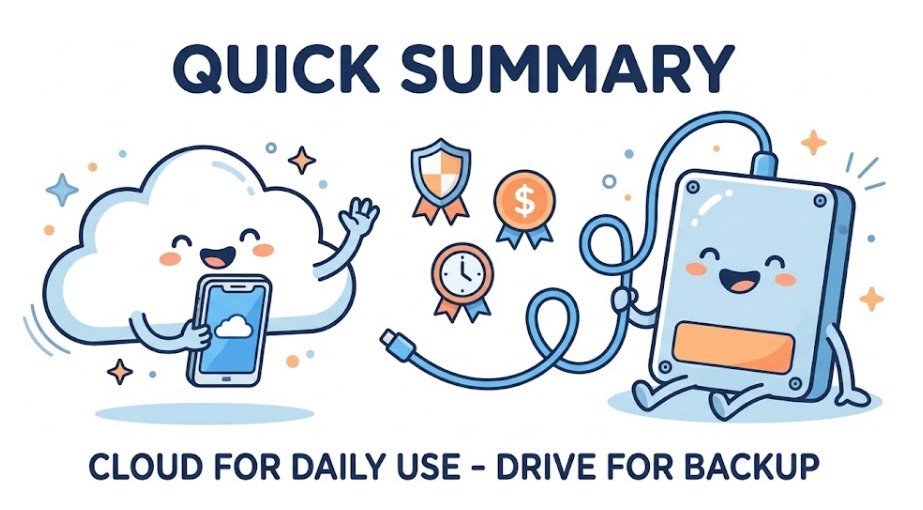
Use cloud storage for everyday files and phone photos. Add an external hard drive as a second copy.
Who this guide is for
Students, families, and home users who are not tech experts and just want their files safe.
Losing files is common. Phones get dropped. Laptops stop working. Drives fail without warning. Picking the right place to store your files is the first step to avoiding that. If you are new to the topic, start with what cloud storage is and how it works, then come back here.

What Is the Difference Between Cloud Storage, External Hard Drives, and USB Drives?
All three store your files. They just do it in very different ways.
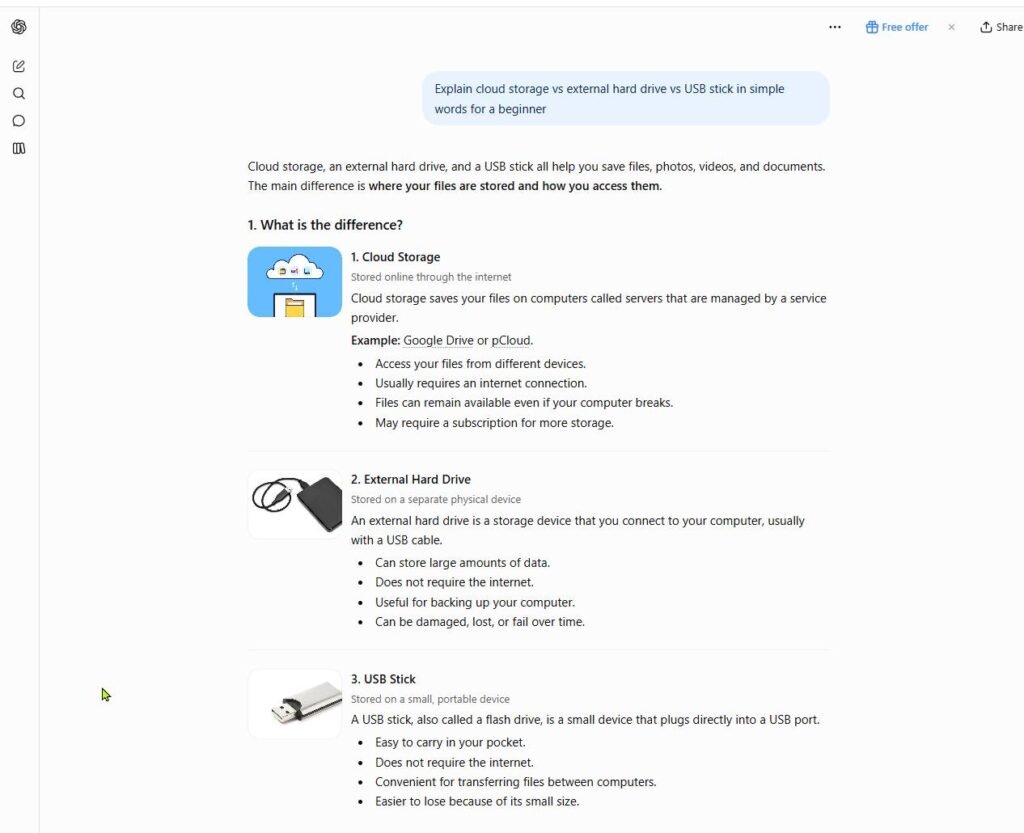
- Cloud storage: Your files live on a company’s servers. You open them with an app or a web browser. Examples are Google Drive, iCloud, OneDrive, and Dropbox.
- External hard drive: A small box you plug into your computer with a cable. It holds a lot of data. It comes in two types: HDD (older, spinning disk, cheaper) and SSD (newer, faster, more expensive).
- USB flash drive: A tiny stick that fits in your pocket. It is great for moving a few files, but it holds much less than a hard drive.
One more thing to know. Cloud storage and cloud computing are not the same. If that confuses you, read our guide on cloud storage vs. cloud computing.
Quick Comparison Table: Cloud vs. External Hard Drive vs. USB Flash Drive
Here are the 7 key differences side by side. Each one is explained below.
| Difference | Cloud Storage | External Hard Drive | USB Flash Drive |
|---|---|---|---|
| 1. Access | Any device with internet | Only where the drive is plugged in | Only where the stick is plugged in |
| 2. Cost | Monthly or yearly fee (small free plan) | One-time purchase | Cheapest one-time purchase |
| 3. Space | Grows when you upgrade | Fixed (often 1TB to 5TB) | Small (often 32GB to 256GB) |
| 4. Speed | Depends on your internet | Fast and local | Fast for small files, slower for big ones |
| 5. Sharing | Send a link | Hand over the drive | Hand over the stick |
| 6. Main risk | Hacked account, lost password | Drop, theft, wear and tear | Easy to lose, easy to break |
| 7. Automatic backup | Yes, on most apps | Only if you set it up | No, manual only |
No option wins every row. That is why the best plan often uses more than one.
Pros and Cons of Cloud Storage
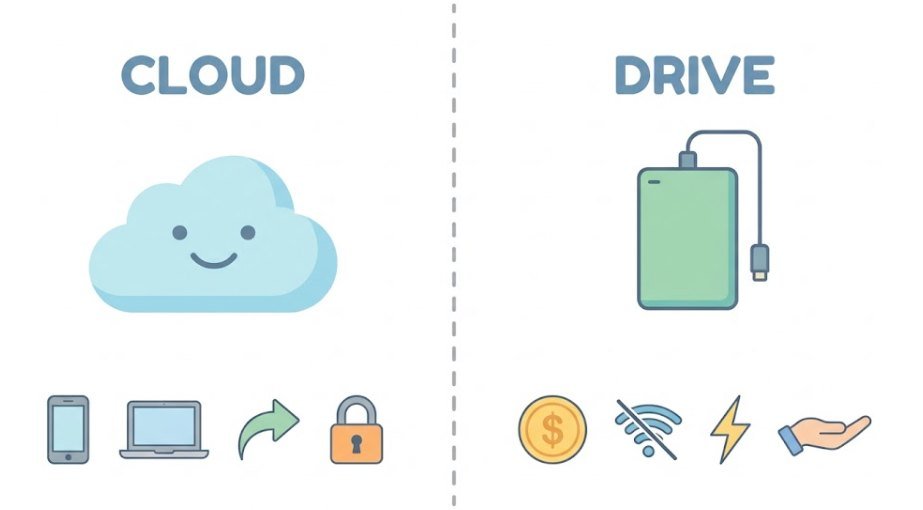
Cloud storage keeps your files away from your home, so a fire, flood, or stolen laptop does not take your backup with it. Dropbox explains that files sync across your devices as long as you have internet. You can also open your cloud files on any device, from iPhone to PC.
Pros
- Access anywhere: Phone, laptop, tablet, or browser.
- Automatic backup: Photos and files upload on their own.
- Easy sharing: Send a link instead of a drive.
- Safe from device loss: Your files survive a broken laptop.
Cons
- Needs internet: Big uploads can take hours.
- Ongoing fees: The free plan fills up fast.
- Account risk: A weak password puts every file at risk.
- Trust: A company holds your data.
Pros and Cons of External Hard Drives and USB Drives
Drives are simple. You plug them in and copy your files. Koofr notes that their big wins are a one-time cost, fast local transfers, and full control over your files. USB sticks work the same way, only smaller.
Pros
- No monthly fee: You pay once.
- Works offline: No internet needed.
- Fast for big files: Great for videos and RAW photos.
- You hold it: No company stores your data.
Cons
- Easy to damage: One drop can end it.
- Easy to lose or steal: Especially small USB sticks.
- Manual backups: If you forget, nothing is saved.
- Fixed space: When it is full, you buy another.
Cloud Storage vs. Hard Drive for Photos: Which Is Better?
For most families, cloud storage wins for everyday phone photos. Your phone can upload each picture on its own. If you lose the phone, the photos are still safe.
A hard drive wins for huge photo and video libraries. A photographer can copy hundreds of gigabytes of RAW images to a drive much faster than uploading them over a normal home internet line.
Simple rule for photos: Keep one copy in the cloud and one on a drive. Never keep your only copy of family photos on a phone.

Which Is Safer? Security, Privacy, and Reliability Compared
Both can fail. They just fail in different ways.
- Hackers: An unplugged drive cannot be reached by online attackers. Cloud accounts can be reached if your password is weak or stolen.
- Theft and loss: A drive or USB stick can be stolen or lost. An unencrypted one leaves your files wide open.
- Hardware failure: Drives have parts that wear out. Cloud companies copy your files across many servers, so one broken machine does not erase them.
- Privacy: With a drive, you hold your data. With the cloud, a company stores it, and some providers scan files.
You can make the cloud much safer with a strong password and two-factor login. Our guide on cloud storage security shows how. For drives, turn on encryption (BitLocker on Windows, FileVault on Mac) and keep the drive in a safe place.
Cost Breakdown: 1TB of Cloud Storage vs. a Hard Drive Over 5 Years
Drives look cheaper on day one. Over five years, the gap shrinks. Hard drive prices have also jumped: they rose about 46% between September 2025 and January 2026, and one report says some external drives have more than doubled in price in under a year.
| Option | Upfront cost | Estimated 5-year cost | Good to know |
|---|---|---|---|
| Cloud storage (1TB to 2TB plan) | $0 to start | About $480 to $600 at $8 to $10 a month | Includes backup and sharing. Free plans start at 2GB to 15GB. |
| External hard drive (1TB to 2TB) | About $70 to $130 | About $70 to $130 if it lasts, or $140 to $260 if you replace it once | Drives often last 3 to 5 years. |
| USB flash drive (128GB) | About $15 to $30 | About $15 to $30 if it lasts, or $30 to $60 if you replace it once | Small space. Best for moving files, not long-term storage. |
These are rough estimates. Prices change often, so check the official pages for Google One and Dropbox before you buy. For a side-by-side look at the big providers, see this Google Drive vs. OneDrive vs. Dropbox comparison.
The cloud costs more over time, but you get automatic backup, sharing, and access on every device. A drive is cheaper only if you take care of it and back it up yourself.

How Long Do Hard Drives and USB Drives Last?
Nothing lasts forever. Here is a rough guide:
- Hard disk drives (HDD): Often 3 to 5 years. Backblaze’s public data shows many drives run longer, but failure rates rise with age.
- Solid state drives (SSD): No moving parts, but they wear out after many writes.
- USB flash drives: They can last for years with light use. Cheap ones can fail much sooner. Never treat them as your only copy.
Write the purchase date on your drive. Plan to replace it after about four years, even if it still works.
Cloud Sync vs. Cloud Backup: Don’t Make This Mistake
Many beginners think sync and backup are the same thing. They are not.
- Sync: Keeps the same files on all your devices. If you delete a file on one, it can vanish everywhere.
- Backup: Saves a separate copy you can restore later, even after a delete or a computer crash.
As Koofr points out, sync mirrors changes instantly, even accidental deletions. Check that your cloud app has a recycle bin or file history. Our cloud backup guide for beginners walks you through it.
Which Is Better for You? Students, Families, Photographers, and Remote Workers
For students
Use a free cloud plan for essays and projects. Edit from any device and never lose an assignment. Use a USB stick only to print or present, not to store the only copy.
For families
Turn on automatic photo backup to the cloud. Then copy photos to an external drive once a month. A family plan can share space across everyone.
For photographers
Work from a fast SSD for big RAW files. Back up to a second drive and to the cloud for the files you cannot replace.
For remote workers
Cloud storage is the clear pick. You can share files securely online without mailing a drive. Keep a drive at home as a second copy.
Best Cloud Storage Options for Personal Use (Unbiased Picks)
We do not sell any of these. Here is who each one fits best. Prices are approximate and change often, so confirm on each provider’s page.
| Service | Free space | Paid plan (approx.) | Best for |
|---|---|---|---|
| Google Drive | 15GB (shared with Gmail and Photos) | 2TB for about $9.99 a month | Android users and free space |
| iCloud+ | 5GB | 200GB for about $2.99, 2TB for about $9.99 a month | iPhone and Mac users |
| Microsoft OneDrive | 5GB | Comes with a Microsoft 365 plan | Windows and Word users |
| Dropbox | 2GB | 2TB for about $9.99 to $11.99 a month | Reliable file sync |
| Proton Drive | 5GB | From about $4 a month | Privacy-focused users |
If you already have an Apple, Google, or Microsoft account, start there. You may already own free space. Not sure how to begin? Follow our guide to move files to cloud storage. If your computer is full, see how to free up disk space with cloud storage.
The Best Strategy: Use Both (Simple 3-2-1 Backup Setup)
The 3-2-1 rule is easy to remember. Keep 3 copies of your files, on 2 types of storage, with 1 copy away from home. Many security experts recommend it as a baseline. Here is a simple home version:
- Copy 1: your computer or phone. This is your working copy.
- Copy 2: an external hard drive. Plug it in once a week or once a month and copy your important folders.
- Copy 3: cloud storage. Turn on automatic upload for photos and key folders. This is your away-from-home copy.
- Protect your accounts. Use a strong password and two-factor login on your cloud account.
- Test your backup. Open a few files from each copy every few months.
Quick tip: Set a calendar reminder on the first day of each month to plug in your drive. A backup you forget is not a backup.

Frequently Asked Questions
Which is better for storing files, cloud storage or an external hard drive?
It depends on how you use your files. Cloud storage is better for access on many devices, sharing, and automatic backup. An external hard drive is better for large files, offline use, and a one-time cost. For important files, use both.
Is cloud storage safer than an external hard drive?
Each is safer in a different way. The cloud protects you from drive failure, theft, and fire at home. A drive protects you from online hackers when it is unplugged. A strong password and two-factor login make the cloud much safer. See our cloud storage security guide.
How long do external hard drives last?
Many last about 3 to 5 years, and some last longer. They can also fail early without warning. Plan to replace yours every few years and never trust one drive alone.
Is a USB flash drive good for backups?
Not as your main backup. USB sticks are small, easy to lose, and can fail. They are best for moving a few files from one computer to another.
What is the cheapest cloud storage?
Free plans are the cheapest. Google gives 15GB, iCloud and OneDrive give 5GB, and Dropbox gives 2GB. Small paid plans (100GB to 200GB) often cost only a few dollars a month. Prices change, so check each provider’s page.
Can I use my external hard drive as cloud storage?
Not by itself. A normal external drive only works when it is plugged in. To make a “personal cloud,” you need a device called a NAS (network-attached storage) that connects to your home internet. That takes more setup, so most beginners are better off with a regular cloud service.
Do I need to pay for cloud storage?
Not always. If you only store documents and a few photos, a free plan may be enough. Photos and videos fill space fast, so most families end up on a small paid plan. You can also see what cloud storage can be used for to judge how much space you need.
Final Thoughts
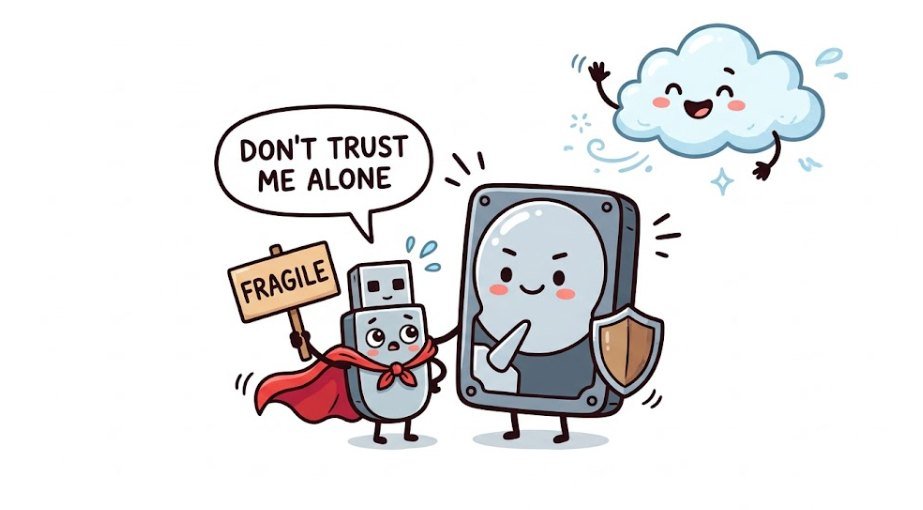
Cloud storage is easy, safe from home disasters, and works on every device. External hard drives are fast, cheap up front, and work offline. USB sticks are handy, but too fragile for your only copy. For most people, the smartest choice is both: the cloud for daily use and a drive as a backup. Start today by turning on automatic photo backup, then plug in a drive this weekend.