

What can cloud storage be used for? It lets you save files on a provider’s secure servers instead of only on your own device, so you can open, share, and restore them from any phone, tablet, or computer with an internet connection.
At Home
Protect family photos, free up phone space, back up devices, and keep important documents safe from loss or theft.
At Work
Share large files, collaborate in real time, support remote teams, and keep business data organized and recoverable.
Most people think of cloud storage as a digital hard drive, but it does far more than hold files. The formal definition from the National Institute of Standards and Technology describes cloud services as on-demand access to shared computing resources, and storage is one of the most common ways everyday people use them. If you want the full technical background first, read our guide on what cloud storage is and how it works.
In this guide, you will learn the 10 most practical uses of cloud storage, see real-life examples for home and work, and find out whether you actually need it.
What Is Cloud Storage Used For? (Quick Overview)
At its core, cloud storage is used to keep your files safe, reachable, and shareable. Instead of relying on one laptop, one phone, or one USB drive, your files live online and follow you across every device you own.
People use it for four main jobs: protecting files from loss, freeing up space on devices, sharing and collaborating with others, and getting to files from anywhere. Popular services such as Google Drive, iCloud, Dropbox, and Microsoft OneDrive all cover these jobs, although each one has its own strengths.
One thing worth clearing up early: cloud storage and cloud computing are related but not the same. Storage keeps your files, while computing runs software and processes data. We explain the difference in Cloud Storage vs. Cloud Computing.
Why Would You Need Cloud Storage? (Home vs. Work)
Devices break, get lost, and fill up. Cloud storage solves all three problems at once. The table below shows how the same tool helps in different situations.
| Situation | At Home | At Work |
|---|---|---|
| Device breaks or is stolen | Restore photos and documents on a new phone or laptop | Keep projects running without losing client files |
| Storage is full | Move old videos and photos online | Avoid buying extra drives or servers |
| Sharing with others | Send an album to family with one link | Send large files to clients without email limits |
| Working from different places | Open a recipe or form on any device | Let remote teammates edit the same file |
Quick Tip: If you are not sure where to start, think about the last time you lost a file or ran out of space. That moment shows which use below will help you most.
1. Back Up Your Files and Protect Them From Loss
The most important use of cloud storage is protection. If your laptop is dropped, stolen, or infected with ransomware, files saved only on that device may be gone for good. Files stored in the cloud sit in separate data centers, so one broken device does not mean lost memories or lost work.
Security agencies such as CISA recommend keeping recoverable copies of important data as part of a layered defense against ransomware. Many cloud services also keep earlier versions of your files, so you can roll back after an accidental edit or deletion.
New to this? Our Cloud Backup for Beginners guide walks you through setting up automatic protection step by step.
Good to Know: Syncing is not the same as backing up. If you delete a synced file by mistake, the deletion can spread to every device. Choose a service with version history and a recycle bin so you can undo mistakes.
2. Free Up Space on Your Phone and Computer
Photos, videos, and downloads are the usual reasons a device runs out of room. Moving them to the cloud lets you keep everything while clearing local space. Most services also offer a “files on demand” or “optimize storage” option, which keeps small previews on your device and downloads the full file only when you open it.
To get started, follow our step-by-step guide on how to move files to cloud storage. Always confirm the upload is finished and the files open correctly before you delete anything from your device.
3. Access Your Files on Any Device, Anywhere
With cloud storage, a file you saved on your work computer is also available on your phone, your tablet, and a friend’s laptop through a web browser. You no longer need to email files to yourself or carry a flash drive.
This works across iPhone, Android, Windows, and Mac. For setup instructions on each platform, see our guide to accessing your cloud files on any device.
4. Share Files and Large Attachments With a Link
Email services limit attachment size, and large videos or design files often bounce back. Cloud storage solves this by letting you share a link instead of the file itself. The recipient clicks the link to view or download it, and you decide whether they can only view or also edit.
Sharing a link also means everyone sees the latest version, so there is no more confusion over “final_v2_REAL.docx.” To keep sensitive files protected, use passwords, expiry dates, and restricted access, as explained in our guide on sharing files securely online.

5. Collaborate on Documents With Your Team or Family
Cloud storage turns a single file into a shared workspace. Several people can open the same document, spreadsheet, or presentation at once, leave comments, and see changes appear live. Tools such as Google Workspace and Microsoft 365 are built around this idea.
It is not only for offices. Families use shared folders to plan trips, manage household budgets, and collect school forms in one place.
6. Store and Organize Photos, Videos, and Memories
Photos and videos are often the most valuable files people own, and they are also the hardest to replace. Services like Google Photos and iCloud Photos upload new pictures automatically, sort them by date, people, and place, and let you build shared albums.
If you have old photos on a computer, memory card, or external drive, uploading them is one of the best ways to protect them from hardware failure.

7. Keep Working Offline and Sync Automatically
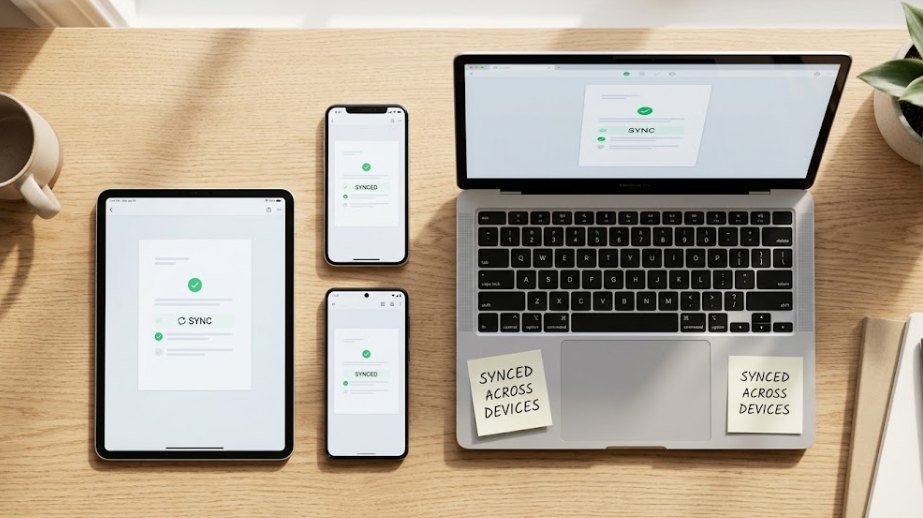
Cloud storage does not stop working when your connection drops. Most apps let you mark files as “available offline.” You can keep editing on a plane or in a spot with weak signal, and the changes sync automatically once you are back online.
Automatic sync also means the version on your phone usually matches the one on your computer. Apps such as OneDrive and Dropbox let you choose which folders stay on your device and which stay online only.
Quick Tip: Before a trip, open the files you need while you still have internet. This confirms they have downloaded and will be available offline.
8. Archive Old Files and Important Documents
Tax records, contracts, school certificates, warranties, and IDs are things you rarely need but cannot afford to lose. Cloud storage gives you a tidy, searchable archive that is often simpler than buying and maintaining extra drives.
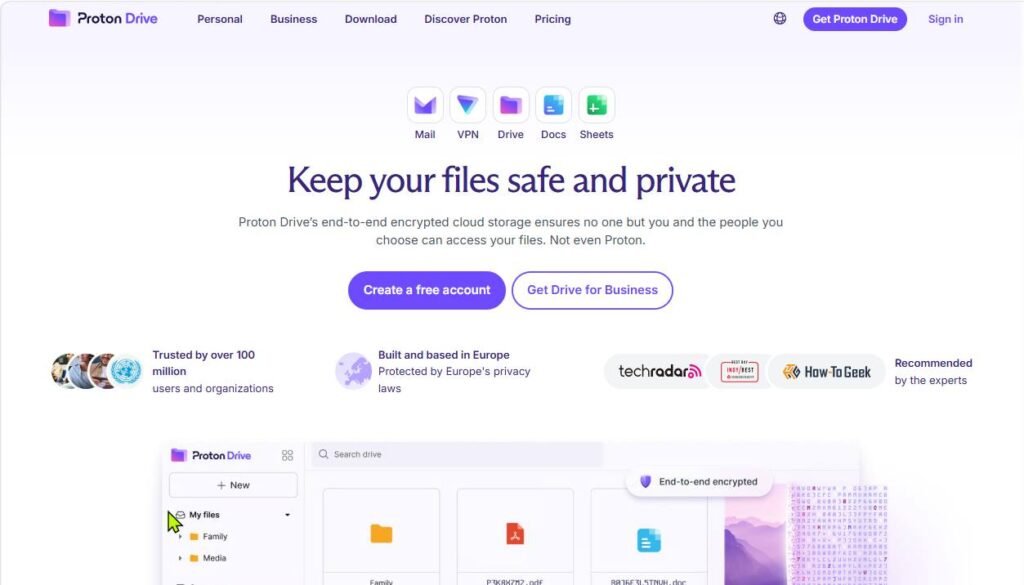
Create a folder for each category, scan paper documents with your phone, and name files clearly. For especially sensitive documents, consider a service with end-to-end encryption such as Proton Drive or Sync.com, and turn on two-factor authentication.
9. Run Remote Work and Small Business Operations
For freelancers and small businesses, cloud storage often replaces the office file server. Team members can reach the same project folders from home, a client site, or a coffee shop. Admins can add or remove people, set permissions, and review who accessed what.
It can also reduce costs. You do not need to buy, power, or maintain physical servers, and you can add storage as the business grows. Just remember that cloud storage works best alongside a separate backup plan, especially for business-critical data.
10. Back Up Your Phone and Store Game Saves and App Data
Your phone holds contacts, messages, app settings, and photos. Cloud backup through iCloud on iPhone or Google’s backup on Android lets you restore most of it on a new device instead of starting from scratch.
Gamers benefit too. Platforms such as Steam, PlayStation, and Xbox can store save files online, so your progress follows you if you switch consoles or reinstall a game. Not every game supports cloud saves, so check the settings of the games you care about most.
Cloud Storage Examples: Real-Life Home and Work Scenarios
Here are common situations where cloud storage makes life easier, along with the type of service that fits each one.
| Scenario | How Cloud Storage Helps | Example Service | Where |
|---|---|---|---|
| Lost or broken phone | Restore photos, contacts, and apps on a new device | iCloud or Google backup | Home |
| Family vacation photos | Share one album with everyone | Google Photos | Home |
| Tax and ID documents | Keep a secure, searchable archive | Proton Drive or Sync.com | Home |
| Client design files | Share large files with a secure link | Dropbox | Work |
| Team proposal | Edit the same document at the same time | Google Drive or OneDrive | Work |
| Remote employees | Give everyone access to the same project folders | OneDrive or Dropbox Business | Work |
The best choice depends on the devices you use, the apps you already rely on, and how much storage you need.
Types of Cloud Storage: Personal, Public, Private, and Hybrid
Not all cloud storage works the same way. Knowing the four main types helps you pick the right level of control and cost.
| Type | What It Is | Best For | Example |
|---|---|---|---|
| Personal | Consumer accounts for individuals and families | Photos, documents, and device backups | Google Drive, iCloud |
| Public | Storage hosted by a large provider and shared across many customers | Businesses and developers needing scale | Amazon S3 |
| Private | Storage used by one organization, often on its own servers | Strict privacy or compliance needs | Nextcloud |
| Hybrid | A mix of private and public storage | Companies that keep sensitive data in-house and the rest online | Custom business setups |
Most home users only need personal cloud storage. Businesses with strict rules about where data lives may look at private or hybrid options.
Is Cloud Storage Really Necessary? (Final Verdict)
For most people, yes. Strictly speaking, you can live without it, but one failed drive or stolen laptop can erase years of photos and work. Cloud storage is a low-cost way to avoid that risk while gaining easier sharing and access.
When It Is Worth It
- You own more than one device: Files stay in sync everywhere.
- Your files are hard to replace: Photos, contracts, and work projects need protection.
- You share or collaborate often: Links beat email attachments.
When You Can Skip It
- You store very little: A small set of files may fit on a single backup drive or USB stick.
- You rarely have internet access: Online services are less useful without a connection.
- You are bound by strict data rules: Some data must stay on approved systems.
Our Verdict: Start with a free plan, protect your account with a strong password and two-factor authentication, and upgrade only when you run out of space.
Frequently Asked Questions
Can cloud storage be used for games?
Yes, in two ways. Most gaming platforms can store your save files online so your progress follows you between devices. Some services also offer cloud gaming, where the game runs on remote servers and streams to your screen. Cloud storage alone does not usually let you play games directly from a Drive-style folder, because games need fast local access to run well.
Is there a way to permanently buy cloud storage?
Yes. Some providers have offered one-time “lifetime” plans, which let you pay once instead of monthly. Availability and terms change, so read the fine print. “Lifetime” usually means the lifetime of the service or plan, not your own, and you should check what happens if the company changes its offer. A trusted provider and a separate backup are still wise.
Is cloud storage safe?
Reputable providers use encryption and secure data centers, and most account problems come from weak or reused passwords. Use a unique password, turn on two-factor authentication, and be careful with sharing links. Our guide on sharing files securely online covers the key settings.
Is cloud storage the same as cloud backup?
Not exactly. Cloud storage is a place to keep and share files, while cloud backup automatically copies your data so you can restore it after a loss. Many services combine both, but it is worth checking. See Cloud Backup for Beginners for the details.
Is cloud storage free?
Most major providers offer a free tier with a limited amount of space, which is enough for documents and a small photo library. If you need more room, you can move to a paid plan. Pricing varies by provider, so check each company’s current plans before you decide, such as the options listed on Google One.
What happens to my files if I stop paying?
It depends on the provider. Typically, you keep what fits within the free allowance, but if you are over the limit you may be unable to upload new files or sync until you free up space or pay. Some providers also block other features, such as email, and eventually delete content from accounts that stay over the limit. Download a copy of anything important before you cancel or downgrade.
Do I need internet to use cloud storage?
You need internet to upload, download, and sync. However, most apps let you mark files for offline use, and your changes sync automatically when you reconnect.
Final Thoughts
Cloud storage is far more than extra disk space. It protects your files, frees up your devices, makes sharing simple, supports remote work, and keeps everything available wherever you are. You do not have to use all 10 ideas at once. Pick the one that solves your biggest problem today, whether that is a full phone or a missing backup, and build from there. When you are ready to begin, our guide on how to move files to cloud storage is the easiest first step.