

Your computer keeps warning you that storage is almost full, but you don’t want to delete your photos, videos, and documents. This guide shows you how to clear the easy clutter first, then use cloud storage to free up disk space on Windows and Mac without losing access to your files.
Quick fix (about 10 minutes)
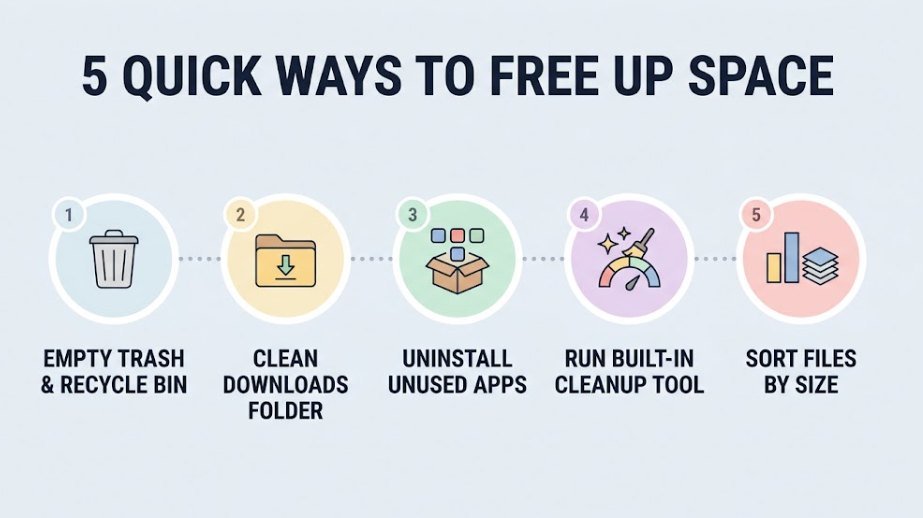
Empty the Recycle Bin or Trash, clean your Downloads folder, uninstall apps you don’t use, and run the built-in cleanup tool on your computer.
Long-term fix
Move the files you keep but rarely open to cloud storage and set them to “online-only,” so they stay available without filling your drive.
A full drive does more than block new downloads. According to Microsoft Support, running low on space can slow your PC down and cause trouble installing Windows updates. If you are new to the idea of keeping files online, start with our beginner guide on what cloud storage is and how it works, then come back here to put it to use.
What Happens When Your Computer Runs Out of Storage?
Your operating system needs free space to work. It uses that space for temporary files, system updates, and as an extension of your memory (RAM). When the drive is almost full, you may notice some or all of these problems:
- Slow performance: apps take longer to open and the computer feels sluggish.
- Failed updates: Windows or macOS updates can’t download or install.
- Save errors: you can’t save new files, photos, or downloads.
- Crashes and freezes: programs may stop responding because they have no room to work.
The good news is that none of this is permanent. Once you free up space, performance usually returns to normal.
Why Is My Computer Storage Suddenly Full?
Storage rarely fills up overnight. It usually builds up quietly until one big download or update tips it over. These are the most common culprits:
| Common Cause | Why It Fills Your Drive |
|---|---|
| Downloads folder | Old installers, PDFs, and duplicate files pile up and are rarely cleaned out. |
| Photos and videos | High-quality media and screen or meeting recordings are the biggest personal files for most people. |
| Temporary and update files | Windows and macOS store cache, logs, and leftover update files that can grow large. |
| Recycle Bin or Trash | Deleted files keep using space until you empty the bin. |
| Unused apps and games | Programs take space even if you never open them. |
| Device backups on a Mac | Old iPhone or iPad backups can take up many gigabytes. |
| Cloud folders set to “always keep on this device” | Full copies of your cloud files are stored locally, so they take up just as much space as before. |
For Mac users, the category named System Data (sometimes called “Other”) groups everything that doesn’t fit a specific category, as explained on the Apple Support storage page. It’s normal for it to look large.

How to Check How Much Storage You Have Left (Windows & Mac)
Before you delete or move anything, find out what is actually using your space. That way you clean the right things first.
On Windows 10 and 11
- Open File Explorer and select This PC. Your free space appears under Devices and drives.
- For a full breakdown, go to Settings > System > Storage.
- Select Show more categories to see which types of files use the most space.
On Mac
- Open the Apple menu and choose System Settings.
- Click General, then Storage.
- Review the colored bar and category list. On older macOS versions, use Apple menu > About This Mac > Storage instead.
Rule of thumb: Try to keep roughly 15–20% of your drive free. That gives your system room for updates and temporary files, so it keeps running smoothly.

Quick Ways to Free Up Space Before Using the Cloud
These simple steps cost nothing and often recover several gigabytes. Do them first, and check your free space after each one.
- Empty the Recycle Bin or Trash. Deleted files still use space until the bin is emptied.
- Clean your Downloads folder. Installers you already ran are safe to remove.
- Uninstall apps you don’t use. On Windows, use Settings > Apps. On Mac, open Applications in Finder and drag unwanted apps to the Trash.
- Run the built-in cleanup tool. Windows has Storage Sense and Cleanup recommendations in Settings > System > Storage. Mac has storage recommendations in System Settings > General > Storage.
- Sort files by size. In File Explorer or Finder, sort a folder by size to find forgotten videos, disk images, and old backups.
If you still need more room after this, it’s time to use the cloud.
Why Cloud Storage Is the Best Way to Free Up Disk Space
Deleting files frees space, but it also means losing them. Cloud storage solves that. Your files live on a remote server, and your computer only keeps a small placeholder or nothing at all. You can still open any file when you need it, as Dropbox explains in its disk space guide.
There are three big benefits. You free up space without deleting anything. You can open the same files from any phone, tablet, or computer, which we cover in how to access your cloud files on any device. And your files are no longer tied to one drive that could fail. If you’re unsure how this differs from other cloud services, our guide on cloud storage vs. cloud computing explains it.
Key idea: Look for a setting called online-only, Files On-Demand, Optimize Storage, or Stream files. This is what actually frees up space. Simply installing a cloud app and syncing everything does not.
Cloud Storage vs. External Hard Drive vs. Deleting Files: Which Is Best?
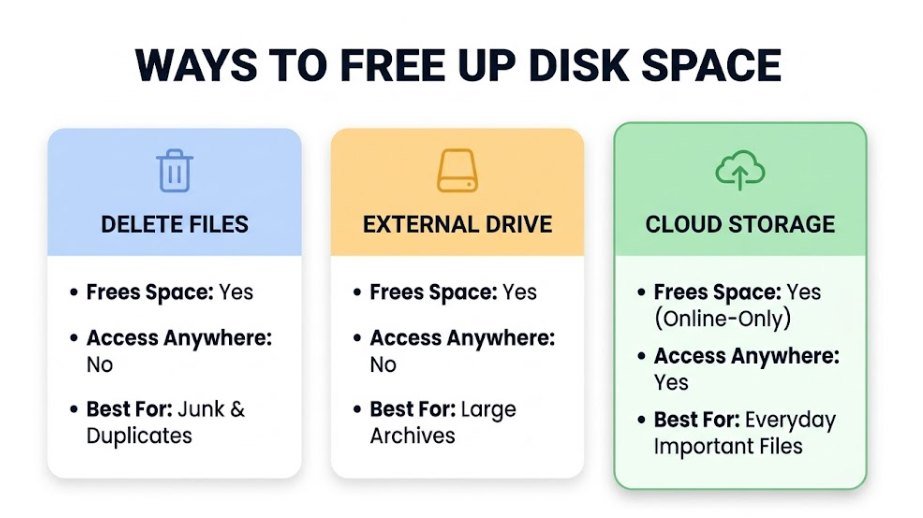
All three methods free up space, but they work differently. Here is how they compare so you can choose what fits your situation.
| Option | Frees Up Space | Access From Other Devices | Protects Against Loss | Best For |
|---|---|---|---|---|
| Delete files | Yes | No | No, files are gone | Junk, duplicates, and files you truly don’t need |
| External hard drive or USB | Yes | No, you must carry it | Partly, if the drive stays safe and working | Large archives you rarely open |
| Cloud storage | Yes, with online-only files | Yes, with an internet connection | Yes, when backup or version history is available | Files you want to keep and reach anywhere |
For most people, the best approach is a mix: delete junk, keep the important files in the cloud, and use an external drive only for very large archives. Remember that syncing is not the same as backing up. Our cloud backup guide for beginners shows how to protect files from being deleted by mistake.
How to Free Up Disk Space Using OneDrive Files On-Demand (Windows)
OneDrive comes with Windows, which makes it the easiest option for most PC users. Files On-Demand keeps a small placeholder on your PC instead of the full file, so you can see all your files without storing them all.
Step 1: Move your files into OneDrive
Open File Explorer and drag the folders you want to protect into your OneDrive folder. Wait for the sync to finish. If you need a walkthrough, follow our guide on how to move files to cloud storage.
Step 2: Turn on Files On-Demand
Click the OneDrive cloud icon in the taskbar, open Settings, and make sure Files On-Demand is turned on. The exact menu names can change between versions, so look for it under the sync or advanced settings.
Step 3: Free up space on files and folders
In File Explorer, right-click a file or folder inside OneDrive and choose Free up space. The file stays in the cloud and shows a cloud icon. To keep a file available offline, choose Always keep on this device instead.
You can also let Windows do this for you. The Cleanup recommendations section in Settings > System > Storage includes a Files synced to the cloud category, and Storage Sense can make files you haven’t opened for a while online-only.
How to Free Up Disk Space Using iCloud Drive (Mac)
On a Mac, iCloud can store files online and make space automatically when your disk runs low. Apple’s optimize storage feature is built into macOS.
- Open System Settings and click your name at the top, then choose iCloud.
- Open iCloud Drive and turn on syncing for your Desktop & Documents folders if you want them stored online.
- Turn on Optimize Mac Storage. Your Mac then keeps recent files locally and moves older ones to iCloud when space is needed.
- Go to System Settings > General > Storage to see the recommendations and confirm space has been freed.
Keep in mind that iCloud uses your iCloud storage plan. If you reach the limit, you can buy more iCloud storage or free some up. Menu names vary a little by macOS version, so use the search box in System Settings if you can’t find an option.
How to Free Up Space with Google Drive and Dropbox
Prefer a service that works the same on Windows, Mac, Android, and iPhone? Google Drive and Dropbox both let you keep files online and save space on your computer.
Google Drive
Install Drive for desktop and choose Stream files instead of mirroring. Streamed files stay in the cloud and download only when you open them. You can learn more in the Google Drive Help Center.
Dropbox
In the Dropbox desktop app, set files and folders to online-only. They still appear in your folder, but they don’t use disk space until you open them. See Dropbox’s page on saving space on your computer for details. Dropbox also offers file recovery and version history in case you delete something by accident.
Once your files are online, sharing them is easy too. Read how to share files securely online using cloud storage to do it safely.
How to Free Up Space on PC Without Deleting Anything
Many people search for this because they want to keep every file. It is possible. Here are the safest options, from easiest to most hands-on:
- Make cloud files online-only. Use OneDrive’s Free up space option or the equivalent in Google Drive or Dropbox.
- Move big folders to an external drive. Videos, music, and photo libraries are good candidates, as Microsoft suggests.
- Save new files to another drive. In Settings > System > Storage > Advanced storage settings, choose Where new content is saved.
- Clear temporary files. These are generally safe to remove and are not your personal files. Review the list before you confirm, and keep anything you recognize as yours.
- Compress rarely used files. Zipping large folders of documents can save space, and you can expand them later when needed. Photos and videos are already compressed, so zipping them saves very little.

Do You Really Have to Pay for Cloud Storage? Free Plans Compared
No, you can start for free. Every major provider offers a free tier, and for many people it’s enough to free up a meaningful amount of space. The amounts below are approximate and can change, so always check the provider’s pricing page before you decide. For example, you can compare plans on the Dropbox plans page.

| Service | Typical Free Storage | Best For | Works On |
|---|---|---|---|
| Google Drive | About 15 GB, shared with Gmail and Photos | Docs, photos, and sharing with others | Windows, Mac, Android, iPhone |
| OneDrive | About 5 GB | Windows PCs and Microsoft Office files | Windows, Mac, Android, iPhone |
| iCloud | About 5 GB | Mac, iPhone, and iPad users | Apple devices, plus Windows |
| Dropbox | About 2 GB | Reliable syncing and file recovery | Windows, Mac, Android, iPhone |
What free plans usually give you
- Enough space for important documents and some photos
- Access from phone, tablet, and computer
- Basic file sharing
- A safe way to test a service before paying
What you usually give up
- Limited space for large video or photo libraries
- Shorter file recovery and version history
- Fewer advanced sharing and security options
A smart trick is to combine free plans. Use one service for photos and another for documents. If you outgrow them, paid plans generally cost only a small monthly fee, and you only need to upgrade when your free space runs out.
Cloud Storage Not Freeing Up Space? Common Problems and Fixes
If you moved files to the cloud but your drive is still full, one of these is usually the reason.
| Problem | Likely Cause | Fix |
|---|---|---|
| Files still use disk space | They are set to “always keep on this device” or mirrored locally | Right-click and choose Free up space or Make online-only, or switch Google Drive to Stream files |
| “Free up space” option is missing | Files On-Demand or Optimize Storage is turned off | Turn the feature on in the app’s settings |
| Sync is stuck or paused | Sync is paused, you’re signed out, or you have no internet | Resume sync, sign in again, and check your connection |
| Cloud storage is full | You reached your plan’s limit | Delete old cloud files, empty the cloud trash, or upgrade your plan |
| Files are not in the cloud folder | You copied files elsewhere, not into the synced folder | Move them into the OneDrive, Google Drive, or Dropbox folder |
Before you remove local copies: Check that the sync is complete and the files appear online on the provider’s website. Only then free up space on your computer.
Why Is My Disk Space Still Full After Deleting Everything?
This is one of the most frustrating storage problems. You deleted a lot, yet the free space barely moved. Here are the most common reasons and what to do about each one.
Common reasons
- Bin not emptied: deleted files still take space until you empty the Recycle Bin or Trash.
- Temporary and system files: caches and old update files aren’t part of your documents.
- Hidden storage on Mac: System Data, device backups, and caches can be large.
- Malware: in some cases, malicious software uses up drive space.
What to try
- Empty the bin and restart your computer.
- Use Cleanup recommendations or Storage Sense on Windows to remove temporary files.
- Review Mac storage categories and delete old device backups you no longer need.
- Run a virus scan with a trusted tool such as Windows Security.
On a Mac, Apple also notes that starting in safe mode clears certain system caches, which can temporarily free enough room to finish a task like an update. Restart normally afterward.
How Much Free Disk Space Should You Keep?
There is no single magic number, but a good guide is to keep 15–20% of your drive free. On a 512 GB drive, that means roughly 75–100 GB. Some guides suggest a fixed amount instead, such as at least 25 GB at all times, because updates and temporary files need room to work.
If you are constantly running out of space even after cleaning and using the cloud, your drive may simply be too small for how you use your computer. In that case, upgrading the drive or storing more files online is more practical than deleting things again and again.
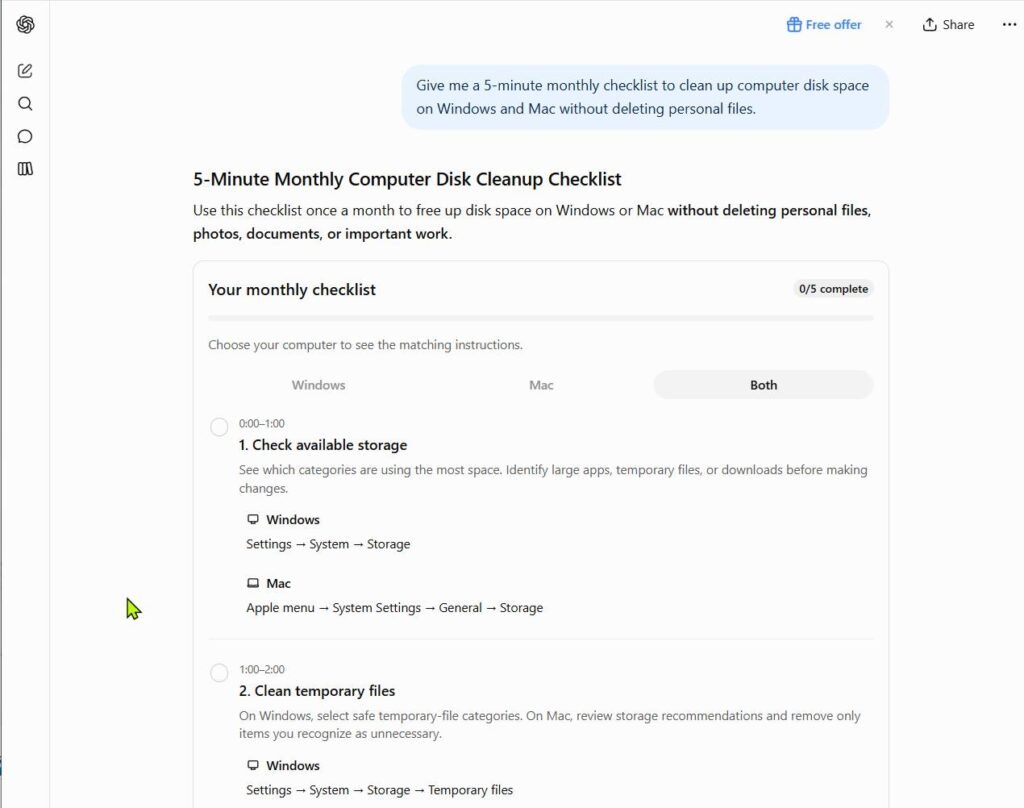
Monthly habit: Spend five minutes once a month emptying the bin, clearing Downloads, and setting rarely used files to online-only. It prevents the problem from coming back.
FAQ: Computer Running Out of Storage
How do you fix a computer running out of storage?
Start by emptying the Recycle Bin or Trash, cleaning your Downloads folder, and uninstalling apps you don’t use. Then run Storage Sense or Cleanup recommendations on Windows, or review the storage recommendations on Mac. If you still need space, move files you rarely use to cloud storage and set them to online-only.
What happens if my computer runs out of storage?
Your computer may slow down, fail to install updates, and refuse to save new files. Apps can also freeze or crash because they have no room for temporary files. Freeing up space usually fixes these problems.
What should I delete if my storage is full?
Begin with things that are safe to remove: the contents of the Recycle Bin or Trash, installers in your Downloads folder, temporary files, and apps you no longer use. Be careful with personal files such as photos and documents. Move those to the cloud or an external drive instead of deleting them.
Does cloud storage really free up space on my computer?
Yes, but only if you use the online-only feature, such as Files On-Demand in OneDrive, Optimize Mac Storage in iCloud, Stream files in Google Drive, or online-only in Dropbox. If your files are set to stay on the device, the cloud app keeps a full copy and you won’t save any space.
Can I still open my files if they are online-only?
Yes. When you open an online-only file, it downloads automatically, so you need an internet connection the first time. You can mark important files to keep available offline. Learn more in our guide to accessing your cloud files on any device.
Is it safe to delete a file from my computer after moving it to the cloud?
It is safe once the file has finished syncing and you can see it online. Be careful with synced folders, because deleting a file inside one can also delete it from the cloud. Using a separate backup or the provider’s recovery feature adds protection, as covered in our cloud backup guide.
What is the fastest way to free up disk space?
Emptying the Recycle Bin or Trash and running Storage Sense (Windows) or the Mac storage recommendations are the quickest wins. For the biggest result, find your largest folders, usually videos and photos, and move them to cloud storage.
Final Thoughts
A full drive doesn’t mean you have to give up your files. Clear the easy clutter first, check what is using your space, and then let the cloud carry the rest. Set your big folders to online-only, keep a healthy amount of free space, and make a quick monthly cleanup a habit. Pick one cloud service today, move your largest folder, and enjoy a faster, lighter computer.