

Need to fix Google Drive not syncing? If it says “Syncing…” and never finishes, that is annoying, but it is fixable. This guide helps you find out why your uploads are stuck. Then it shows seven easy ways to get your files moving again on Windows and Mac.
Who this is for
You use Google Drive for desktop. Your files sit on “Syncing” for hours, or even days.
How to use this guide
Start with Fix 1. Test after each fix. Stop as soon as sync works. Most fixes take under five minutes.
Google Drive for desktop keeps the files on your computer and the files in your online Drive in step. When it works, you forget it is there. When it gets stuck, the icon spins and your files never show up on your other devices.
The good news? Google’s own help page lists a short set of basic fixes: check your internet, restart the app, restart your computer, reconnect your account, and reinstall. This guide puts those steps in a smart order to help you fix Google Drive not syncing faster. It also adds the part most guides skip: how to find the one file that jams the whole queue. New to the cloud? Read our simple guide on what cloud storage is and how it works first.
Fix Google Drive Not Syncing: Why Is Drive Stuck on “Syncing”?

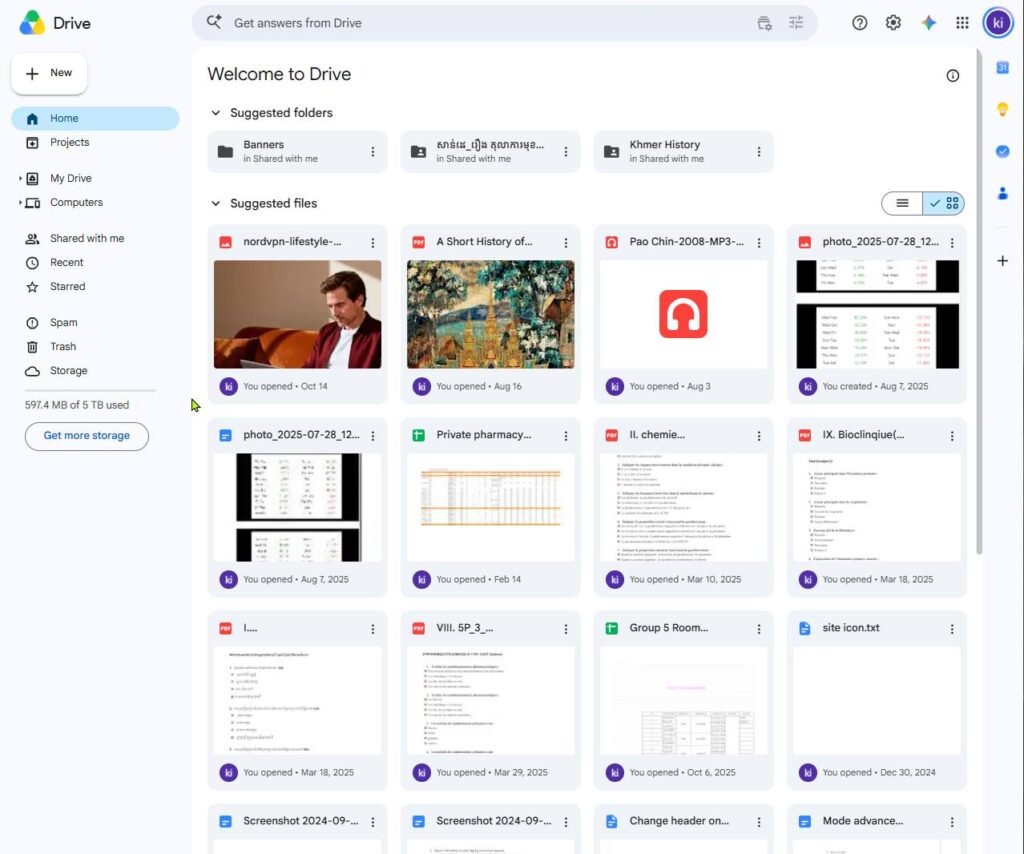
Sync works like a line at a shop. Files wait their turn. If one thing blocks the line, everything behind it waits too. These are the most common blockers:
- Weak or blocked internet: Wi-Fi drops, a VPN, a proxy, or a firewall can stop uploads. Google says firewall and proxy settings can get in the way.
- Full storage: Your Google storage or your computer’s hard drive has no room left.
- One problem file: A file that is damaged, moved, or locked can hold up the line.
- Your computer says no: Mac privacy settings, antivirus, or cleaner apps can block Drive.
- A glitchy app or sign-in: An old version or a broken login can freeze sync.
- A Google problem: Rare, but it happens.
- A very big upload: Huge folders take a long time. They can look stuck when they are not.
Use this table to jump to the right fix:
| What you see | Most likely cause | Try this |
|---|---|---|
| Spinner for hours, same file count | One problem file | Fix 5 |
| Nothing moves, or sync looks paused | Paused or stuck app | Fix 1 and Fix 2 |
| Internet works elsewhere, but not Drive | VPN, proxy, or firewall | Fix 3 and Fix 7 |
| A message about low space | Full storage | Fix 4 |
| Asked to sign in again, or account will not load | Sign-in problem | Fix 6 |
| Drive crashes or stays stuck after an update | Old or damaged install | Fix 7 |
| Drive is slow for everyone | Google outage | Check the status page below |
How to Tell If Drive Is Slow or Truly Frozen

Big files look frozen, but they are often just slow. Before you change anything, check which one you have. It saves a lot of time.
Slow but working
- The “files left” number slowly goes down.
- Drive is using your internet upload.
- New files appear on drive.google.com one by one.
Truly frozen
- The same file and the same number stay put for an hour or more.
- Drive uses almost no internet.
- You see an error, or sync is paused.
A 30-second check: is Drive sending data?
- Windows: Press Ctrl + Shift + Esc to open Task Manager. On the Processes tab, find Google Drive and look at the Network column. (It may show as “GoogleDriveFS”.)
- Mac: Open Activity Monitor. Click the Network tab. Find Google Drive and watch the “Sent Bytes” number.
If the number keeps climbing, Drive is working. Wait. If it stays at zero, keep reading.
How long should an upload take? This table shows the best case at three upload speeds. Real life is usually slower. Many home plans have a much lower upload speed than download speed.
| Upload size | 5 Mbps | 10 Mbps | 50 Mbps |
|---|---|---|---|
| 1 GB | About 27 minutes | About 13 minutes | About 3 minutes |
| 10 GB | About 4.5 hours | About 2 hours | About 27 minutes |
| 100 GB | About 44 hours | About 22 hours | About 4.5 hours |
Good to know: Google also sets a daily upload limit. If you hit it, Drive tries again later. Google says that if the file still does not sync, wait a day and restart Drive for desktop. Moving a huge folder? Add it in smaller batches. Our guide on moving files to cloud storage shows how.
Before You Start: Check Whether Google Drive Is Down
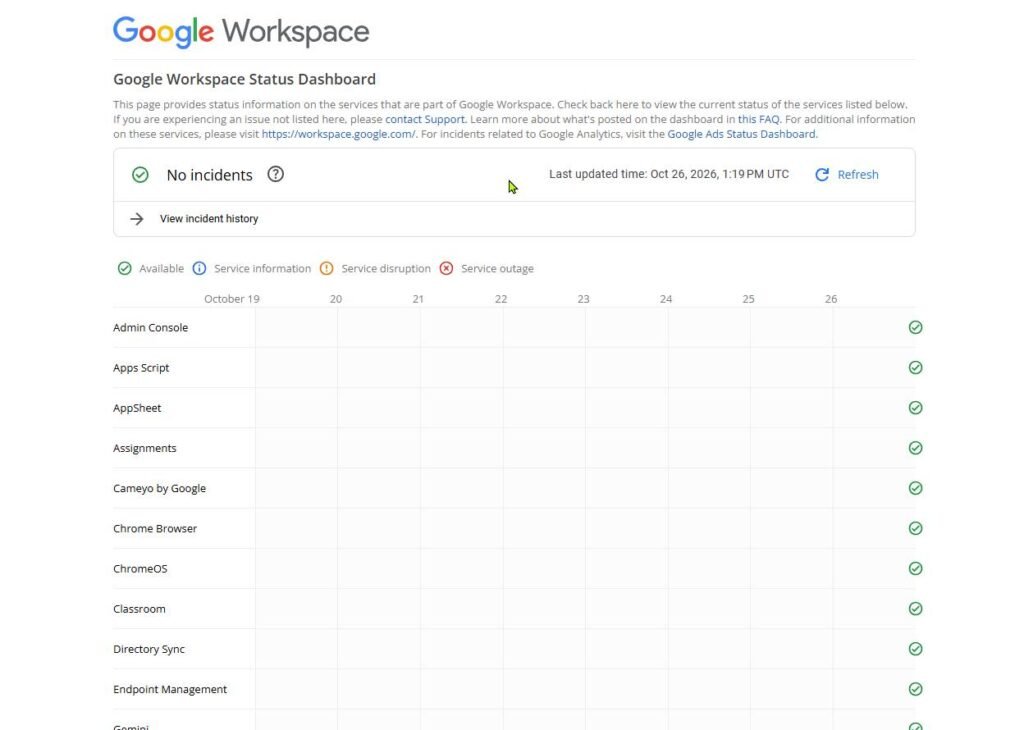
Sometimes the problem is not on your side. Open the Google Workspace Status Dashboard and look for Google Drive. If you see an active problem, wait. Nothing you do on your computer will fix it.
No problem listed? Good. Move on to Fix 1.
Fix 1: Pause and Resume Sync
This is the fastest fix. It restarts the sync line without closing the app. Try it first.
- Open the Drive menu. On Windows, click the Drive icon at the bottom right of your screen. On Mac, click it in the top menu bar.
- Pause syncing. Click the gear or three-dot icon, then choose Pause syncing.
- Wait 10 seconds.
- Resume syncing. Open the same menu and choose Resume syncing.
Menus look a little different from one version of Drive to the next. If you do not see these exact words, look for a “Pause” option in the same menu.
Fix 2: Quit and Restart Google Drive (Then Restart Your Computer)
A full restart clears small glitches. Google lists it as a basic fix. Do it in two rounds.
Round 1: Restart the app.
- Open Drive for desktop.
- Click Settings (the gear icon), then click Quit.
- Open Drive for desktop again.
Drive will not quit? Force it. On Windows, open Task Manager, select Google Drive, and click End task. On Mac, press Option + Command + Esc, select Google Drive, and click Force Quit.
Round 2: Restart your computer. Still stuck after Round 1? Restart your PC or Mac. Then open Drive and give it a few minutes.
Fix 3: Check Internet, VPN, and Proxy Settings
Drive cannot upload if the connection is weak or blocked. Check these three things, in this order:
- Your internet: Run a quick test on Fast.com. If speeds are low, turn your router off for 30 seconds, then turn it back on.
- Your VPN: Turn it off and see if sync starts. If it does, your VPN is the problem. Try a different server, or leave Drive out of the VPN if your VPN allows that.
- Your proxy: Open Drive for desktop, then Settings, then Preferences. If you see proxy settings, try the “Direct connection” option.
On a work or school network? The network itself may block Drive. Google explains this in its firewall and proxy guide. Your IT team can help.
Fix 4: Free Up Google Account and Computer Storage
Drive needs room in two places. Both can block sync, and they are separate limits. So check both.
- Cloud storage (your Google account): Free accounts get 15 GB. Drive, Gmail, and Google Photos all share it. See what is using it on Google’s storage help page. Delete big files, then empty the Trash.
- Computer storage (your hard drive): Drive needs free space on your computer too. That includes any USB or external drive you sync with. Free up space on the drive named in the low-space message.
Need a hand clearing space? Our guide on freeing up disk space with cloud storage has easy steps.
Watch out: Google says sync can also fail when you edit a file you do not own and the owner’s storage is full. Ask the owner to free up space or transfer the file to you.
When you finish cleaning up, quit Drive and open it again. Google recommends this step after you free up space.
Fix 5: Find and Remove the File Blocking the Queue
This is the fix most guides skip. It is also the fix that most often clears a sync that has been stuck for days. One bad file can hold up thousands of good ones. Your job is to find it.
Step 1: Look for the file with the problem
Open the Drive menu and look at the sync list. Is one file marked with an error? Does one file never move while others finish? That is your suspect.
Step 2: Check the “Lost and Found” folder
Sometimes Drive cannot upload a file. When that happens, it copies the file to a Lost and Found folder on your computer and shows a notice. According to Google, you can find it here:
- Windows:
C:\Users\<username>\AppData\Local\Google\DriveFS\lost_and_found - Mac:
/Users/<username>/Library/Application Support/Google/DriveFS/lost_and_found
Move the files back into My Drive to try again. Or save them somewhere else on your computer. On a Mac, the Library folder is hidden. In Finder, click Go, hold down the Option key, then click Library.
Step 3: Know the usual suspects
- Google Docs shortcut files (.gdoc, .gsheet): These are only shortcuts. Editing them with a non-Google program can damage them. Google says to make a copy of the original in Drive on the web, then delete the damaged file on your computer.
- Files you cannot edit: If someone shared the file with you, ask for edit access. Without it, your changes cannot sync.
- Deleted or moved files: If the file was deleted online, remove it from the folder and add it again. If you deleted it on your computer, restore it from the Recycle Bin or Trash.
- Locked folders: Drive needs permission to read and write the folder. Check the folder’s Properties on Windows, or Get Info on Mac.
- Very long names or odd symbols: They can cause trouble. Shorten the name and try again.
Step 4: Test by moving files out
Cannot spot the culprit? Use the halving trick.
- Copy first. Make a safe copy of the folder somewhere outside Drive.
- Move half out. Take half of the stuck files out of the synced folder.
- Watch the queue. Does sync finish? The bad file is in the half you moved out. Does it stay stuck? It is in the half that remains.
- Repeat. Keep splitting the stuck group in half until you are down to one file.
- Fix or leave out that file. Rename it, shrink it, or upload it on drive.google.com instead.
Tip: Never delete a file just to unblock the queue. Copy it somewhere safe first.
Fix 6: Reconnect Your Google Account
A broken sign-in can freeze sync without any warning. Signing out and back in often clears it.
Do this first: Google says files in your Lost and Found folder are deleted when you disconnect your account. Copy anything you need out of that folder before you go on.
- Open Drive for desktop.
- Click Settings, then Preferences, then the gear icon for Advanced settings.
- Find your account and click Disconnect account.
- Sign in again through your browser.
- Choose a location for your Google Drive folder.
Give Drive a few minutes to check your files again. A big folder can take a while.
On a Mac? Your Mac may be blocking Drive from your folders. Open System Settings, then Privacy & Security, then Files and Folders, and allow Google Drive. (Older Macs call this System Preferences, then Security & Privacy.) Google also notes that Drive needs your permission for folders and Apple Photos. See its system requirements page for more.
Fix 7: Update or Reinstall Drive for Desktop (and Allow It Through Your Firewall and Antivirus)
An old or damaged install can leave sync stuck for good. A fresh copy often solves it. Do these steps in order.
Step 1: Stop security tools from blocking Drive
- Firewall: Make sure Google Drive is on your firewall’s allowed list.
- Antivirus: Google says to exclude Drive for desktop from your virus scan if you keep seeing “Drive for desktop encountered a problem and has stopped.”
- Cleaner apps: Google warns that system cleaners, such as CCleaner and Advanced SystemCare, can change Drive’s settings. This can cause errors and even data loss. Pause them or exclude Drive.
Only allow the official Google app. For safe habits, read our guide to cloud storage security.
Step 2: Update or reinstall
- Save unsynced files. Copy any files that have not reached Drive to a safe spot. This includes the Lost and Found folder.
- Check the basics. Make sure your computer meets Google’s system requirements.
- Remove the old app. On Windows, go to Settings, then Apps, then Installed apps. On Mac, drag Google Drive from Applications to the Trash.
- Download the newest version. Get it from Google’s official Drive download page.
- Install and sign in. Follow the on-screen steps and wait for Drive to check your files.
Still using the old Backup and Sync app? It has been replaced by Drive for desktop. Install Drive for desktop from Google’s official Drive download page.
How to Confirm Sync Is Working Again
Do not just trust the icon. Run this quick test.
- Check the Drive menu. You should see no errors and no files waiting.
- Add a small test file. Save a tiny text file into your Drive folder.
- Look for it online. Open drive.google.com in your browser. The file should show up within a few minutes.
- Test the other direction. Add a file on drive.google.com. It should appear in your computer’s Drive folder.
- Check a second device. Open Drive on your phone or another computer. See our guide to opening cloud files on any device if you need help.
Still stuck? In Drive for desktop, click Settings, then Send feedback, and tick “Include diagnostic logs.” Google asks for this when you report a problem. In a hurry? Upload your files on drive.google.com in your browser while you sort it out.
FAQ: Google Drive Sync Questions, Answered
How do I force Google Drive to sync?
Pause syncing, wait 10 seconds, then resume (Fix 1). If that does not help, quit Drive and open it again (Fix 2). These two steps restart the sync line and are the quickest way to give it a push.
Why does Google Drive keep failing to sync?
When Drive keeps failing to sync, the same cause is usually repeating. The usual causes are one bad file (Fix 5), an antivirus or cleaner app (Fix 7), a VPN or weak connection (Fix 3), or low storage (Fix 4). Notice when it fails. After a VPN turns on? After a cleaner app runs? That pattern points to the cause.
Does a full Drive stop syncing?
Yes. If your Google storage is full, new files will not upload. Your computer’s hard drive can fill up too, and that blocks sync as well. Free accounts share 15 GB across Drive, Gmail, and Google Photos. Check the storage help page to see what is using your space.
How long should Google Drive take to sync?
It depends on file size and upload speed. Use the table near the top of this guide. A 10 GB folder on a 10 Mbps connection takes about two hours at best. If Drive is sending data, it is working, even if the file count barely moves.
Will I lose my files if I reinstall Google Drive?
Files already in your online Drive stay safe. Files that never finished uploading are the risk. Copy them to another folder first, and do the same for anything in your Lost and Found folder before you disconnect your account.
Final Thoughts: Fix Google Drive Not Syncing for Good
You can fix Google Drive not syncing without stress, because the cause is usually simple. Check if Drive is slow or frozen. Rule out a Google outage. Then work down the seven fixes, and test after each one. If one file is jamming the line, Fix 5 will find it.
One last tip: sync is not the same as backup. If you delete a file in one place, sync can remove it everywhere. Learn the difference in our cloud backup guide for beginners. For more easy how-tos, visit our Cloud Hub.