

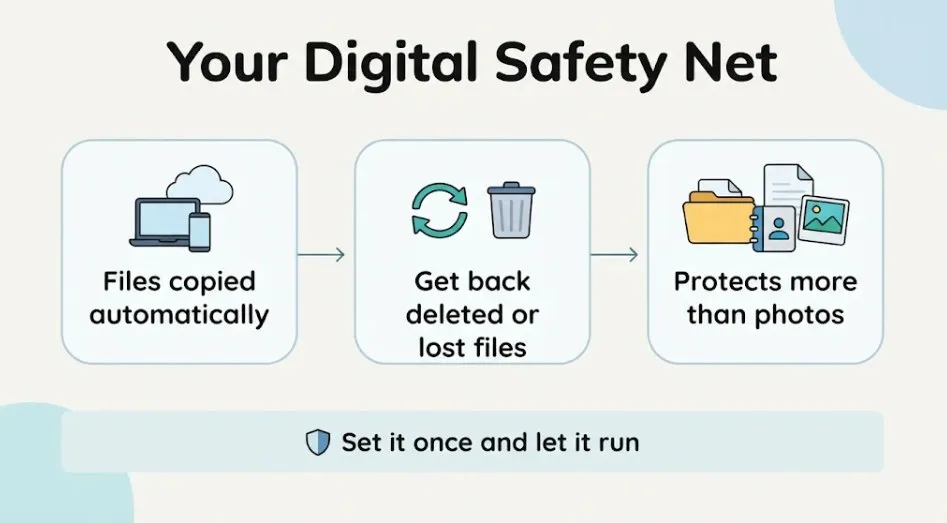
What can cloud backup be used for? Far more than just photos. Most of us back up our photos and call it done, but photos are only a small part of what you would miss if your phone or laptop vanished tomorrow. This guide shows which files deserve protection first and how to set up cloud backup in about ten minutes.
Losing files is more common than most people think. A 2024 Backblaze survey, reported by Dropbox, found that 74% of Americans who own a computer have accidentally deleted important data. Only 15% felt completely sure their files were safely backed up.
The good news is that the fix is simple. Once you know what cloud backup can do, staying safe takes one small step at a time.
What Can Cloud Backup Be Used For? (Quick Answer in 3 Sentences)
Cloud backup is a service that automatically copies your files to a secure online location. You use it to get files back after you delete them by mistake, lose a device, or get hit by ransomware. It is not only for photos, and it protects far more than most people expect.
If you are brand new to the idea, our Cloud Backup for Beginners guide covers the basics step by step.
Cloud Backup vs Cloud Sync: Why Saving Photos Is Not Enough
Most photo apps, like iCloud Photos and Google Photos, work as sync tools. Sync keeps the same files on all your devices. That is handy, but it has a catch: if you delete a file on one device, it disappears from the others too.
Cloud sync
Mirrors your files across devices. Great for access. A deleted or damaged file can spread everywhere.
Cloud backup
Keeps a separate copy, often with older versions. Built to help you recover after a mistake or a loss.
Apple is clear about this split. Its iPhone backup does not include items already stored in iCloud, such as iCloud Photos and iMessages. In plain words, a photo app keeps your photos in sync and does little for everything else.
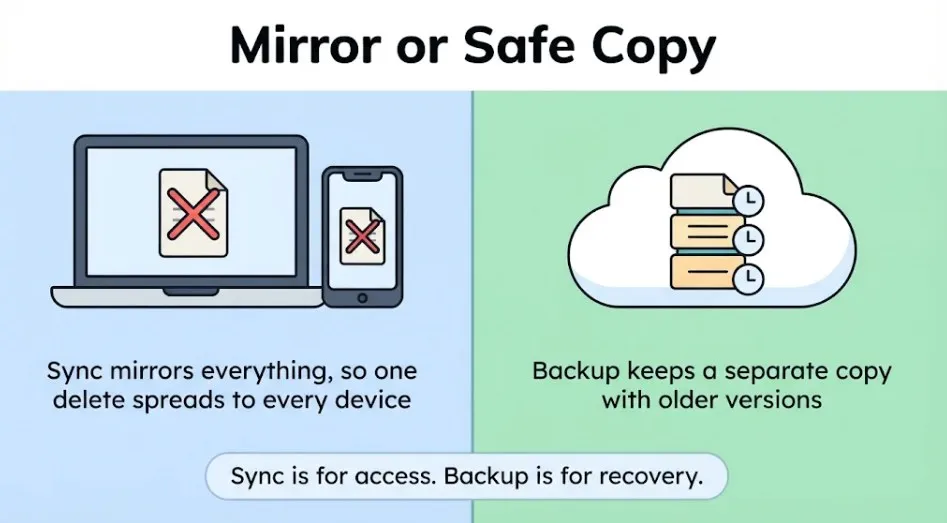
Your documents, settings and other files need their own protection. Dropbox explains the difference well: with a backup, you can roll back to a snapshot from before a deletion or a malware problem, while sync can simply copy the damage.
8 Things You Can Use Cloud Backup For
What can cloud backup be used for? Here are eight answers, beyond saving photos.
- Undo accidental deletes. You empty the trash, then realize you needed that file. A backup with a longer retention period can still hold it.
- Roll back bad edits. Saved over the wrong version of a document? Version history lets you restore an earlier copy.
- Recover a lost, stolen or broken phone. A phone backup can bring back contacts, settings and more on a new device.
- Recover after ransomware. If malware locks your files, a clean, older copy lets you restore them without starting over.
- Protect papers you cannot replace. Tax records, contracts, ID scans and warranties are boring until you need them.
- Protect the whole computer, not just one folder. Some backup tools copy a full snapshot of your system, including settings and system data.
- Cover your external drives. Many backup services can copy an external drive, as long as it is plugged in during the backup.
- Keep a copy away from home. Fire, flood and burglary can wipe out your computer and your backup drive together. An off-site cloud copy is the last line of defense, and it is the heart of the 3-2-1 backup rule.
Looking for everyday uses of cloud storage instead, like sharing and collaborating? See What Can Cloud Storage Be Used For?
Which Files Deserve Backup? A Simple Priority Checklist
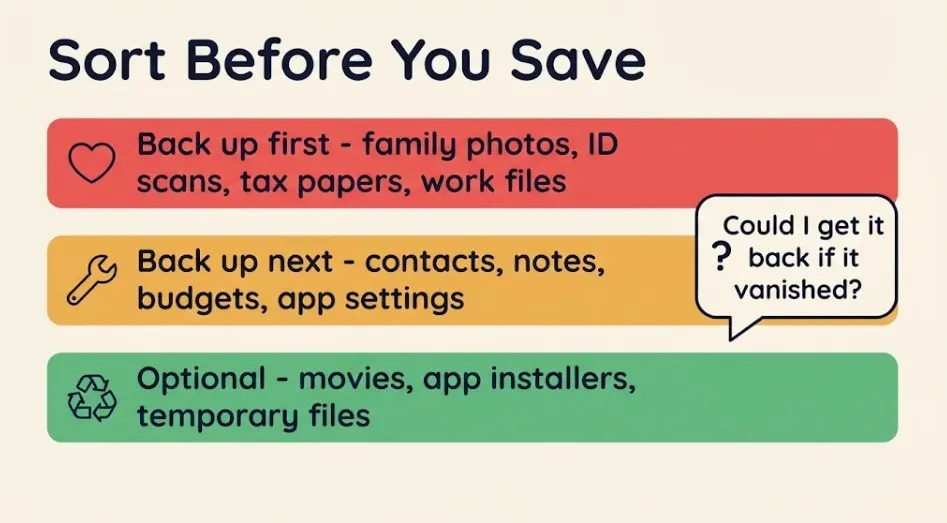
Knowing what cloud backup can do is only half the job. You also need to know which files to protect first, so ask yourself three quick questions:
- Could I get this file again if it vanished?
- Would losing it cost me money, time or memories?
- Would it hurt if a stranger read it?
Your answers sort files into three groups.
| Priority | What goes here | Examples |
|---|---|---|
| Back up first | Cannot be replaced | Family photos and videos, ID scans, tax and legal papers, your own projects, school assignments |
| Back up next | Hard to replace | Contacts, notes, household budgets, long email archives, creative projects, app settings |
| Optional | Easy to replace | Downloaded movies, app installers, temporary files |
Start with the first row. If you do only that, you are already ahead of most people.
One more thing to check is where you save files. Backup apps usually pick your main user folders by default. Anything stored outside them is often not protected, and the app may not warn you.
Good to know: Consumer Reports suggests keeping copies in three places: your computer, an external hard drive and a cloud service. The cloud is the one that survives a disaster at home.
What Files Should You Avoid Backing Up?
There is no single official “do not back up” list. It depends on the file and the service. Still, a few kinds of files deserve extra care or can simply be skipped.
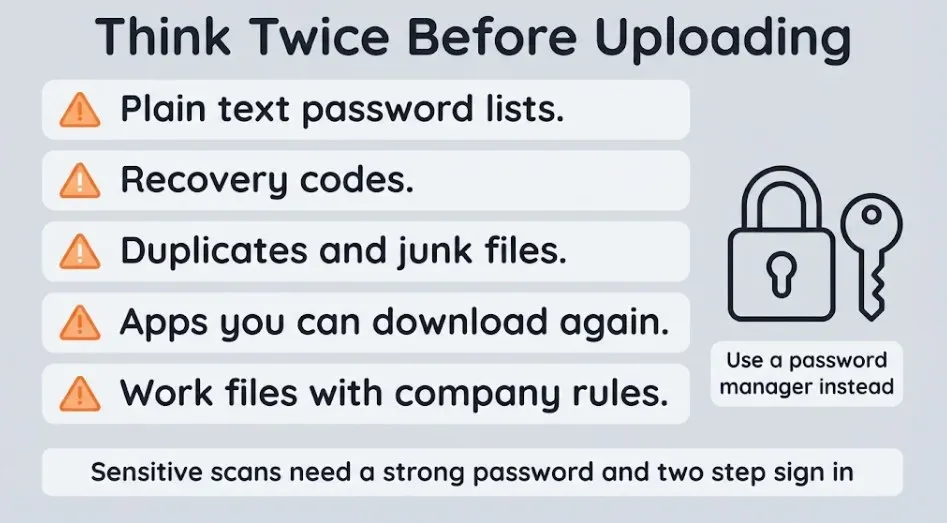
- Plain-text password lists and recovery codes. Use a password manager instead. Zapier’s cloud storage review also advises against storing banking passwords, social security numbers or crypto wallet codes in cloud storage.
- Very sensitive scans, unless they are protected. ID scans and legal papers are worth backing up, but many storage services can decrypt your files because they hold the keys. Choose a tool that lets you set your own private key, or lock the files in an encrypted folder first. Consumer Reports warns that if you lose that key, nobody can recover your data.
- Duplicates and junk. Some services do not remove duplicate files, so extra copies use up your space and can cost you more.
- Apps you can reinstall. You can download them again. Apple’s iPhone backup, for example, does not include apps themselves.
- Work files your employer keeps on approved systems. If your job has data rules, follow them before copying anything to a personal account.
If you are unsure about a file, a good rule is simple: if you would be upset to see it leaked, protect it with a strong password and two-factor sign-in, or keep it offline.
How to Back Up Your iPhone, Android or Computer to the Cloud
Menus change with software updates, so use these steps as a guide. Each one follows the official help pages from Apple, Google and Microsoft.
iPhone
- Open Settings, tap your name, then tap iCloud.
- Tap iCloud Backup and turn on Back Up This iPhone.
- Plug in your phone, connect to Wi-Fi and lock the screen. Automatic backups run under those conditions.
- To back up right away, tap Back Up Now and stay on Wi-Fi until it finishes.
Apple walks through the same steps in its iCloud backup guide. You get 5 GB of iCloud storage free, which fills up quickly if you also store photos there.

Android
- Open Settings, then tap Google and All services.
- Under Backup and restore, tap Backup.
- Choose what to save: photos and videos, device data, or both.
- Turn backup on, or tap Back up now. It can take up to 24 hours.
Google says device backup covers apps and app data, call history, contacts, device settings, and SMS and MMS messages. It also offers 15 GB of backup storage at no charge.
Windows or Mac computer
- Install and sign in to OneDrive, or to the cloud service you prefer.
- Open OneDrive settings, go to the Sync and back up tab and choose Manage backup.
- Select the folders to protect, such as Desktop, Documents and Pictures, then click Start backup.
- Check the OneDrive icon later to confirm the upload has finished.
Microsoft notes you can back up to 5 GB for free. Be aware of one limit. This kind of folder backup is built on sync, so deleted files only stay recoverable for a short time. The comparison table later in this guide shows how short.
Once your files are safe, our guide on accessing your cloud files on any device shows how to open them anywhere.
How Cloud Backup Saves You From Ransomware, Theft and Spills
Bad things rarely arrive with a warning. Here are three common ones, and how a backup helps.
- Ransomware. This malware locks your files and demands payment. If your files sync to the cloud, the locked copies can sync too. Security agencies such as CISA recommend keeping encrypted copies of critical data offline and testing that they restore cleanly. For home users, the fix is a backup with older versions, so you can pick a copy from before the attack.
- Theft or loss. A stolen laptop or lost phone is upsetting, but your files do not have to go with it. With a recent backup, you sign in on a new device and restore.
- Spills, drops and drive failure. One splash of coffee can end a laptop. Hardware can also simply wear out. An off-site copy means a broken device is an inconvenience, not a disaster.
A backup is not magic, so here are its honest limits. A backup is only useful if the copy is clean, so choose a restore point from before the problem started. Large restores can also be slow on a home connection. Some providers will ship you a drive for a fee if your library is huge.
Is Cloud Backup Safe?
Yes, for most people it is safe, as long as you take a few basic steps. Reputable services encrypt your data as it travels and while it is stored. Google, for example, says backup data is encrypted in transit, and some of it is also protected by your phone’s screen lock. Google advises using a PIN, pattern or password rather than a simple swipe.
Many services also keep copies of your files in more than one location, so one broken server does not have to mean lost data. If you are curious how that works, see where your files are stored in the cloud.
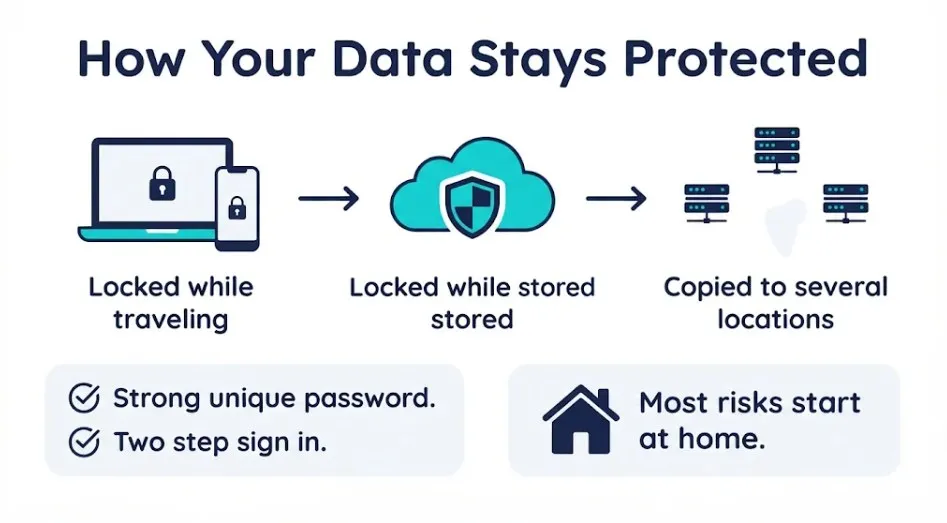
The real risks are usually closer to home: weak or reused passwords, no two-factor sign-in, and fake “storage full” scams. Our Cloud Storage Security guide shows how to lock down your account and spot those scams.
How Long Are Deleted Files Kept? A Quick Comparison Table
This is where many people get caught out. Both sync services and backup tools keep deleted files for a fixed window. If you notice a missing folder after that, the clean copy may be gone. Backup tools often add version history or longer options, but their default window can be short too, as the table shows.
| Service | Type | How long deleted files stay recoverable |
|---|---|---|
| Google Drive | Sync and storage | 30 days in Trash |
| OneDrive (personal) | Sync and storage | 30 days in the recycle bin |
| OneDrive (work or school) | Sync and storage | 93 days by default |
| Dropbox | Sync and storage | 30, 180 or 365 days, depending on plan |
| iCloud Drive | Sync and storage | 30 days in Recently Deleted |
| Backblaze | Backup | 30 days by default, with a 1-year option |
| IDrive | Backup | Up to 30 versions per file; deleted files stay in Trash 30 days |
| Carbonite Safe | Backup | 30 days on personal plans, 60 days on Pro plans |
Plans and policies change, so check each provider’s page before you rely on a number. One more useful detail: if you switch off iCloud Backup for a device, Apple keeps that device’s old backups for 180 days before deleting them.
Quick tip: If your backup tool offers a longer retention option, turn it on during setup. A short window is one common reason a recovery fails.

How to Choose the Best Cloud Backup for Personal Use
Once you know the uses, the next step is picking a service. There is no single best one for everyone, so instead of chasing a ranking, compare these points:
- What it covers: one computer, several devices, phones, or external drives.
- How long it keeps deleted files: 30 days is short. A year or more is safer.
- How restores work: web download, shipped drive, and any extra cost. Consumer Reports suggests checking what a full restore would cost and how many computers one plan allows.
- Privacy: whether you can set a private key that only you hold.
- Price: per computer, per user, or by total storage.
As a starting point, Eon’s 2026 guide matches Backblaze to one computer with a large library, IDrive to several devices on one account, and Dropbox Backup to people who already pay for Dropbox. Treat these as examples to research, not a final verdict.

What about free options? Google gives 15 GB shared across Gmail, Drive and Photos, and iCloud and Microsoft each give 5 GB. That is enough for documents and a small photo library, but not a whole computer. Free tiers also tend to have the same short deletion windows shown above.
If you also keep a local copy on a drive, our comparison of cloud storage and external hard drives can help you decide how to combine them.
Your 10-Minute Starter Plan
Now you know the answer to “what can cloud backup be used for?”, but you do not need to do everything today. Set a timer and work through these steps in order.
- Minutes 1 to 2: Pick your “back up first” files. Use the priority table above. Photos, IDs, tax papers and your own work files come first.
- Minutes 3 to 4: Turn on phone backup. Use the iPhone or Android steps above.
- Minutes 5 to 7: Turn on computer backup. Choose your Documents, Desktop and Pictures folders, or move key files into a backed-up folder. Our guide to moving files to cloud storage can help.
- Minute 8: Secure your account. Use a unique password and turn on two-factor sign-in.
- Minute 9: Check retention. Look for a longer retention option and switch it on if you can.
- Minute 10: Set a reminder. Add a monthly calendar note to restore one file as a test.
Do not skip the test: A backup you have never restored from is only a hope. Restoring one small file once a month proves it works, before you need it.
Frequently Asked Questions
What can cloud backup be used for besides photos?
Cloud backup can be used for much more than photos. It can protect documents, contacts, settings, and in some tools your whole computer. Photos are just the most visible part.
Do I need cloud backup if I already use iCloud or Google Photos?
Probably yes. Those apps keep your photos in sync, but they do not cover everything else on your devices. A device backup and a computer backup fill the gaps.
Is an external hard drive enough?
A drive is a good start, but it can be stolen, damaged or lost along with your computer. Adding a cloud copy gives you protection from fire, flood and theft. Our guide on cloud storage vs external hard drives explains the trade-offs.
Can I use cloud backup for free?
Yes, for small amounts. Free plans from Google, Apple and Microsoft offer 5 to 15 GB. A full computer or a big photo library usually needs a paid plan.
Can ransomware reach my cloud backup?
It can, if your backup shares the same sign-in or permissions as the infected device. Eon notes that ransomware can reach cloud backups that share credentials with the systems under attack. Use a strong, unique password, two-factor sign-in, and a service with older versions you can restore.
How much cloud storage do I need for backup?
It depends on your photos, videos and files. Add up the size of your “back up first” folders on your devices, then leave room to grow. If the total is over 5 GB, free Apple and Microsoft plans will not be enough. Over 15 GB, even Google’s free plan will fall short, so plan on a paid plan.
How often should I test my backup?
Once a month is a good habit. Restore one small file and make sure it opens. It takes a minute and tells you whether the backup is really working.
Final Thoughts
So, what can cloud backup be used for? Far more than a place for photos. It helps you recover deleted files, undo bad edits, survive ransomware and replace a lost device. You do not need to protect everything at once. Start with the files you could never replace, turn on backup for your phone and computer, and test one restore this month.
For more step-by-step help, browse our Cloud hub.
About this guide: Written by the ProudSecure team for everyday home users and last checked in November 2026 against official Apple, Google and Microsoft help pages. Every claim that relies on an outside source links to it above. Plans, prices and menus change, so confirm details on the provider’s page. Learn more about us.