

Where are my files stored in the cloud? You tap “upload.” The bar fills up. Then your file seems to vanish into thin air. The answer is simple, and a little surprising. This guide shows you the five places they really live and how to find them yourself.
The short answer
Your files sit on real computers called servers. Those servers live inside big buildings called data centers.
Who this guide is for
Beginners who upload photos and documents but have no idea where they actually go.
The word “cloud” sounds like something floating in the sky. It isn’t. When people ask “where are my files stored in the cloud?”, the honest answer is on real machines. Even though your files are not on your own hard drive, they still sit on a physical device somewhere. Companies keep huge numbers of these devices running day and night. New to the idea? Start with our simple guide on what cloud storage is and how it works.
Where Are My Files Stored in the Cloud? The Short Answer
Your files are stored on servers inside data centers. A server is just a powerful computer with lots of storage. A data center is a secure building that holds thousands of them.
These buildings are spread around the world. Providers do this so your files load fast and stay safe if one site has a problem, as this IT provider explains.
Easy way to remember it: The cloud is just someone else’s computer. You rent a small piece of it, and you reach it over the internet.
What Happens When You Upload a File?
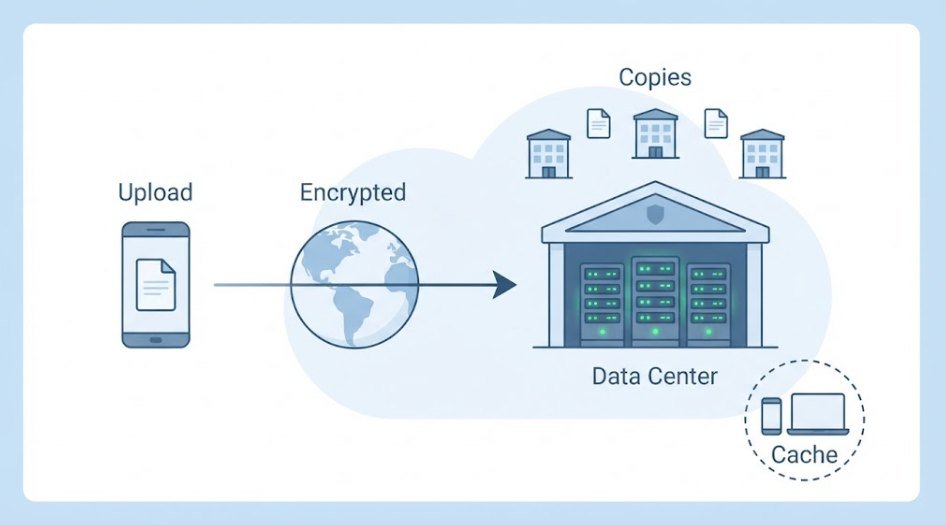
Pressing “upload” starts a short trip. Here is what usually happens, step by step.
- You tap upload. Your phone or computer sends the file over the internet.
- The file travels in a protected form. It is scrambled (encrypted) on the way so strangers can’t read it.
- A data center receives it. A server in a building you will probably never see takes it in.
- The file is cut into pieces. Some providers split files into small encrypted chunks before saving them.
- Extra copies are made. Google says it spreads data across many computers in different locations. This avoids one single point of failure.
- Your device keeps a small temporary copy. That helps files open faster next time.
All of this takes seconds. Want a walkthrough of the upload itself? See how to move files to cloud storage.
5 Surprising Places Your Files Actually Live
Some of these places are what you would expect. Others are odd. Use this table as a quick answer to “where are my files stored in the cloud?”, then read each one below.

| # | Place | What it means | Is your file here? |
|---|---|---|---|
| 1 | Giant data centers | Huge buildings full of servers | Almost certainly |
| 2 | Several locations at once | Extra copies in different buildings | Very likely |
| 3 | Another country | Servers far from where you live | Possible |
| 4 | Bunkers and underwater sites | Unusual, high-security facilities | Rare |
| 5 | Your own phone or computer | A temporary copy, called a cache | Often |
1. Giant Data Centers Run by Big Tech
This is the main answer. Most cloud files sit in huge data centers owned by a few big companies. Google lists its data center locations on its website. Amazon says its cloud spans more than 120 zones in 39 regions at the time of writing. That number keeps growing.
There are three common setups:
- The owner builds its own. Google Drive uses Google’s own data centers.
- The app rents space from a cloud giant. Some apps store files on Amazon, Microsoft or Google servers.
- A mix of both. Many services build some of their own and rent the rest.
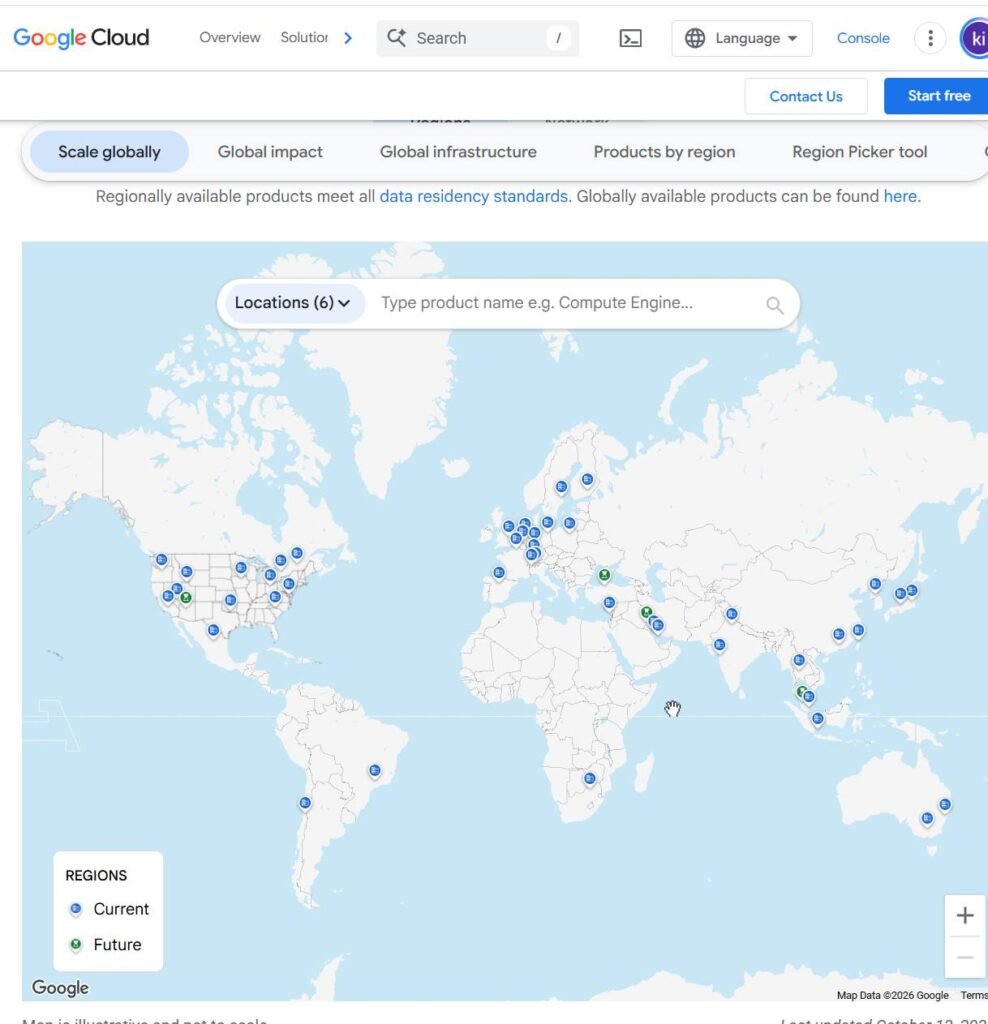
2. Several Locations at Once
Your file is rarely in just one place. Think of it like printing a photo and mailing copies to three friends. If one copy gets lost, you still have the others.
Amazon’s system works this way too. Each region has several separate data centers. They sit many kilometers apart, though all within 100 km of each other. A fire or power cut in one building won’t take your file with it. This is called redundancy, and it is why cloud files rarely just disappear.
3. Servers in Another Country
A company may be based in one country while its servers sit in another. One data recovery firm points out that a provider could be American but keep servers in the UK, China or elsewhere, and may not tell you.
Why does this matter? Different countries have different privacy and security rules. Your file’s location can decide which rules apply to it.
Good to know: Trusted providers often share where their data centers are. That openness is a good sign. Be careful with companies that hide it.
4. Hidden Spots Like Bunkers and Underwater Facilities
Now for the fun part. A few data centers are built in strange places. Your files are unlikely to be in one, but they show how far companies go to protect data.
- A nuclear bunker in Stockholm. Pionen White Mountain sits about 100 feet under the Swedish capital. It was a Cold War bunker. It has a steel blast door and backup generators built from submarine engines.
- The ocean floor. Microsoft sank 855 servers off the coast of Scotland for over two years. Fewer of them failed than servers on land. Even so, Microsoft has since ended the project. A Chinese company has also placed a commercial underwater data center near Hainan Island.
5. Your Own Phone or Computer (the Cache)
This one surprises people most. Some of your “cloud” files also live on your own device. It is called a cache. A cache is a temporary copy your device saves so things open faster.
Email is a good example. Your emails are stored in the cloud on your provider’s computers, but temporary copies are cached on your phone, tablet or laptop. Photos work in a similar way when a sync feature is switched on.
Don’t confuse the two: A cache is not your backup. It can be cleared at any time. If your phone is running low on space, our guide to freeing up disk space with cloud storage can help.
Where Do Google Drive, iCloud, OneDrive and Dropbox Store Your Files?

Every service answers the question “where are my files stored in the cloud?” a little differently. Here is a simple comparison. Companies change their systems over time, so check each provider’s help page for the latest details.
| Service | Where your files mostly live | Can you pick the location? |
|---|---|---|
| Google Drive | Google’s own data centers, with copies in more than one place | Usually not on personal accounts |
| iCloud | Apple plus partner clouds such as Amazon and Google Cloud | Usually not |
| OneDrive | Microsoft data centers | Work and school accounts may be able to |
| Dropbox | Mostly its own storage network, with Amazon in some regions | Usually not |
A few details behind the table:
- iCloud: Apple has said that encrypted file chunks are stored on Amazon and Google servers, while Apple keeps the encryption keys and file details on its own.
- Dropbox: It built its own storage system and now serves most user data from it. It has said it still partners with Amazon, especially outside the United States.
- OneDrive: Microsoft’s Multi-Geo feature lets some business customers choose where files are kept.
- Google Drive: Google says its data is automatically encrypted at rest and spread out for reliability.
How to Find Your Files in the Cloud: iPhone, Android, PC and Mac
You can’t visit the data center. But you can see your files from any device. Pick yours below. The same files show up everywhere you sign in, which we cover in how to reach cloud files on any device.

On an iPhone
- Open Settings, tap your name, then tap iCloud. This shows what is switched on.
- Open the Files app and tap iCloud Drive. Apple’s iCloud Drive guide covers the details.
- For pictures, open the Photos app. It syncs with iCloud, so your photos have copies in the cloud.
On an Android Phone
- Open the Google Drive app. Your uploads are in My Drive or the Files tab. Google’s Drive help page shows the layout.
- Open Google Photos to see photos and videos saved in your Google account.
- Need iCloud files on Android? Open a browser and go to icloud.com/iclouddrive, then sign in. Apple says you can use iCloud Drive in a web browser on a phone, tablet or computer.
On a Windows PC
- iCloud: Install iCloud for Windows. Your files then show up in File Explorer.
- OneDrive: Look for the OneDrive folder in the left side of File Explorer.
- Google Drive: Go to drive.google.com in your browser, or install Drive for desktop.
On a Mac
- iCloud: Open Finder and click iCloud Drive in the sidebar.
- Google Drive and OneDrive: Use their desktop apps, or sign in on their websites.
Can’t find a file? Check that you are signed in to the right account. Also check that the sync setting is turned on for that app.
Sync vs. Backup: Why Deleted Files Disappear Everywhere
Here is a trap many beginners fall into. Services like OneDrive and iCloud are syncing tools, not backups. Sync means your devices and the cloud always match. So if you delete a file in one place, it can vanish from the others.
Sync does this
- Keeps devices matching: Edit on your phone and see it on your laptop.
- Makes access easy: Your files follow you everywhere.
- Copies deletions too: Delete once and it goes everywhere.
Backup does this
- Keeps a separate copy: It stays safe even if you delete the original.
- Helps you recover: You can roll back after a mistake or a lost phone.
Deleted something by mistake? Check the Trash first. Google Drive, for example, keeps a Trash view for deleted files. For anything precious, keep one more copy. Learn the basics in our cloud backup guide for beginners. You can also pair the cloud with an external hard drive.
Who Can Access Your Files, and How Safe Are They?
Cloud files are usually safer than you might think. But no system is perfect. Safety is shared between the provider and you.
What providers do
- Guard the buildings: Google describes multiple security checkpoints, ID badges and iris scans at its data centers.
- Encrypt your data: Files are scrambled so they are unreadable without a key.
- Keep spare copies: Replication protects against hardware failure.
What you should do
- Use a strong, unique password: Never reuse one across sites.
- Turn on two-step sign-in: It stops most account break-ins.
- Don’t keep everything in one place: Servers can fail and accounts can be hacked.
One more thing about encryption. By default, Apple says your iCloud data is encrypted, but only certain data is end-to-end encrypted. If you switch on Advanced Data Protection, your trusted devices alone hold the keys for most of it. The trade-off is that Apple can’t help you recover that data if you lose access.
Remember, even big data centers aren’t invincible. Storage can fail, companies can be hacked and files can be deleted just like on your own computer. To learn more, read our guide to cloud storage security.
Can You Choose Where Your Files Are Stored?
Sometimes, but not always. On most free personal accounts, the provider picks the location for you. Work and school accounts often have more control. Microsoft, for instance, lets admins set a preferred data location for some business files.
If location matters to you, here is what you can do:
- Read the provider’s privacy or help page. Look for words like “data location” or “data residency.”
- Pick a provider that is open about it. Clear answers are a good sign.
- Ask your IT admin at work. They may be able to see or set the location.
- Protect very private files yourself. Lock them with a password before you upload.
Frequently Asked Questions
Where is cloud storage on my phone?
The cloud itself is not on your phone. Your phone shows it through an app, like Google Drive or the Files app on iPhone. Some files also keep a small temporary copy on your phone so they open faster.
Where are my photos stored in the cloud on an iPhone?
The Photos app syncs your camera roll with iCloud when that option is on. That means copies of your pictures are stored in your iCloud storage. You can check this under Settings, then your name, then iCloud.
Can I see the exact building my files are in?
Usually not. When you ask “where are my files stored in the cloud?”, most providers will give you a region, not a street address. They often keep exact locations private for security, and some don’t say which country holds your data. You can normally see the general region in your account or in the provider’s help pages.
Do deleted files stay in the cloud?
Often they go to a Trash or Recycle area first, where you can restore them. If sync is on, deleting a file on one device can remove it from the others. Check the Trash right away if you deleted something by mistake.
Are my files stored in my own country?
Maybe. The answer to “where are my files stored in the cloud?” depends on the provider. Many providers store data close to you so it loads fast. But copies may sit in other countries, and some providers don’t say where. Check your provider’s data location page for clear details.
Does cloud storage use up space on my phone?
It can. Cached copies and downloaded files take room on your device. Clearing the cache or switching files to online-only frees space without deleting them from the cloud. Our guide on freeing up disk space shows how.
Is the cloud just someone else’s computer?
Pretty much. You rent space on computers owned by a company and reach them over the internet. The big difference is scale. Those computers sit in secure data centers with backup power, copies in several places and trained staff.
Final Thoughts: Your Files Are Closer, and Safer, Than You Think
So, where are my files stored in the cloud? On servers inside secure data centers, usually with copies in more than one place. Sometimes they sit in another country. A temporary copy may also live on your own device. And a few rare data centers hide in bunkers or under the sea.
You don’t need to be a tech expert to stay in control. Know which service holds your files. Use strong passwords and two-step sign-in. Keep a second copy of anything you can’t lose. Want more simple guides like this? Visit our Cloud Hub.