

Automatic cloud backup on Windows 11 solves the biggest backup problem: forgetting to run one. Most people don’t lose files because backups are hard. They lose them because they forgot to back up. This guide shows you how to turn it on once, so your files stay protected without you having to remember anything.
Who this is for
Windows 11 users who keep meaning to back up but never get around to it.
What it takes
About 15 minutes, a Microsoft account, and free OneDrive space to start.
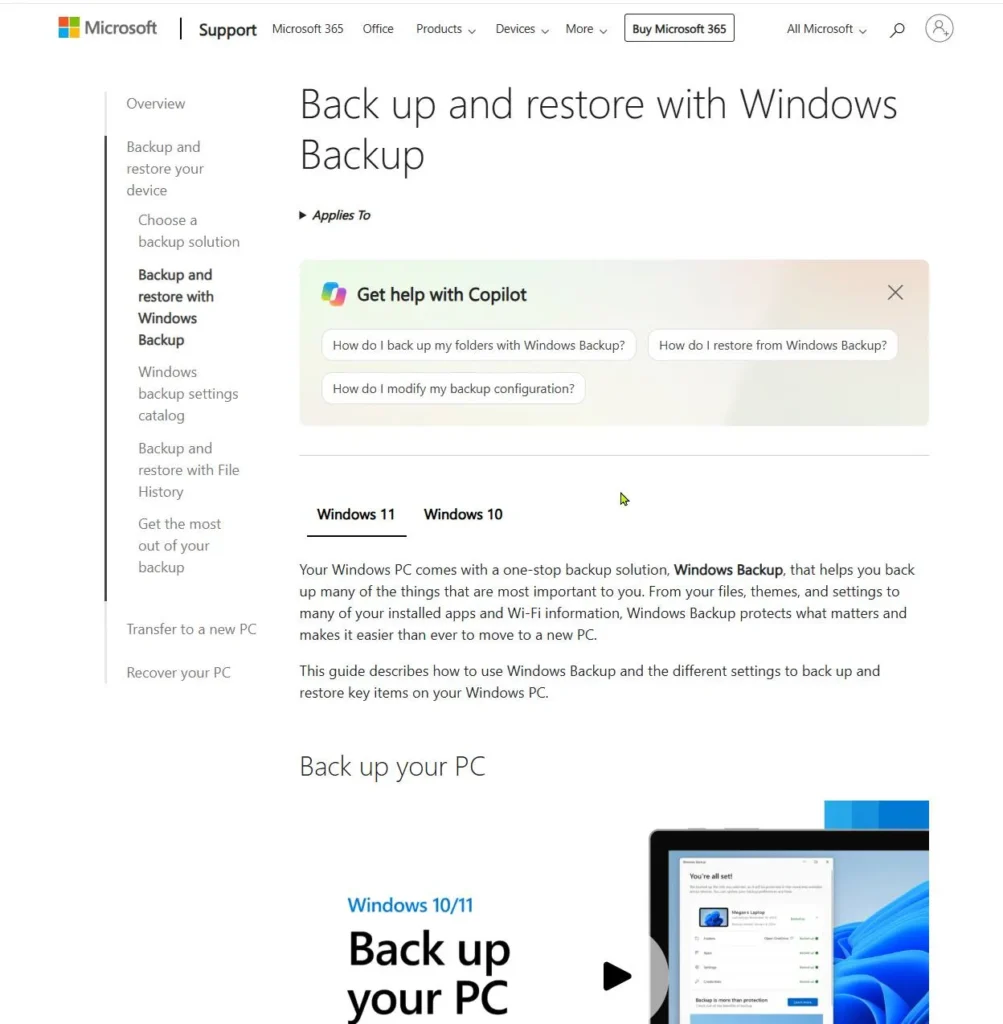
A manual backup only works on the days you remember it. Automatic cloud backup on Windows 11 also works on the days you forget. Windows 11 already includes the tools you need, and Microsoft explains them in its Windows Backup guide. Below, we walk through them in plain steps and tell you honestly what they can and can’t do.
Last checked: November 2026, against Microsoft’s current support pages. The steps follow Microsoft’s official documentation and HP’s backup guide, both linked throughout, and our about page explains how we research our guides. Menus can look slightly different on your PC depending on your Windows 11 version. If a button has moved, the names in this guide will still help you find it.
Why Backups You Have to Remember Always Fail
Manual backups depend on one thing: you. You have to plug in a drive, copy your folders, and click the right button. That works for a week or two. Then life gets busy and the habit fades.
HP’s guide on automatic backups on Windows makes the same point. Manual backups often fail because people put them off or simply forget. Meanwhile, data loss from hardware failure, accidental deletion, or malware usually arrives without warning.
An automatic backup fixes the memory problem. You set it up once, and it works quietly in the background. That is the idea behind automatic cloud backup on Windows 11: you stay protected without relying on willpower.
One quick note before we start. Cloud backup and cloud sync are not the same thing, and mixing them up is a common way to lose files. Our cloud backup for beginners guide explains the difference in simple terms.
Does Windows 11 Back Up Automatically? (What Runs by Itself and What Doesn’t)
Partly. Windows 11 doesn’t protect everything on its own, but it can protect a lot once you switch it on. HP’s guide says backups only run automatically after you enable a tool such as File History or OneDrive. Microsoft adds that some settings are backed up by default, which is why they may already show as “Backed up.”
Here is what runs by itself after a one-time setup:
- Folder backup to OneDrive: your chosen folders sync to the cloud in the background.
- Settings backup: things like Wi-Fi details, language, and personalization, if you turn them on.
And here is what does not run by itself:
- File History: it needs an external drive and a one-time setup.
- System image backups: these are manual, though HP notes you can schedule them with Task Scheduler.
- Files stored outside your backed-up folders: if a folder isn’t selected, it isn’t protected.
Quick answer: Automatic cloud backup on Windows 11 won’t start until you turn backup on once. After that, it runs without any reminders.
What You Need Before You Start (Microsoft Account, Storage Space, Internet)
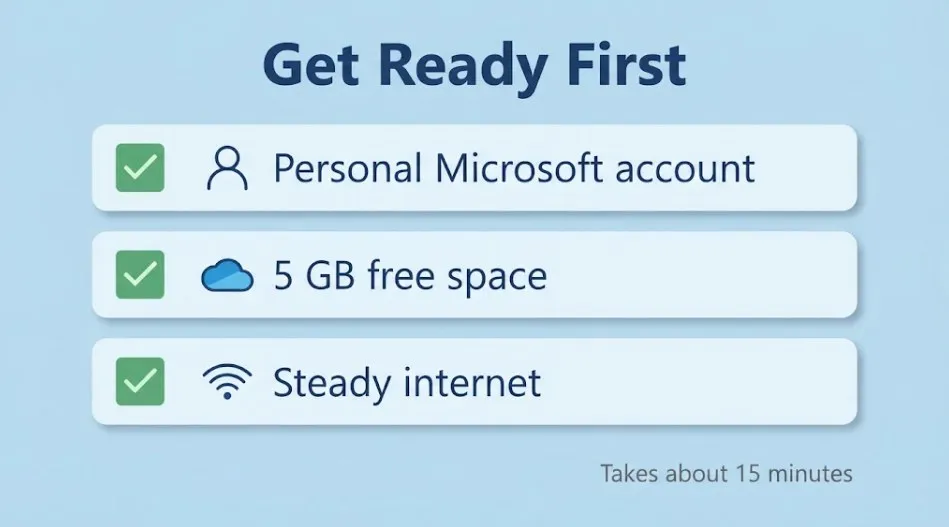
Gather these three things first. It makes the setup smooth.
- A personal Microsoft account. Windows Backup is built for personal accounts such as Outlook or Live addresses. Microsoft states that work or school accounts won’t work with it. If you sign in with a local account, go to Settings > Accounts > Your info and choose Sign in with a Microsoft account instead.
- Enough cloud space. A free Microsoft account includes 5 GB of OneDrive storage. Check how big your Documents and Pictures folders are before you begin. Right-click a folder and choose Properties to see its size.
- A steady internet connection. The first upload can take a while if you have many photos or videos. After that, only changes need to upload.
Because your files will live online, protect the account too. Use a strong, unique password and turn on two-step verification. Our guide to cloud storage security shows how to lock down your account.
How to Set Up Automatic Cloud Backup on Windows 11 With OneDrive (6 Easy Steps)
You can set up automatic cloud backup on Windows 11 in two places: the Windows Backup app or the OneDrive settings. Both back up the same folders. We use Windows Backup below because it can also save your settings.

Step 1: Sign in with a Microsoft account
Open Settings > Accounts > Your info. If you see Sign in with a local account instead, you’re already using a Microsoft account. If you see Sign in with a Microsoft account instead, select it and follow the prompts.
Step 2: Open Windows Backup
Select Start, type backup, and choose Windows Backup from the results.
Step 3: Choose the folders to protect
Expand Folders. You’ll see Desktop, Documents, Pictures, Videos, and Music. Switch on each folder you want to back up. Not sure where to begin? Start with Documents and Desktop. They’re usually small and usually the most important.
Step 4: Choose your settings and apps
Expand the other sections and switch on what you want saved:
- Installed apps
- Accessibility
- Accounts, Wi-Fi networks, and passwords
- Personalization, such as wallpaper and theme
- Language preferences
Microsoft notes that personalization settings won’t be saved if your OneDrive storage is full. Keep that in mind if you’re close to the 5 GB limit.
Step 5: Select Back up
Once everything looks right, select Back up. Your first upload starts. Keep your PC on and connected to the internet until it finishes.
Step 6: Confirm that it worked
Windows Backup shows the current state of your backup. You can also check Settings > Accounts > Windows backup. When your folders show as backed up, you’re done.
From now on, changes to those folders sync in the background. There’s no schedule to set and nothing to click.
Prefer the OneDrive way? Select the OneDrive cloud icon in your taskbar, open Help & Settings > Settings, go to Sync and backup, and select Manage backup. Turn on any folder marked “Not backed up,” then select Save changes. Microsoft covers this in its OneDrive folder backup guide.
What Gets Backed Up, and What Doesn’t
This is where many guides stay vague, so here is the honest picture. Windows Backup protects your key folders and settings. It is not a copy of your whole PC.
Backed up
- Desktop, Documents, Pictures, Videos, and Music folders you switched on
- The settings and preferences you selected
- Your app list, so apps can be found again on a new PC
Not backed up
- Files in folders you didn’t select, including custom folders
- The apps themselves. You reinstall them from the Store or the web
- A full copy of Windows. That needs a system image
Microsoft explains that on a new PC your app pins come back, and Store apps can be reinstalled with a click. Apps from outside the Store send you to the web to download the installer again.
If you keep important files somewhere else, such as a folder on another drive, move them into one of the backed-up folders. Our guide on how to move files to cloud storage shows how to do it safely.
One more thing to know. Because OneDrive keeps your folders in sync, deleting a file on your PC can remove it from the cloud copy too. OneDrive does have a Recycle Bin and version history, which HP’s guide lists as ways to recover files. Still, don’t treat it as your only safety net.
How to Check Your Automatic Cloud Backup on Windows 11 Is Really Running
A backup you never check is just a hope. The good news is that checking takes a minute. Here’s how:
- Open Windows Backup. It displays the current state of your backup.
- Look at the OneDrive icon in your taskbar. Microsoft explains what each OneDrive icon means, including when syncing is paused or has an error.
- Check from another place. Sign in to OneDrive in your web browser and open Documents. Your latest file should be there.
Monthly habit: Pick one day a month, such as the first Sunday, and run the three checks above. It takes about two minutes and catches problems early.
What to Do When Your Free 5 GB Runs Out
A free Microsoft account comes with 5 GB of OneDrive storage. That’s plenty for documents. It fills up fast with photos and videos. When storage runs out, Microsoft says backup can fail, so it’s worth acting early. Here are your options, from simplest to most involved:
- Back up fewer folders. Turn off Videos or Music and keep Documents and Desktop on.
- Clear space. Delete duplicates and files you no longer need. Microsoft’s page on what to do when OneDrive is full lists the steps.
- Buy more storage. Microsoft sells extra space. Check its storage quotas page and current pricing before you decide.
- Use a different backup service. If you need more space or a different setup, read our guide on how to choose the right cloud backup service.
A word of caution. Scammers love fake “your storage is full” emails. If you get one, don’t click the link. Go to your account directly instead. We cover this in the scam section of our security guide.
Cloud Backup vs External Drive vs System Image: Which Do You Need?
Windows offers three main ways to back up. Each does a different job:
- Cloud backup: your files and settings are stored online, away from your PC.
- External drive (File History): copies of your personal files saved to a drive you plug in.
- System image: a full copy of Windows, your apps, and your files, used to rebuild a whole PC.
| Option | Where the copy lives | Runs automatically? | Best for |
|---|---|---|---|
| Cloud backup | Online, off-site | Yes, after setup | Everyday files, photos, settings |
| External drive (File History) | A drive at home | Yes, while the drive is connected | Fast local restores |
| System image | External drive or network storage | Manual (can be scheduled) | Rebuilding a whole PC |
For most home users, cloud backup is the best place to start. It protects you if your PC is lost, stolen, or damaged, because the copy isn’t in the same room. An external drive is a good second layer. Our comparison of cloud storage and external hard drives helps you weigh the two.
System images are mostly for people who want to restore Windows exactly as it was. They’re made through the older Backup and Restore (Windows 7) tool, which HP describes as a legacy feature. Microsoft’s page on choosing a backup solution gives the official overview.
4 Common Backup Problems and How to Fix Them
Most backup problems have simple causes. Here are the four you’re most likely to meet.
1. Backup shows an error or won’t start
Microsoft says this usually means you’re not signed in to OneDrive, your storage is full, or OneDrive has another issue. Sign in again, check your space, and then try once more. If it keeps failing, follow Microsoft’s steps to fix OneDrive sync problems.
2. Syncing is paused
Select the OneDrive cloud icon in your taskbar. If syncing is paused, resume it. Microsoft explains how in its page on pausing and resuming OneDrive sync.
3. Some files are skipped
OneDrive has a few file rules. A full file path must be under 260 characters. File names can’t start with a space or contain characters such as \ : / * ? < > ” |. Files over 250 GB can’t sync. Rename or shorten the file, or move it closer to the top of its folder.
4. “Folder protection is unavailable”
Microsoft says this commonly happens when your folders are connected to a work or school domain. Those folders can’t be protected with a personal OneDrive account. If this is a work PC, ask your IT administrator. Don’t try to work around company rules.
How to Change or Stop Your Backup
You’re in control. To change what’s backed up, open Settings > Accounts > Windows backup. From there you can:
- Select Manage sync settings to choose which folders sync to OneDrive.
- Use Remember my apps to turn app backup on or off.
- Use the Remember my preferences checkboxes to choose which settings to save.
To stop backing up one folder, open OneDrive’s Manage backup screen and switch that folder off. Windows will then ask what to do with the files. Read this choice carefully:
- Keep the files only in OneDrive: they’re removed from your computer.
- Keep the files only on my PC: they’re removed from OneDrive.
Stay safe: If you want your files to stay where you can see them, choose “only on my PC” and confirm the files are there before you close the window.
If you want to delete settings that were saved earlier, Microsoft says you can visit your Microsoft account Devices page and use Clear stored settings. The full steps are in the Windows Backup guide.
How to Restore Your Files (Quick Version)
A backup only matters if you can get your files back. Here are the three most common situations.
- New PC or fresh Windows install: sign in with the same Microsoft account during setup. Windows finds your backup and offers to restore it.
- Your files only: Microsoft says you can restore files any time by signing in to OneDrive with the same account you used to back up.
- A deleted or changed file: check the OneDrive Recycle Bin or use version history to bring back an older copy. See Microsoft’s page on restoring OneDrive files.
Microsoft also publishes steps for how to detect ransomware and recover files using OneDrive. For a deeper walkthrough, including files you emptied from the Recycle Bin, see our guide on how to restore deleted files from cloud backup.
Best Practices: The 3-2-1 Rule and Testing Your Backup
Automatic cloud backup is a strong start. It isn’t the whole plan. The widely used 3-2-1 rule shows what a complete plan looks like:
- 3 copies of your data
- 2 different types of storage, such as your PC and an external drive
- 1 copy off-site, such as the cloud
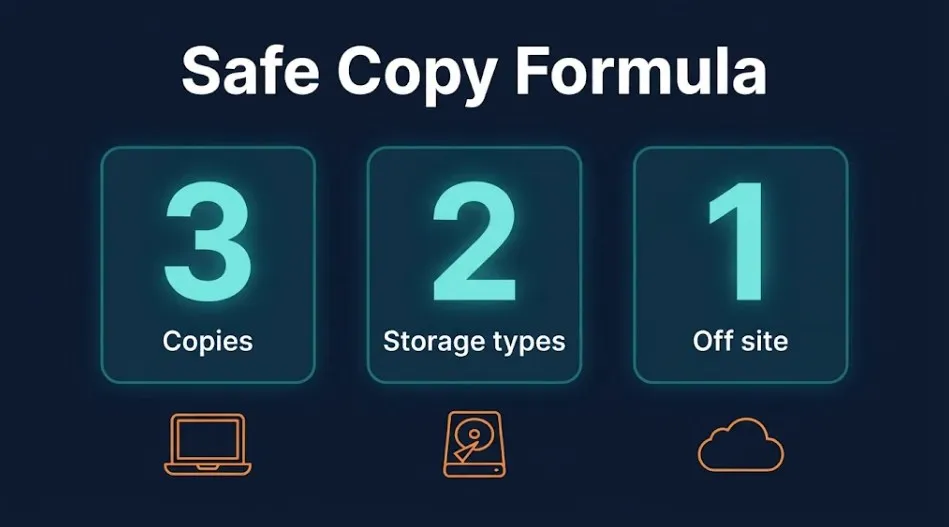
Your OneDrive backup gives you the off-site copy. Adding an external drive gets you much closer to the full rule. HP’s guide recommends combining local and cloud backup for this reason. Our explainer on the 3-2-1 backup rule goes deeper.
A few habits keep everything safe:
- Unplug your external drive when it isn’t backing up. HP advises this as protection against ransomware.
- Test a restore at least a couple of times a year. Open one backed-up file on another device to confirm it works.
- Protect sensitive files. OneDrive offers a Personal Vault for extra security on private documents.
FAQs
Does Windows 11 back up my files automatically?
Not until you turn it on. Once you switch on folder backup in Windows Backup or OneDrive, your selected folders sync in the background without any reminders.
Is Windows Backup the same as OneDrive?
They work together. Windows Backup is the tool you use to choose what to save. According to Microsoft, backing up your folders syncs them to your OneDrive account.
Is 5 GB enough for automatic cloud backup on Windows 11?
It’s enough for documents and a desktop. It’s usually not enough for large photo and video libraries. Check your folder sizes first, then back up fewer folders or add storage if you need to.
Can I use a work or school account?
Not with Windows Backup. Microsoft says the app is focused on personal accounts, so work or school accounts won’t work. On a work PC, ask your IT team about backup.
Will automatic backup slow down my PC?
Usually not by much. HP says backups on modern PCs run quietly in the background with little effect on your work. The first upload takes the longest.
What if my PC dies or gets stolen?
Sign in on a new PC with the same Microsoft account. Windows offers to restore your backup during setup, and your files are available through OneDrive.
Is cloud backup safe?
It’s a reasonable choice when you protect your account. Use a strong, unique password and two-step verification, and keep an extra copy on an external drive. Our cloud storage security guide has more tips.
Final Thoughts
Backups only protect you if they run. By switching on automatic cloud backup on Windows 11, you take memory out of the equation. Sign in, choose your folders, select Back up, and check it once a month. That’s the whole routine.
Remember the limits too. Windows Backup covers your key folders and settings, not your whole PC, and the free 5 GB can fill up. Adding an external drive gives you a stronger safety net. For more guides like this, visit our Cloud Hub, or learn more about us and how we research our guides.