

Need to know how to restore deleted files from cloud backup? You emptied the Recycle Bin, and now you need a file back. If that file ever lived in a cloud service, there is a good chance a copy still exists. This guide shows you where to look, in the right order, and what to do if the cloud copy is gone.
Emptying the Windows Recycle Bin only clears the copy on your PC. It does not touch your cloud account. That is why cloud recovery works so often. Cloud services keep their own bin, and many also keep older versions of your files. Here’s how to restore deleted files from cloud backup without making things worse.
Last reviewed: November 2026. The retention periods in this guide come from each provider’s own help page, linked in the steps and in the sources line under the table. Retention rules change, so open the linked page to confirm the numbers for your plan before you rely on them.
How to Restore Deleted Files From Cloud Backup: Is It Really Possible?
Often, yes. How to restore deleted files from cloud backup depends on where the file was and how long ago it was deleted.
When you delete a file from a synced folder on Windows, it goes to your PC’s Recycle Bin. The sync app also tells the cloud to remove it. The cloud service then moves it to its own bin, where it waits for a set number of days. Emptying the Windows Recycle Bin does not change that. The cloud copy stays in its bin until the clock runs out.
There is one catch. Files marked “online-only” in OneDrive never pass through your PC’s Recycle Bin at all. Microsoft’s OneDrive help page says those files can only be recovered from the OneDrive web recycle bin. So always check the web version first.
If you want to understand how this sync behavior works, see what cloud storage is and how it works.
Before You Start: Stop Writing to Your Drive and Find Your Backup
Act fast, but stay calm. Two things matter most right now.
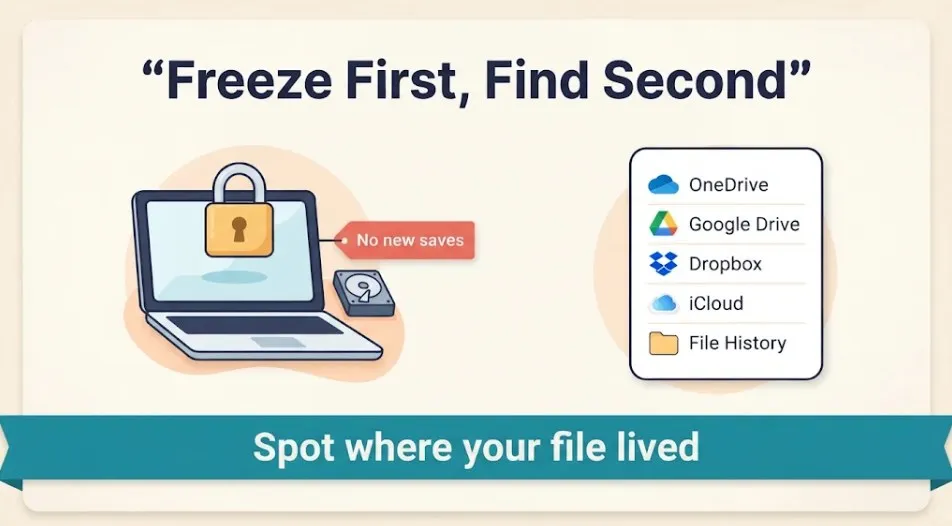
Do this first: Stop saving, downloading, or installing anything on the drive where the file lived. New data can overwrite the space your deleted file used. This matters most if you end up needing recovery software in Step 5.
Next, work out which service held your file. Think about where you usually saved it. Then check which of these you use:
- OneDrive: your Documents, Desktop, or Pictures folders are often synced to it by default on Windows 11.
- Google Drive: look for the Drive icon in your system tray or a “Google Drive” folder in File Explorer.
- Dropbox: check for a Dropbox folder in File Explorer.
- iCloud: common if you own an iPhone and installed iCloud for Windows.
- Windows Backup or File History: built-in Windows tools that may have saved copies to OneDrive or an external drive.
Not sure where your files actually live? This guide on where your files are stored in the cloud can help. New to backups in general? Start with cloud backup for beginners.
Step 1: Check the Cloud Recycle Bin
This is the fastest fix, and it works most of the time. Sign in on the service’s website, not just the desktop app. Then follow the steps for your service.
OneDrive
- Go to onedrive.live.com and sign in.
- Select Recycle bin in the left pane.
- Tick the files you want, then select Restore. Personal accounts can also use Restore all items.
Personal accounts keep deleted items for 30 days. Work or school accounts keep them for 93 days unless an admin changed that, according to Microsoft’s OneDrive restore guide.
Google Drive
- Go to drive.google.com and open Trash (called Bin in some regions).
- Right-click the file.
- Select Restore. It returns to its original folder.
Items stay in Trash for 30 days, then Google removes them for good. If you use Google Workspace, an admin may still be able to help. More on that in Step 4.
Dropbox
- Log in at dropbox.com.
- Click Deleted files in the left sidebar.
- Select the files or folders, then choose Restore.
Your recovery window depends on your plan. Dropbox lists 30 days for Basic, Plus, and Family. Longer windows apply to higher plans. If you see odd duplicate files afterward, read about the Dropbox conflicted copy message.
iCloud Drive
- Go to icloud.com/iclouddrive and sign in.
- Select Recently Deleted in the sidebar.
- Pick your files and select Recover.
Not there? Try icloud.com/recovery and choose Restore Files. Apple says files stay in Recently Deleted for 30 days. Avoid editing iCloud Drive while a recovery is running, as that can interrupt it.
Step 2: Restore Your Entire OneDrive to an Earlier Date
Use this when many files vanished at once, or when the bin restore fails. It rolls your whole OneDrive back to a chosen moment.
Per Microsoft, this feature is for Microsoft 365 subscribers and works for the last 30 days. Here’s how:
- Sign in at onedrive.live.com.
- Select the Settings gear, then Options, then Restore your OneDrive.
- Choose a date from the list, or use the slider. Pick a time before the deletion.
- Review the activity chart, select the changes you want to undo, then select Restore.
Be careful: A rollback undoes all changes after your chosen date. That includes good edits you made since. If you only need one file, try the Recycle bin or OneDrive version history first.
Step 3: Restore From Windows Backup or File History on Windows 10 and 11
If the cloud bin has nothing, check whether Windows saved its own copy. Windows 10 and Windows 11 handle this a little differently.
Windows 11: The Windows Backup app can sync folders like Desktop, Documents, and Pictures to OneDrive. If that was on, your files may be in OneDrive. Use Steps 1 and 2 above.
Windows 10 and 11: File History saves earlier versions of your files to an external drive or network location. It only works if you turned it on before the deletion. Microsoft explains the process in its File History guide. In short:
- Plug in the backup drive.
- Open File Explorer and go to the folder that used to hold the file.
- Right-click the folder and choose Restore previous versions.
- Pick a version from before the deletion. Preview it, then select Restore. To be safe, use Restore to… and save it somewhere new so you don’t overwrite anything.
Microsoft ended support for Windows 10 on October 14, 2025. These backup tools still work there, but moving to Windows 11 is the safer long-term choice because it still receives security updates.
Step 4: Recover Files Missing From the Recycle Bin
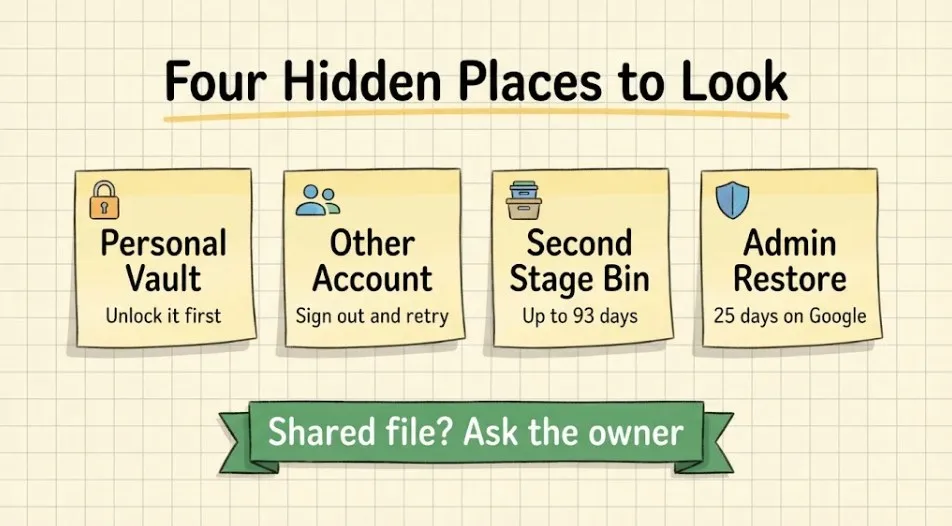
Still nothing? Don’t give up yet. Check these four spots.
Personal Vault (OneDrive). Files deleted from your Personal Vault stay hidden unless the vault is unlocked. Unlock it first, then open the recycle bin. Microsoft also notes there is a Show Personal Vault items option in the bin.
A second account. Many people have two Microsoft or Google accounts, such as a personal one and a work one. Sign out and check the other one. Also check that you didn’t save the file under a different email address.
The second-stage recycle bin (work or school OneDrive). When you empty the first bin, items can move to a second-stage bin. They stay there until the 93-day retention period ends. An admin may need to open it for you. If you can’t find it, ask your IT team.
Admin recovery (Google Workspace). Admins can restore Drive files for up to 25 days after a user empties their trash, according to Google. Ask your admin to start a restore. Don’t wait, because that window is short.
Also remember that a shared file belongs to its owner. If someone shared a file with you and it vanished, ask the owner to check their bin.
Step 5: Use Recovery Software If No Cloud Copy Exists
This is the last resort. It tries to find the file on your PC’s drive, not in the cloud. Success is never guaranteed.
Microsoft offers a free command-line tool called Windows File Recovery (winfr). It needs Windows 10 version 2004 or later, or Windows 11. Here’s the basic process:
- Install Windows File Recovery from the Microsoft Store.
- Open Command Prompt as administrator.
- Run a command that scans one drive and saves results to a different drive. For example:
winfr C: D: /regular /n \Users\YourName\Documents\ - Press Y to confirm, then check the recovery folder on the destination drive.
Use /regular for recently deleted files on a healthy NTFS drive. Use /extensive for older deletions or other file systems. Never save recovered files to the same drive you are scanning.
SSD note: Most modern PCs use an SSD, and Windows uses a feature called TRIM to clear deleted data to keep the drive fast. Once TRIM runs, recovery is often impossible. On an SSD, recovery software can only be a long shot. If the file is truly critical, power the PC off and ask a professional recovery service before you try anything else.
Third-party recovery tools exist too. Choose carefully: download only from the maker’s official site, and avoid any tool that promises a 100% success rate. No honest tool can promise that.
How to Restore Deleted Files From Cloud Backup: Retention Limits at a Glance
Time matters. Use this table to see how long you have. Always confirm the numbers for your own plan on the provider’s help page.
| Service | Where to look | Standard window | Good to know |
|---|---|---|---|
| OneDrive (personal) | Recycle bin | 30 days | “Restore your OneDrive” also covers 30 days for Microsoft 365 subscribers |
| OneDrive (work or school) | Recycle bin, then second-stage bin | 93 days | Admin can change this setting |
| Google Drive | Trash | 30 days | Workspace admins have 25 more days after the trash is emptied |
| Dropbox | Deleted files | 30 to 365 days | 30 days on Basic, Plus, Family; longer on higher plans. Upgrading later does not bring back older deletions |
| iCloud Drive | Recently Deleted, Data Recovery | 30 days | Permanently removed files cannot be restored |
| File History | Previous versions | Depends on your settings | Only works if it was on before the deletion |
Sources: Microsoft, Google, Dropbox, and Apple.
Mistakes That Make Cloud Recovery Fail
Knowing how to restore deleted files from cloud backup also means knowing what to avoid. A few simple slips cause most failed recoveries.
Assuming sync is a backup. Sync mirrors your changes. If you delete a file on your PC, sync deletes it from the cloud too. That is why the cloud bin is your safety net, and why it has a time limit. For a clear comparison, see cloud storage and external hard drives.
Waiting too long. Most personal accounts give you 30 days, and the clock starts when you delete the file, not when you notice it is gone. Check the bin as soon as you notice the loss.
Emptying the cloud bin to “clean up.” This removes your last easy chance. Leave it alone until you have your file back.
Checking only the desktop app. Online-only files and web-based bins don’t show in File Explorer. Always check the website. If the sync app itself is acting up, this guide on fixing Google Drive not syncing may help.
Restoring over newer work. A full rollback or “restore previous version” can replace files you edited recently. Restore to a new location when you can.
Saving recovered files to the same drive. With recovery software, this can overwrite the very data you are trying to save. Always use a second drive.
Upgrading your plan too late. Dropbox confirms that a longer recovery window only applies to files deleted after the upgrade. It’s not retroactive.
How to Back Up So You Never Have to Do This Again
Once you know how to restore deleted files from cloud backup, a small routine removes most of the stress. The classic guide is the 3-2-1 backup rule.
- 3 copies of your important files: the original plus two backups.
- 2 different types of storage, such as your PC and an external drive.
- 1 copy off-site, such as a cloud backup.
In practice, that could look like this: keep your files in OneDrive or Google Drive, turn on File History to an external drive, and use a separate cloud backup service for anything you can’t replace. To see what a backup can cover, read what cloud backup can be used for. If you’re not sure how these fit together, cloud backup for beginners walks through it.
Finally, test your backup. Once every few months, try restoring one file. A backup you have never tested is only a hope.
Frequently Asked Questions
Does emptying the Windows Recycle Bin delete my cloud copy?
No. Emptying the Recycle Bin clears only the copy on your PC. However, deleting a file from a synced folder in the first place does remove it from the cloud’s main view. It then sits in the service’s own bin for a set time. To restore deleted files from cloud backup, check that bin first.
How long do cloud services keep deleted files?
It varies. OneDrive personal, Google Drive, and iCloud Drive generally keep deleted items for 30 days. OneDrive work or school accounts keep them for 93 days by default. Dropbox ranges from 30 to 365 days depending on your plan. See the table above for details.
Can I recover a file after the 30-day window ends?
Sometimes, but not through the normal bin. Google Workspace admins get an extra 25 days after a user empties the trash. Work or school OneDrive keeps items for 93 days by default, so the window may be longer there. Otherwise, you would need a separate backup, such as File History, or recovery software. After the window closes, the cloud provider generally can’t bring the file back.
Is my file safe in the cloud if my PC crashes?
Usually yes, if it finished syncing before the crash. Your cloud copy lives on the provider’s servers, not on your PC. To learn how providers protect it, read about cloud storage security.
Why can’t I find my deleted file in the OneDrive Recycle bin?
Common reasons: you are signed into the wrong account, the file was in a locked Personal Vault, it was deleted more than 30 days ago (personal) or 93 days ago (work or school), or it was a shared file owned by someone else. Work and school users can also ask an admin to check the second-stage bin.
Can Windows File Recovery restore files from the cloud?
No. It scans local drives, such as internal drives, external drives, and USB sticks. It does not read cloud storage. If the file was only in the cloud, use the service’s own recovery tools to restore deleted files from cloud backup instead.
Is it worth paying a professional data recovery service?
It can be, for truly irreplaceable files such as family photos or business records. Costs vary a lot. Ask for a clear quote before you agree, and stop using the drive right away. Be wary of any service that asks for payment up front with no assessment.
Final Thoughts
Losing a file feels awful, but it’s often fixable. Now you know how to restore deleted files from cloud backup: start with the cloud bin, move to a full restore if needed, check Windows backups, then try the hidden spots. Save recovery software for last, and remember its limits on an SSD.
Once you have your file back, take ten minutes to set up a proper backup. For more on keeping your files organized and safe, explore our cloud backup guides and this guide to cloud storage folder structure.