

How to choose the right cloud backup service comes down to seven clear checks. Paying for a backup plan that doesn’t fit is easy to do: you pick the cheapest one, or the one with the loudest ad, and only find the limits when you need to restore a file. This guide helps you know what you’re paying for before you pay.
Who this guide is for
Home users comparing paid backup plans for one PC or Mac, or for a few family devices.
What you’ll get
Seven factors that show how to choose the right cloud backup service, a hidden-cost list, a simple trial test, and quick picks by situation.
If you’re brand new to the idea, start with our cloud backup for beginners guide. This post assumes you already want a backup and now need to pick one.
Most bad purchases come from the same few gaps. The plan covers one computer when you have three. The “unlimited” storage has fine print. The price jumps at renewal. The restore takes days. None of these are scary, and all of them are easy to check ahead of time. That is the heart of how to choose the right cloud backup service.
How this guide was put together: Plan details come from each provider’s own pricing and help pages, linked where used. A human editor reviewed and fact-checked the guide before publishing, and prices and limits were last checked in November 2026. Providers change prices and limits often, so confirm the current terms before you buy. You can read more about us on our About page, and see how we handle links on our affiliate disclosure page.
Do You Really Need to Pay for Cloud Backup? (Free Plans vs Paid)
Not always. A free plan can be enough for a small set of documents and some phone photos. It usually can’t protect a whole computer.
Here’s what the big free plans give you:
| Free plan | Storage included | Deleted files stay recoverable |
|---|---|---|
| Google Account | 15 GB shared across Gmail, Drive and Photos | 30 days in Trash |
| iCloud | 5 GB | 30 days in Recently Deleted |
| Microsoft account | 5 GB | 30 days in the OneDrive recycle bin (personal) |
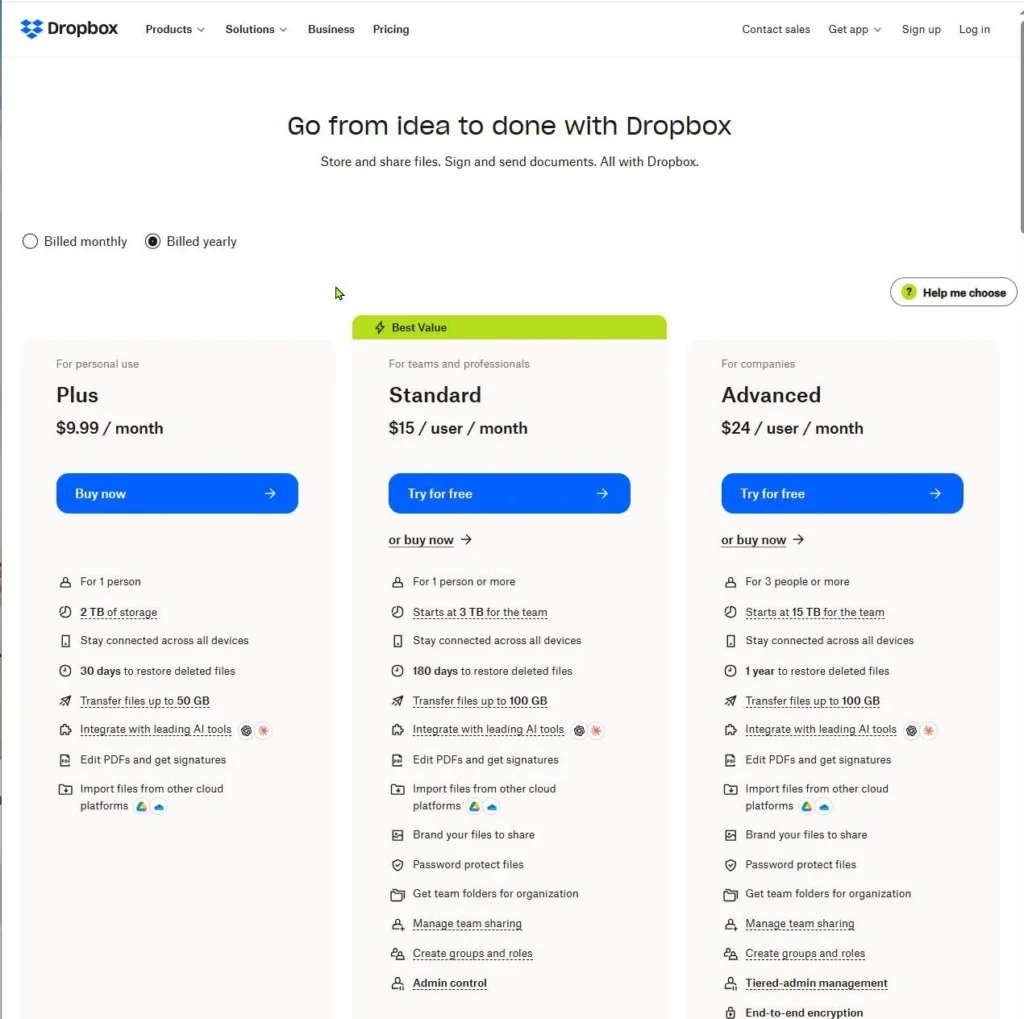
Dropbox is similar. Its backup feature works on every plan, but a free Basic account has only 2 GB of space.
So the real question isn’t “free or paid.” It’s “what would hurt to lose?”
Free is usually enough when: you only need a few documents or recent phone photos protected, and you already keep another copy somewhere else.
Paid makes sense when: you want a whole computer covered, your files are larger than your free space, or you want to recover older versions weeks or months later.
Quick test: If losing a folder would really hurt, and it won’t fit in your free space, it’s worth paying to protect it.
Before You Compare: Know How Much You Need to Back Up
Spend five minutes on this first. It’s the base of how to choose the right cloud backup service, because it changes which plans are even worth looking at.
How much data? On Windows, select your main folders in File Explorer, right-click, and choose Properties. On a Mac, select them and choose Get Info. Add up the sizes. Then leave extra room for old versions and new files. A simple rule of thumb is to add about a quarter on top.
How many devices? Count every computer, and decide whether phones and external drives matter too.
What kind of data? Family photos, tax records and work files each deserve different care. Our guide on what cloud backup can be used for has more ideas.
How fast would you need it back? Do you need it within hours, or are a few days fine? The answer decides whether you also need a copy at home. More on that in Factor 5.
Factor 1: Is It a Real Backup or Just Sync?
This is the most common mix-up, so check it first.
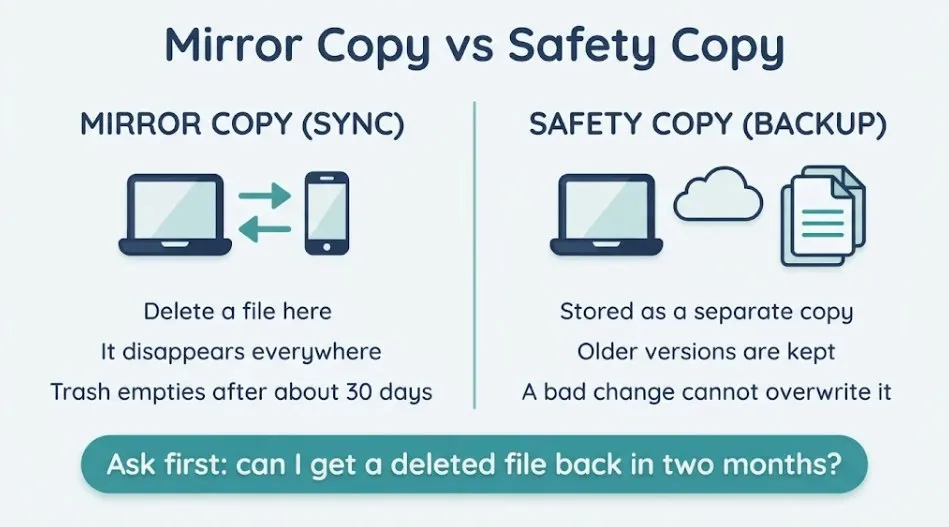
Sync mirrors your files across devices. If you delete a file or ransomware scrambles it, that change spreads everywhere. Services like Google Drive, OneDrive and iCloud Drive work this way, and their trash bins empty after a fixed window. Google Drive, for example, keeps trashed files for 30 days. Our guide on how cloud storage works explains the basics.
Backup keeps separate copies and earlier versions on its own schedule. A bad change on your PC can’t overwrite the good copy.
Ask this before you pay: “If I delete a file today, can I still get it back in two months?” If the answer is no, you’re looking at sync, not backup.
Factor 2: Pricing Models: Per Computer, Storage Pool or Bundled with Sync
Backup plans are priced in different ways, and this is a big part of how to choose the right cloud backup service. The right model depends on how many devices you have and how much data sits on each.
| Pricing model | How it works | Example | Often fits |
|---|---|---|---|
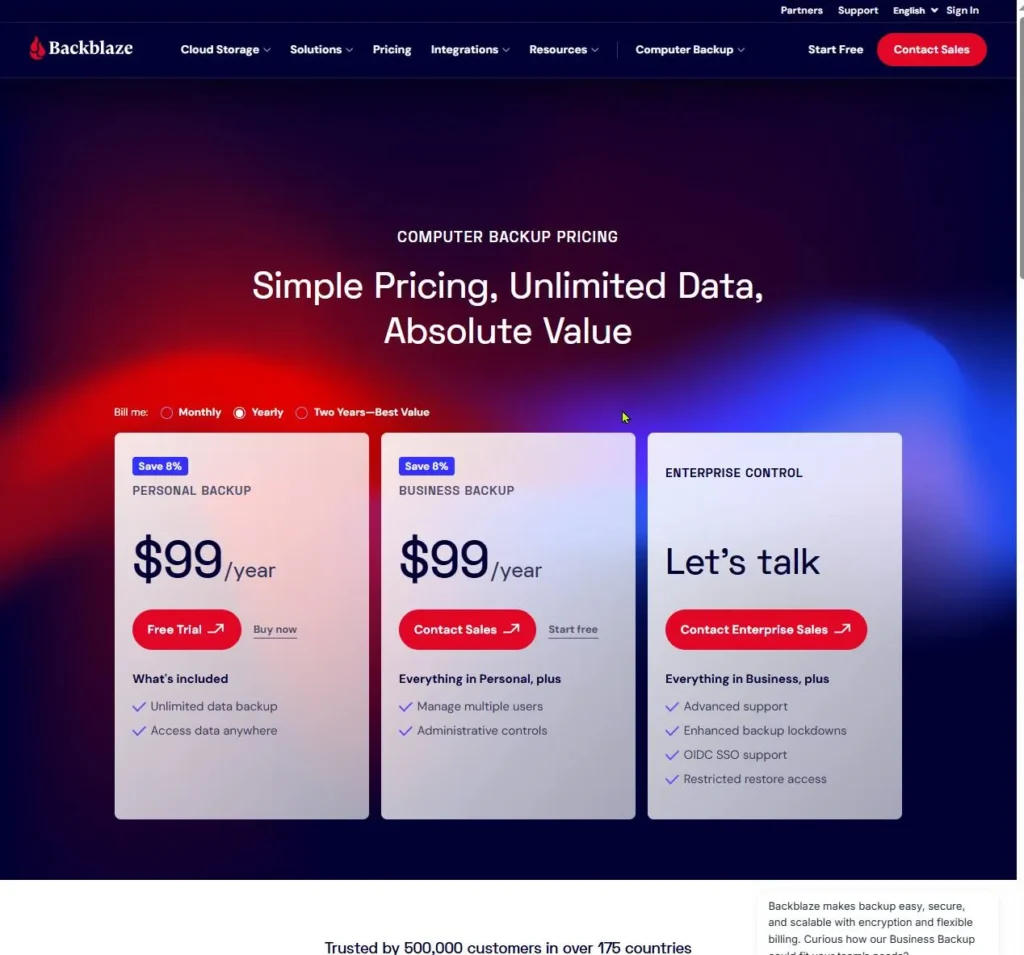
| Per computer | Flat yearly fee for one machine | Backblaze ($99 a year, no data cap), Carbonite Safe Basic ($95.99 a year) | One computer with lots of data |
| Storage pool | One storage allowance shared by several devices | IDrive | Several devices, moderate data |
| Bundled with sync | Backup feature inside a sync plan you may already pay for | Dropbox Backup | People already paying for that service |
Prices above are the figures listed at the time of writing. Check each pricing page for today’s numbers.
A simple way to compare: write down your total data and device count, then work out the yearly cost for each model. Don’t compare headline prices alone. A cheap plan with a small storage cap can cost more than a flat per-computer plan once your photo library grows.
Factor 3: Hidden Costs: Renewal Hikes, Restore Fees and Fair-Use Limits
This is where “paying for a plan that doesn’t fit” usually happens. The monthly price is only part of the bill, so read the small print on these three things.
Renewal hikes. A low first-year price can rise at renewal. IDrive, for example, lists its Personal 5 TB plan at $6.99 a month on a yearly plan in year one, then $9.99. That’s about 43% more in year two. Always look for the renewal price, not just the intro offer.

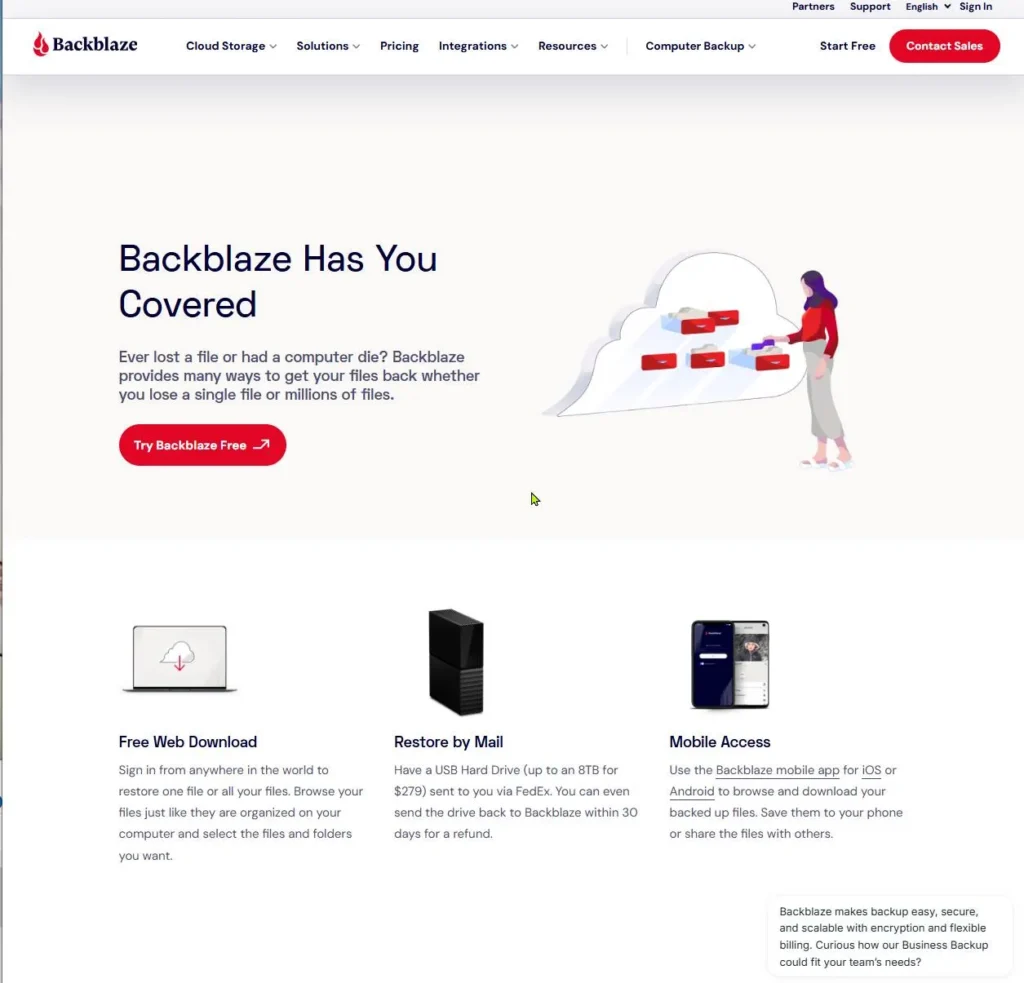
Restore fees. Downloading your files back from the web is normally included. Shipping a physical drive often isn’t. Backblaze sells a USB restore drive holding up to 8 TB for $279, and it refunds the cost if you return the drive within 30 days. IDrive Express charges $99.50 per restore request. These options are useful if you ever need a big restore, but know the cost before you need it.
Fair-use limits and fine print. “Unlimited” can still have rules. Some plans cover one computer per license. Some stop backing up external drives that stay unplugged too long. Carbonite, for example, drops external drives from the backup after 30 days unplugged.
Before you pay, find these four answers: the renewal price, how many devices the plan covers, what restores cost, and what happens if you go over your storage.
Factor 4: Security and Who Holds the Encryption Key
Your backup holds your most personal files, so security matters. The good news is that the basics are simple to check. For a wider look at risks, read our guide to cloud storage security.
Encryption. Look for encryption in transit and at rest. Most reputable services offer both.
Who holds the key. This is the part people skip. With a provider-managed key, the company can help if you forget your password. With a private key, only you know it. IDrive’s optional private encryption key works this way, and IDrive never keeps a copy. That’s more private, but if you lose the key, nobody can recover your files.
Neither choice is wrong. Pick the private key if privacy matters most and you’ll store the key safely. Pick the provider-managed key if you’d rather have a way back in.
Account protection. Turn on two-factor sign-in. Attackers often go after backups. In one Sophos survey, 94% of organizations hit by ransomware said attackers tried to compromise their backups, and 57% of those attempts succeeded. That research covers companies, but the lesson holds at home: a strong login and a copy the attacker can’t reach both help. CISA’s ransomware guide also recommends encrypted, offline copies of important data that you test regularly.
Factor 5: Restore Speed and Options
A backup is only useful if you can get your files back. This is the check that most buyers skip, and the one that matters most on a bad day.
Look for these restore options:
A single file or folder. The everyday case.
An earlier version. Handy when a file was changed, not deleted.
Everything onto a new computer. The case that tests your internet speed.
Downloading hundreds of gigabytes over a home connection can take a long time. That’s why some services offer a shipped drive, as covered in Factor 3. It’s also why many people keep a local copy too. Our comparison of cloud storage and external hard drives shows how the two work together.
Once you’ve chosen, it helps to know the steps in advance. Here’s our walkthrough on restoring deleted files from cloud backup.
Factor 6: Version History and Retention
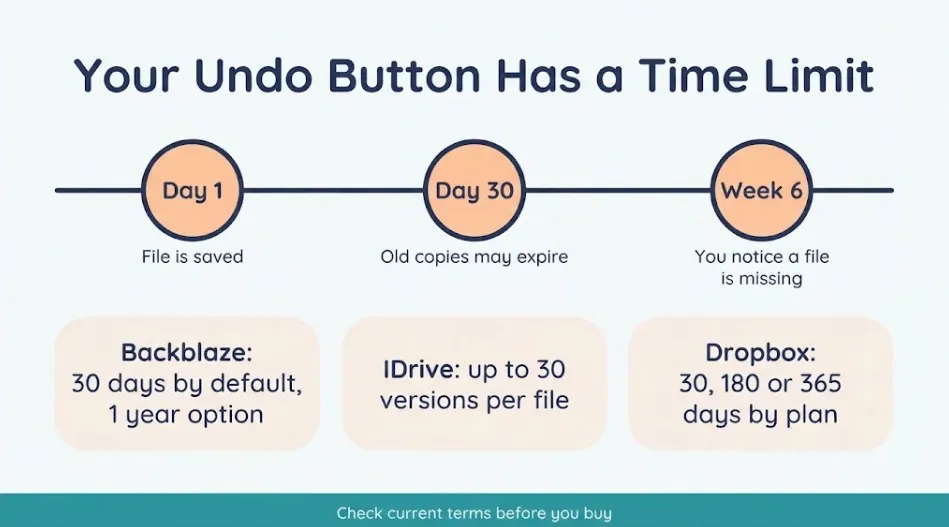
Version history is your undo button. It matters because you often notice a missing or damaged file weeks later, not the same day. If a service only keeps old copies for 30 days, a problem you spot in week six may be gone for good.
Here’s how some popular home options handle it:
- Backblaze: 30 days of version history by default, with a free 1-year option. Forever retention costs $0.006 per GB per month for files older than a year.
- IDrive: up to 30 previous versions of each file. A file you save many times a day can use those up quickly.
- Carbonite Safe (personal plans): deleted files stay recoverable for 30 days.
- Dropbox: 30, 180 or 365 days, depending on your plan.
When you compare, ask two questions. How many versions are kept? And for how long? “Unlimited versions” with no explanation is a reason to ask more.
Factor 7: Device Coverage, Automation and Ease of Use
The best backup is one you never have to think about. To work out how to choose the right cloud backup service, check three things.
Coverage. Does it protect every computer you own? What about phones and external drives? Some tools only cover computers. Dropbox’s mobile app, for example, gives you access to computer backups but isn’t a phone backup. If you also want to reach files from any device, see our guide on accessing cloud files on any device.
Automation. Look for scheduled or continuous backups that start with your computer. Even better, look for an alert if a device hasn’t backed up for a while.
Ease of use. A clear dashboard should show when your last backup ran and what was included. If you can’t tell whether it’s working, you can’t trust it.
Support, Trial Period and Money-Back Guarantee
These aren’t technical factors, but they protect your money.
Support. Find out how you can reach a real person: chat, email or phone. Check the hours too. You’ll want help most when something has gone wrong.
Trial or free tier. A trial lets you test the service with your own files. Some providers offer a free tier as well. IDrive lists a free plan on its pricing page, for example. Trial terms change, so confirm the length and whether a card is required.
Money-back guarantee. If a refund window exists, note the exact number of days and whether it covers annual plans. A trial plus a refund window is the safest way to test a plan.
How to Test a Cloud Backup During the Free Trial
Don’t wait for a real emergency to find out if a backup works. A restore test is the most reliable step in how to choose the right cloud backup service, so use the trial to run a small, safe test.
- Make a test folder. Add a mix of files: a document, a photo and a large file. Keep it small enough to upload quickly.
- Run the first backup and wait. Leave your computer on and connected until the app says the backup is complete. Your first backup is the slowest one.
- Delete one file and restore it. Time how long it takes and note how easy the steps were.
- Edit a file, back up again, then restore the older version. This checks that version history really works.
- Restore the whole test folder to a different location. This shows you what a bigger restore feels like.
While you test, watch the small things too. Did the app slow your computer down? Did it send a clear confirmation? Was there a simple way to cancel?
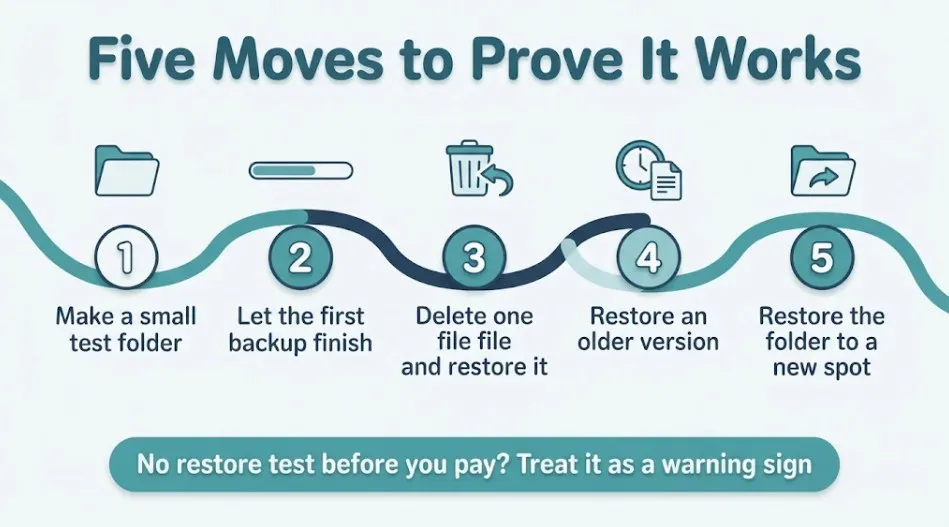
Quick tip: If a service gives you no way to try a restore before you commit, treat that as a warning sign.
Red Flags and Real User Complaints Before You Pay
When you learn how to choose the right cloud backup service, remember that no service is perfect and reviews vary. Still, a few patterns come up again and again. Reviewers in OpenText’s 2026 roundup mention slow uploads on some services and unexpected overage charges when storage limits are passed. Treat individual reports as clues, not verdicts, and test for yourself.
Green flags
- Clear renewal price and cancellation terms
- Plain explanation of encryption and who holds the key
- Version history with stated numbers and time limits
- A trial or refund window, and a named company with a support route
Red flags
- “Unlimited” storage with limits hidden in the terms
- Vague security claims and no word on encryption keys
- No way to test a restore before you pay
- No clear company name, address or support contact
If you spot a red flag, don’t panic. Ask the provider about it. A good company will answer plainly. If it won’t, that tells you something too.

How to Cancel or Switch Without Losing Your Backups
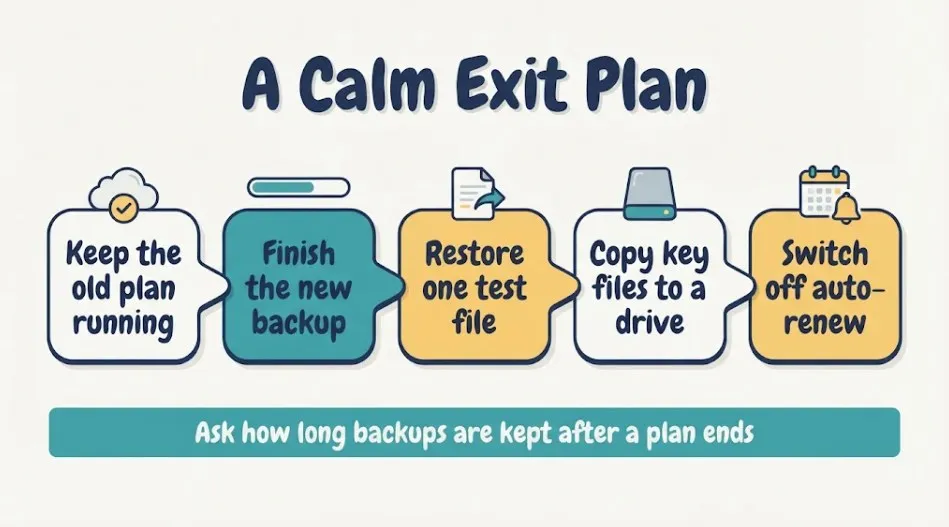
Choosing a service shouldn’t trap you. Plan your exit before you sign up, so switching later stays calm and safe.
Keep the old service running at first. Don’t cancel until the new backup has finished and you’ve restored a test file from it.
Make a local copy. Before you cancel, restore or copy your important files to an external drive. This also follows the 3-2-1 backup rule, which keeps more than one copy of what matters.
Know what happens after you cancel. Ask how long the provider keeps your backups once a plan ends, and whether you can still restore during that time. Policies differ, so get the answer in writing if you can.
Turn off auto-renew. Set a calendar reminder a week before renewal, so a price rise never catches you by surprise.
How to Choose the Right Cloud Backup Service: Quick Picks for Single PC, Family and Phone Users
Use this table as a starting point, not a final answer. Match your situation first, then check the current terms.

| Your situation | What to look for | Example to check | Watch out for |
|---|---|---|---|
| One computer with a big photo or video library | Flat per-computer price, no data cap | Backblaze | 30-day version history by default. Check the 1-year setting. |
| Several devices on one bill | A shared storage pool | IDrive | Year-two price and the 30-version limit |
| One computer, simple and low cost | Flat yearly plan | Carbonite Safe Basic | External drives drop out after 30 days unplugged |
| Already paying for Dropbox | Backup built into your current plan | Dropbox Backup | Not a phone backup, and it counts against your plan’s storage |
| Mostly phone photos and a few documents | Free or low-cost built-in storage, plus a second copy | Google, iCloud or Microsoft free tiers | Small free limits and short deletion windows |
This isn’t a complete list of services, and plans change. Whatever you pick, run the trial test above before you commit.
Frequently Asked Questions
Do I really have to pay for cloud backup?
No, not always. Free plans can protect a few documents and recent photos. But free tiers are small and mostly built for syncing, and deleted files disappear after a short window. If you want a whole computer or older versions protected, a paid plan is usually the safer choice.
How much does cloud backup cost for a home user?
For one computer, flat plans are listed at roughly $95 to $100 a year, such as Carbonite Safe Basic and Backblaze. Storage-pool plans cost more as you add data. Always check the renewal price and any restore fees.
What is one downside of cloud backup?
Speed. The first upload can take a long time on a home connection, and a very large restore can too. A local copy on an external drive helps with fast restores. Ongoing cost is the other trade-off, which is why checking renewal prices matters.
Which cloud backup is the best?
There isn’t one best choice for everyone. How to choose the right cloud backup service depends on how many devices you have, how much data you store, and how long you want to keep old versions. Use the quick-picks table above to narrow it down, then test a trial.
Is it worth paying for iCloud backup?
It can be, if you mainly use Apple devices and want simple, automatic protection. iCloud’s free tier is only 5 GB, which fills up fast. It’s built for Apple devices, so it won’t cover a Windows PC. Many people pair it with a separate computer backup.
What are the three main types of backups?
Full, incremental and differential. A full backup copies everything. An incremental backup copies only what changed since the last backup. A differential backup copies what changed since the last full backup. Most home cloud services use incremental backups after the first full one, which keeps later uploads small.
Can ransomware reach my cloud backup?
It can, if the attacker gets into your backup account or if the backup syncs the damage. Use two-factor sign-in, choose a service with version history, and keep one extra copy offline. Our cloud storage security guide covers more ways to stay safe.
Final Thoughts: How to Choose the Right Cloud Backup Service
How to choose the right cloud backup service comes down to a short list. Make sure it’s a real backup, price it with renewals and restore fees included, check the encryption key, and look at restore options and version history. Then confirm it covers your devices and runs on its own.
Take the trial, run the five-step test, and keep a second copy of anything you can’t replace. That’s how to stay safe without overpaying. For more guides like this, browse our Cloud Hub.